How to hide Live Photos and Motion Photos
Hide Live Photos on iPhone and supported Motion Photos on Android while keeping their movement. Import them into Hidewell, then press and hold to play.
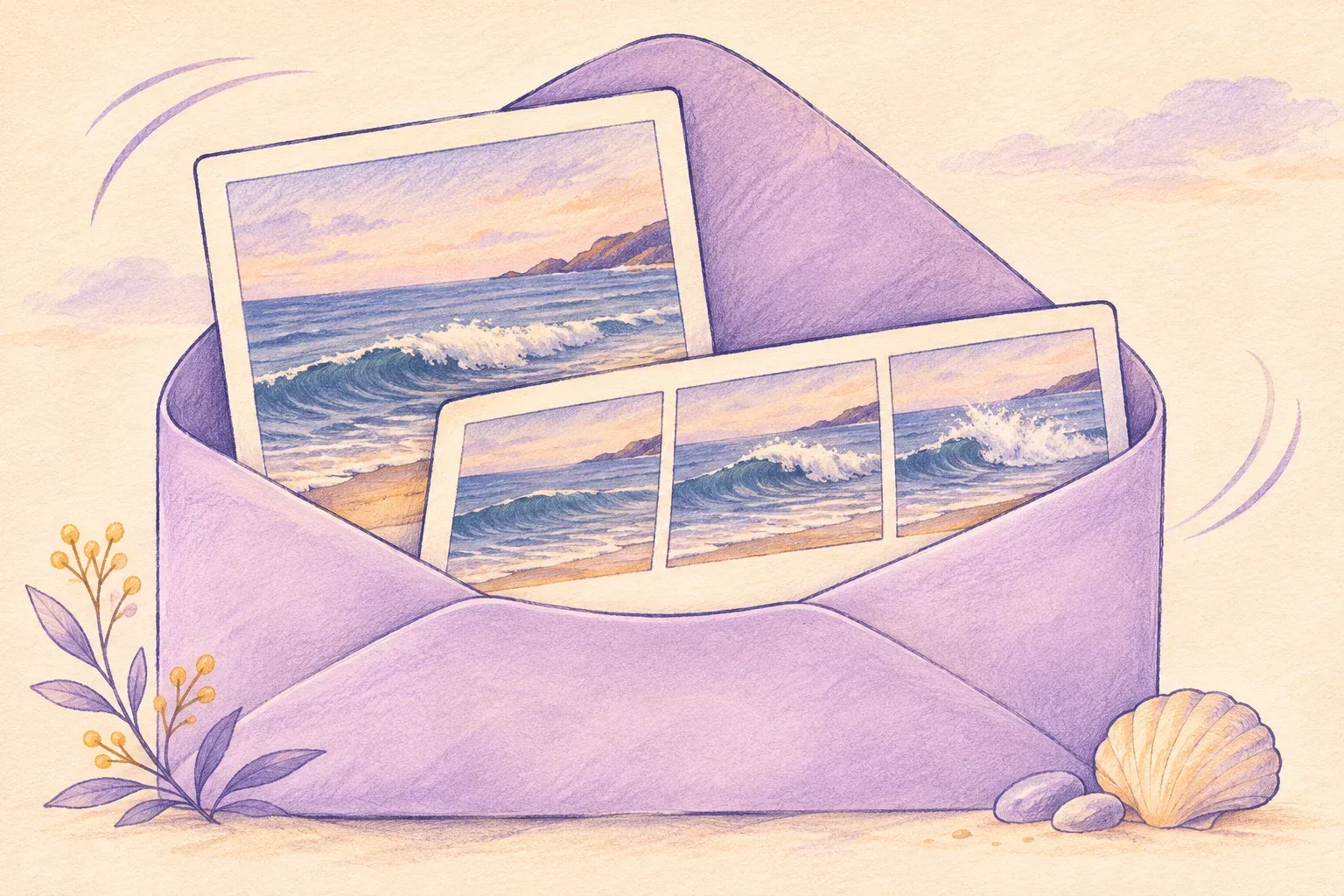
You can hide a moving photo without turning it into a still. Hidewell keeps Live Photos on iPhone and iPad, and supported JPEG Motion Photos on Android, in an encrypted vault. Open the imported picture and press and hold to play its movement.
Get Hidewell for iPhone and iPad or download Hidewell for Android.
Choose the photo that still moves
A moving photo contains more than the frame you see in the gallery. On iPhone, Live Photos capture the moments just before and after the shutter press. On Pixel, Motion Photos let you revisit movement and pick another frame. Play the original before importing so you know which version you want to keep. Apple’s Live Photos guide and Google’s Motion Photos guide explain the camera options.
If you have both an original and an edited or shared copy, choose the version that plays. Saving a picture from a message or taking a screenshot may leave you with only a still.
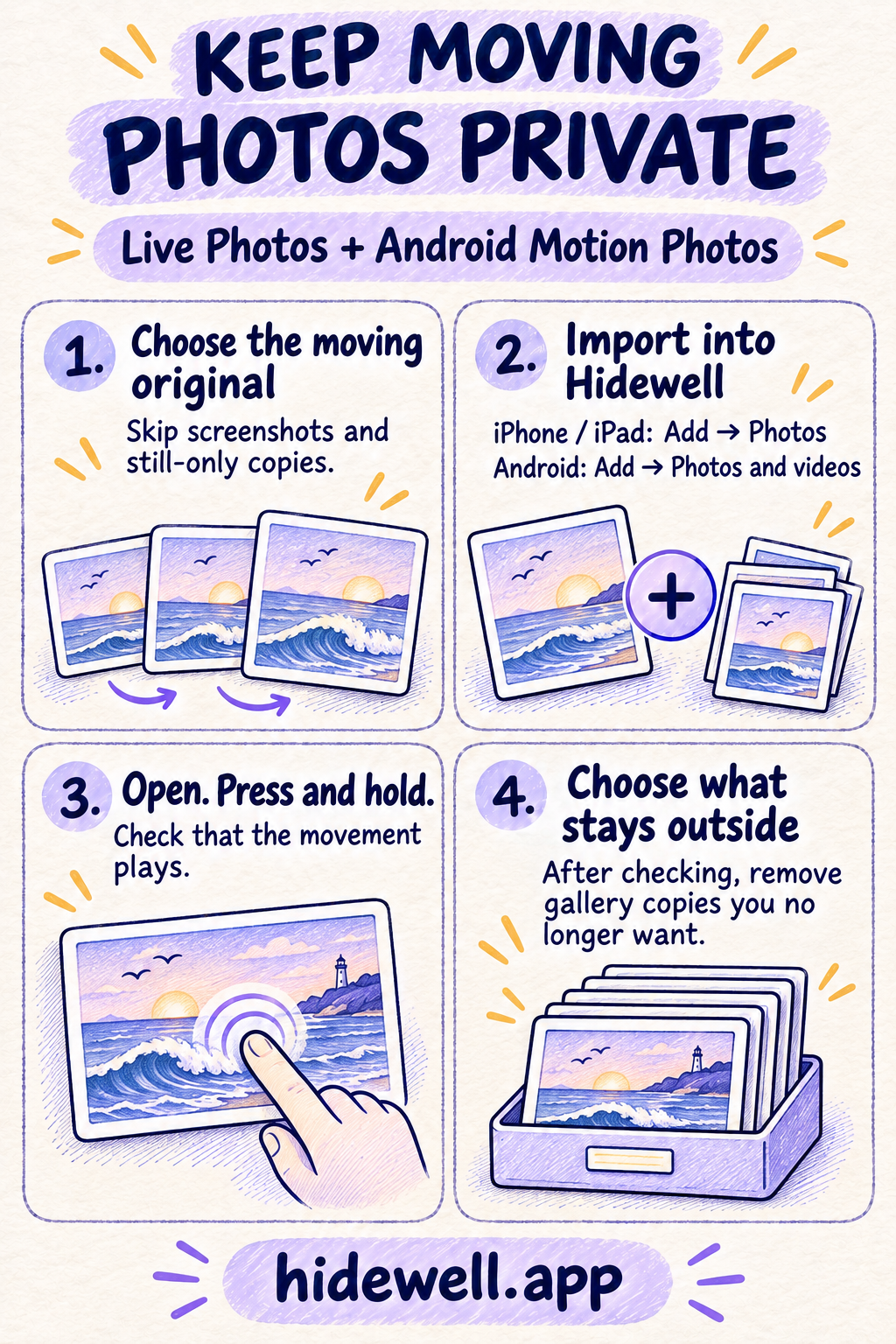
Import Live Photos on iPhone or iPad
- Open your vault in Hidewell.
- Tap the + button and choose Photos. If this is your first import, continue through the photo-picker introduction.
- Select the Live Photos you want to keep and confirm the selection.
- Wait for the import to finish, then open a photo and press and hold it to play.
Hidewell keeps the still image and its motion together, so you open one picture in the gallery. You do not need to turn it into a separate video first.

Import Motion Photos on Android
- Open your vault in Hidewell.
- Tap Add, then Photos and videos. Continue through the photo-picker introduction if it appears.
- Select the original Motion Photos and confirm the selection.
- When the import finishes, open a picture. A recognized Motion Photo shows a LIVE badge; press and hold the picture to play it.
Hidewell plays supported Google and Samsung JPEG Motion Photos that contain their video clip. If your camera saves a different format or the copy you select has lost that clip, follow the checks below.
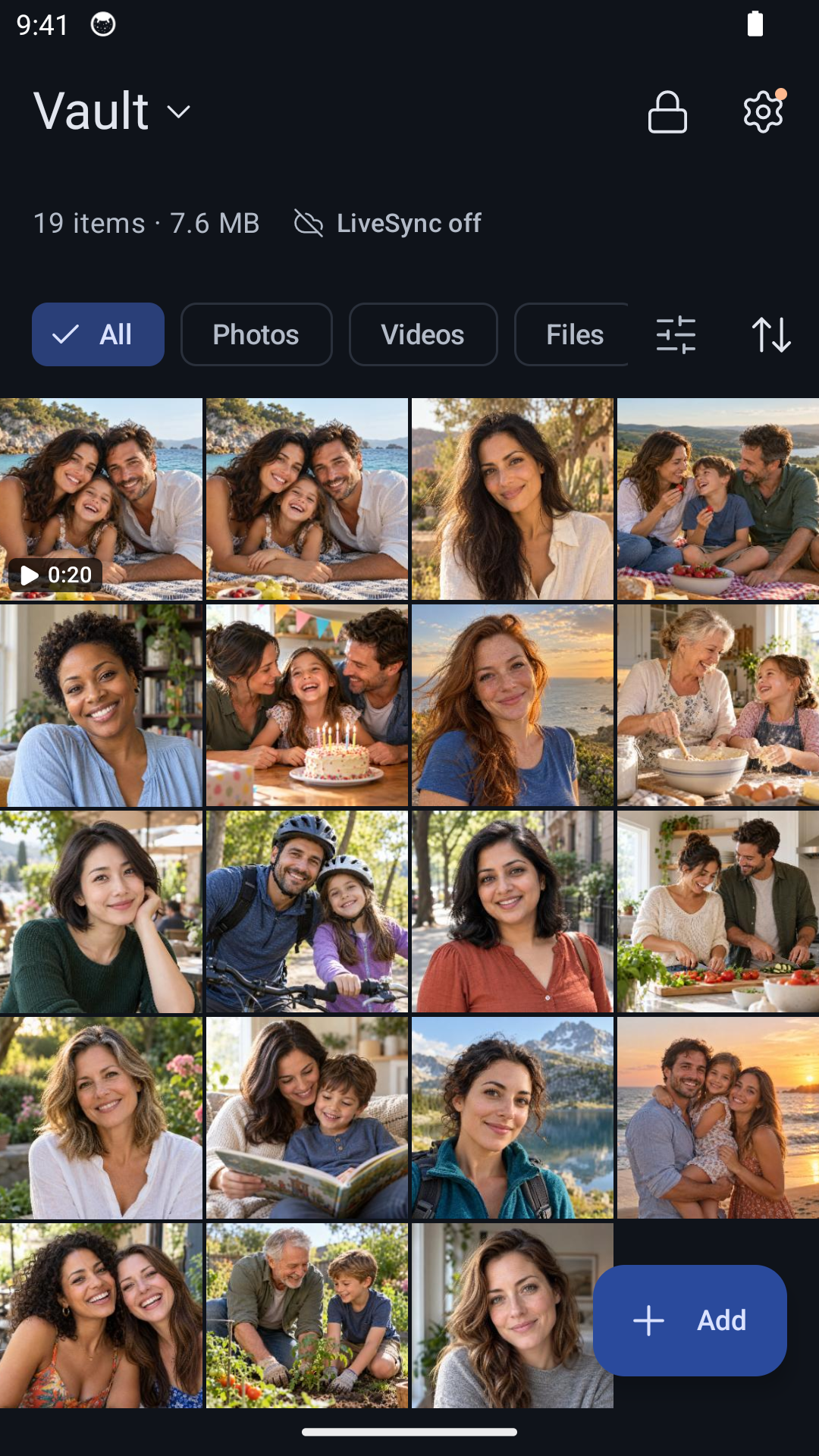
If the imported photo is only a still
Check the source first. Play the original in your phone’s photo app. If that copy no longer moves, choose the original moving version before trying another import.
On iPhone or iPad, use the Photos import. Choose the Live Photo itself rather than a separately saved JPEG. Keep the original if Hidewell reports that an item could not be imported, then try that item again.
On Android, try the original file through Files. If your photo picker supplies a still-only copy, use Add → Files to select the original JPEG Motion Photo.
Hidewell saves the file data it receives without recompressing it. Read about original-quality storage if you also keep large photos or other image formats.
Keep the private copy; choose what you share
Once you have opened the imported photos and checked their movement, remove any copies you no longer want in your ordinary gallery. Importing into Hidewell does not automatically remove those copies.
Before sharing a moving photo, play the whole moment and decide whether you want to send that or just one frame. In Apple Photos, open the Live Photo, tap Share, then tap LIVE in the upper-left corner to send the still instead. Apple’s sharing instructions show that option.
For hiding an everyday collection, see the guides for iPhone and iPad and Android.
Save the quick-reference card
Keep these steps handy when moving your first Live Photos or Motion Photos into Hidewell.