How to hide photos on Android and choose the right protection
Hide photos with Google Photos Locked Folder or Samsung Secure Folder. Follow the setup steps and check locks, backups, and copies left elsewhere.
Before hiding photos, decide what you want to change: where they appear, who can open them, or both. Then check what happens if you lose your phone. A private folder that holds your only copy can create a different problem.
Start with the photo app and phone you already use. Follow its steps below, then use the final checklist to decide whether the setup meets your needs.
Hide photos with Google Photos Locked Folder
Locked Folder requires Android 6 or later. Fully managed devices and some account types are excluded. On Android, it uses your phone’s screen lock; you cannot assign it a different password. Someone who knows that lock can open it.
- Open Google Photos → Collections → Locked.
- Choose Set up Locked Folder and authenticate.
- Return to Photos and select the items.
- Tap Add to → Move to Locked Folder → Move.
Return to Collections → Locked to view them.
Decide about backup before moving anything. Find it under profile picture → Photos settings → Backup → Back up Locked Folder. Backed-up items are accessible through your Google Account on other devices. Without backup, losing the phone, clearing Photos data, or uninstalling Photos can lose those items. Moving an item with Locked Folder backup off also deletes its existing Google Photos backup.
Copies and edited versions do not move with the original. Check those separately. These steps and limits follow Google’s Locked Folder instructions.
For a closer look at the tradeoffs, see our Locked Folder comparison.
Hide photos with Samsung Secure Folder
Secure Folder is available on supported Galaxy devices; menus vary by software version and carrier. If it is unsupported, it will not appear in the relevant settings.
- Open Settings → Security and privacy → More security settings → Secure Folder.
- Follow setup and sign in to your Samsung account if prompted.
- Choose a PIN, password, or pattern for the folder. Use something different from your phone lock if separation is your goal.
- Decide whether to enable Reset with Samsung account. Samsung warns that forgetting the folder passcode without this option means losing access.
In Secure Folder settings, also check Auto lock Secure Folder. Choose a setting that fits how you hand over or put down your phone. These steps follow Samsung’s setup documentation.
Plan for loss separately. Samsung’s backup guidance says new Secure Folder backups are discontinued, and restoring old backups is unavailable on Android 16 with One UI 8 or later. Check your version before relying on an older backup.
To move photos from Samsung Gallery:
- Open Gallery and press and hold a photo.
- Select the other photos or videos you want to move.
- Tap More → Move to Secure Folder.
- Open Secure Folder → Gallery to check the result.
These transfer steps follow Samsung’s Galaxy guide, written for Australian models. Check your local support instructions if your menus differ. Our Secure Folder comparison covers the broader choice.
Check your setup with one ordinary photo
Start with an image you do not mind losing. Use it to answer these questions before moving your private collection:
- Can I find it again? Open the destination and view the whole photo, not just its thumbnail.
- When does the folder lock? Leave it, lock your phone, then return. Check what authentication is requested.
- What would I do after losing this phone? Identify the backup, recovery credentials, and device you would use. If you cannot describe the recovery steps, keep a protected copy until you can.
- Which other copies do I want to keep? Review your own gallery, files, and cloud accounts. Decide what belongs where before deleting anything permanently.
This small rehearsal is more useful than discovering an unfamiliar recovery setting after a phone breaks.
When to consider a separate photo vault
A separate app is worth comparing when its lock and recovery approach better match your needs. Check those details before choosing one, rather than judging by a hidden icon or an app’s name.
Hidewell is available on Google Play. Its Android app uses a vault pattern separate from the phone’s screen lock and encrypts photos imported into the vault.
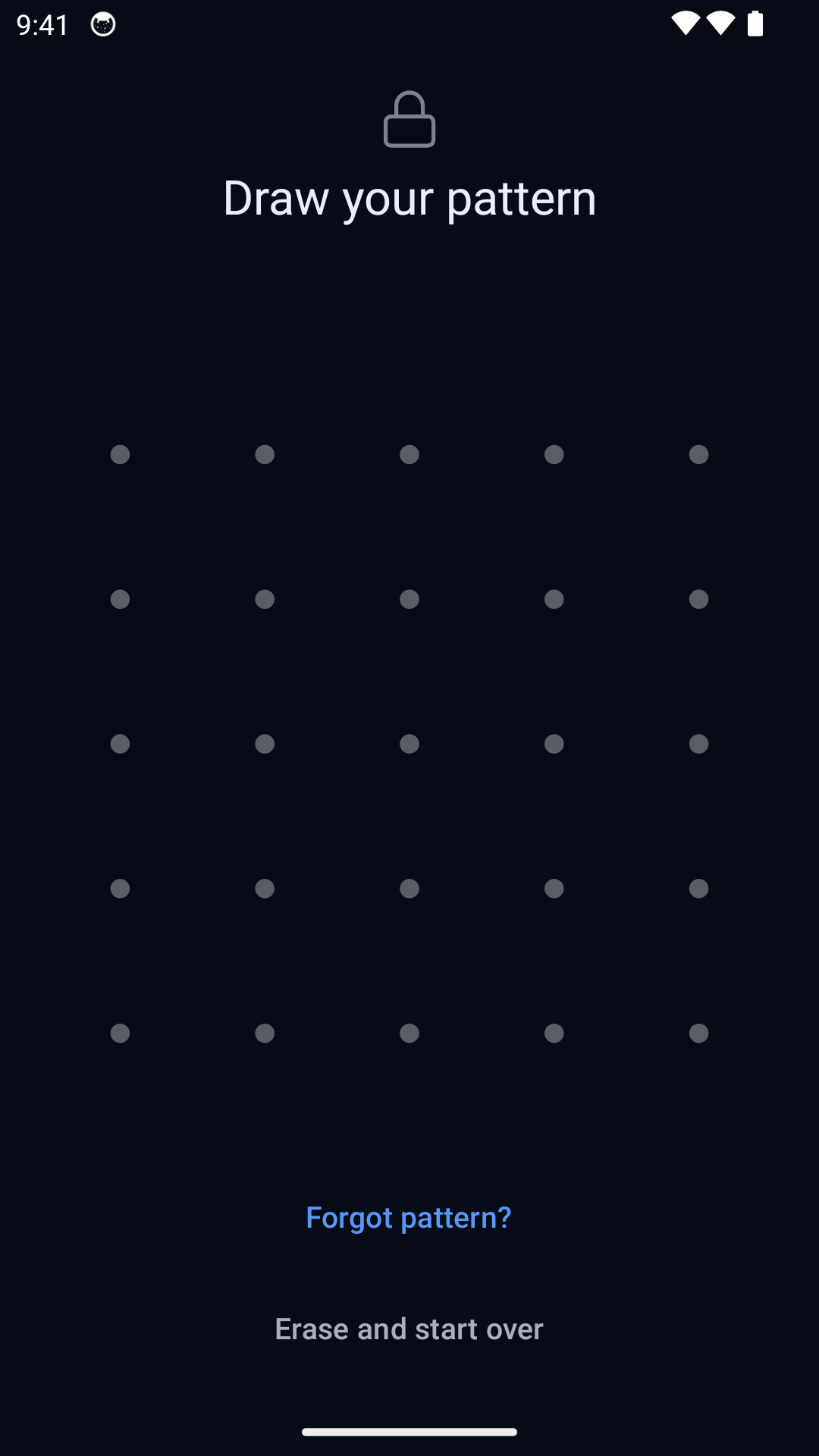
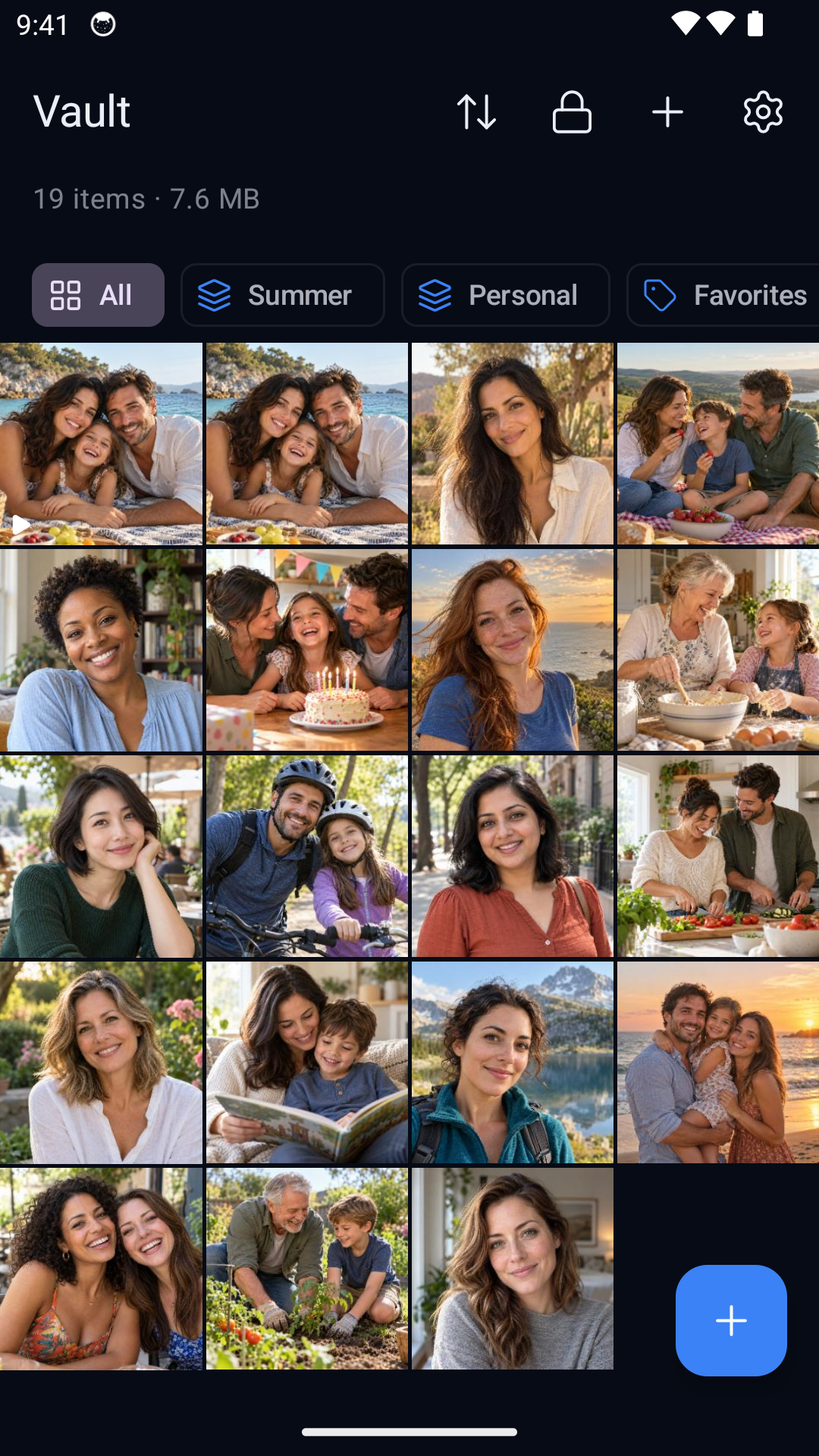
Hidewell for Android, shown with sample photos. Select either image to view full size.
Importing and removing originals are separate steps: the app lets you choose whether to remove originals, and some sources require manual deletion. It does not remove every copy elsewhere for you.
You can explore Hidewell’s approach while using the built-in option that fits your phone today.