How to hide videos on iPhone and Android
Hide videos on iPhone or Android, find them again, and play them privately. Compare built-in folders with Hidewell’s encrypted video vault.
You can hide videos in your phone’s photo app or keep them in a separate encrypted vault. Use the Hidden album in Apple Photos on iPhone and iPad, or Locked Folder in Google Photos on Android. Choose Hidewell when you want a private video collection that opens with its own pattern.
The useful part is being able to watch those clips again without putting them back in your everyday gallery. Here is how to hide existing videos, find them later, and keep their quality.
Hide videos in your photo app
On iPhone and iPad: use the Hidden album
- Open Photos and find the video.
- Touch and hold it, choose Hide, and confirm.
- To find it again, open Collections, then Hidden under Utilities. On iPad, open the sidebar and choose Utilities → Hidden.
- Choose View Album, unlock when asked, and open the video to watch it.
Hidden videos stay out of your library, other albums, and the Photos widget. If you use iCloud Photos, hiding a video also hides it on your other Apple devices. See Apple’s Hidden album instructions.
On Android: use Google Photos Locked Folder
- In Google Photos, open Collections → Locked. Choose Set up Locked Folder if this is your first visit, and follow the unlock prompt.
- Return to Photos and select the video you want to hide.
- Choose Add to → Move to Locked Folder, then Move.
- To find it again, return to Collections → Locked, unlock, and open the video.
Locked Folder keeps videos out of the main Photos grid, search, memories, and albums. It uses your device’s screen lock; you cannot give the folder a different password. Google’s Locked Folder guide also explains its optional backup setting.
Keep videos behind their own pattern with Hidewell
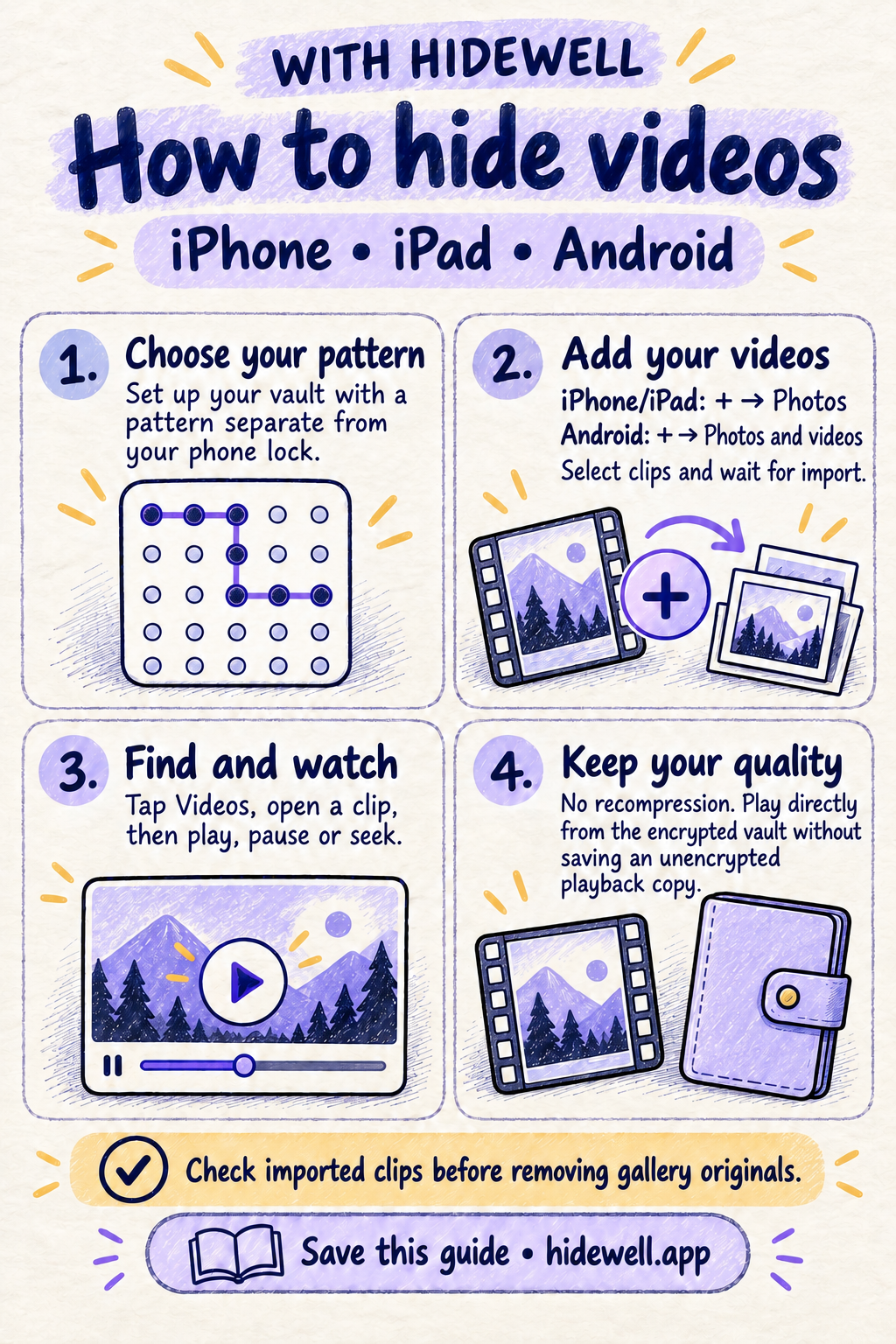
Hidewell stores your videos encrypted and opens your collection with a pattern you choose separately from your phone’s lock. The import-and-play workflow works on iPhone, iPad and Android.
- Open Hidewell and finish the first-vault setup. Choose and confirm your vault pattern, then complete the app’s setup prompts. If you already have a vault, unlock it.
- Tap + to add your videos. On iPhone or iPad, choose Photos; this picker includes videos too. On Android, choose Photos and videos. Continue through the first-import explanation if it appears, then select your clips. For videos stored in a file browser, choose Files instead on either platform.
- Wait for the import to finish. Your videos appear in the vault’s collection. Open one to check that it plays before removing its original from your photo library.
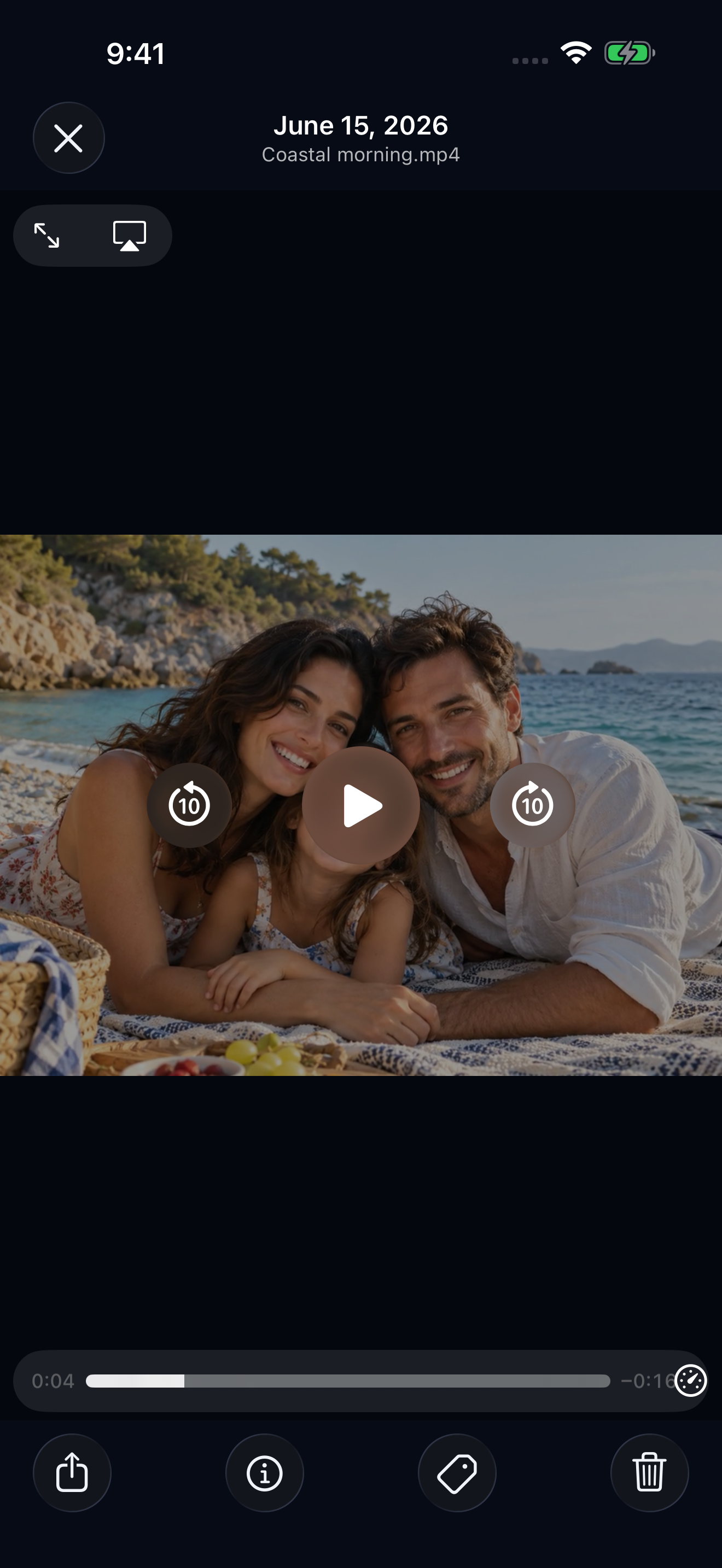
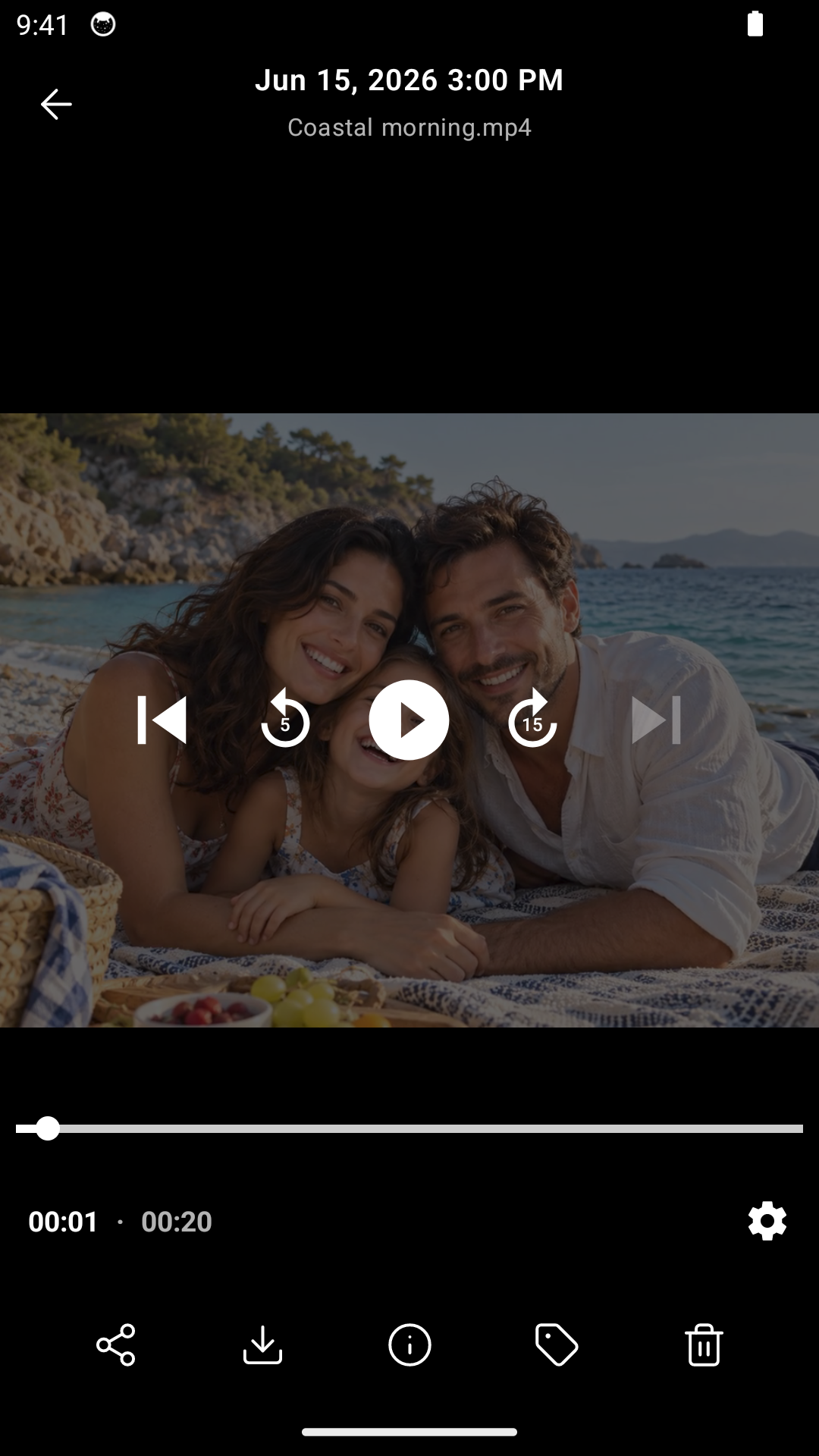
- Use the Videos filter to find your clips. Tap a video to open the player. Use play/pause and drag the playback bar to jump to the moment you want.
Importing adds a vault copy; it does not automatically remove the original from your photo library. Hidewell can offer to help delete originals after import, depending on your import settings.
Hide videos without losing quality
Hidewell does not recompress imported videos. It keeps the video data it imports, including the resolution and sound, so putting a clip in the vault does not turn it into a lower-quality version. Read more about keeping original quality.
Encryption does not shrink a video. Long recordings still need room on your device. Hidewell’s free plan holds up to 200 items; Pro removes that item-count limit.
Watch directly from the encrypted vault
You do not need to export a video to watch it. Hidewell plays it directly from the encrypted vault, without saving an unencrypted copy for playback. You can pause or seek while the video stays in the vault. See how encrypted video playback works.
Sharing or saving a video outside Hidewell deliberately makes a copy available elsewhere. For ordinary private viewing, just open the clip in Hidewell.
If you have not recorded the video yet, use Hidewell’s built-in Camera to record straight into encrypted storage. Our direct photo and video capture guide covers that workflow.
To start your private video collection, download Hidewell for iPhone and iPad or Android.
Save the quick-reference card
Keep these import and playback steps handy for your next private video collection.