Offline photo vault for iPhone and Android: no account needed
Use Hidewell as an offline photo vault on iPhone, iPad and Android. No Hidewell account needed: import your photos and videos, then open them without a connection.

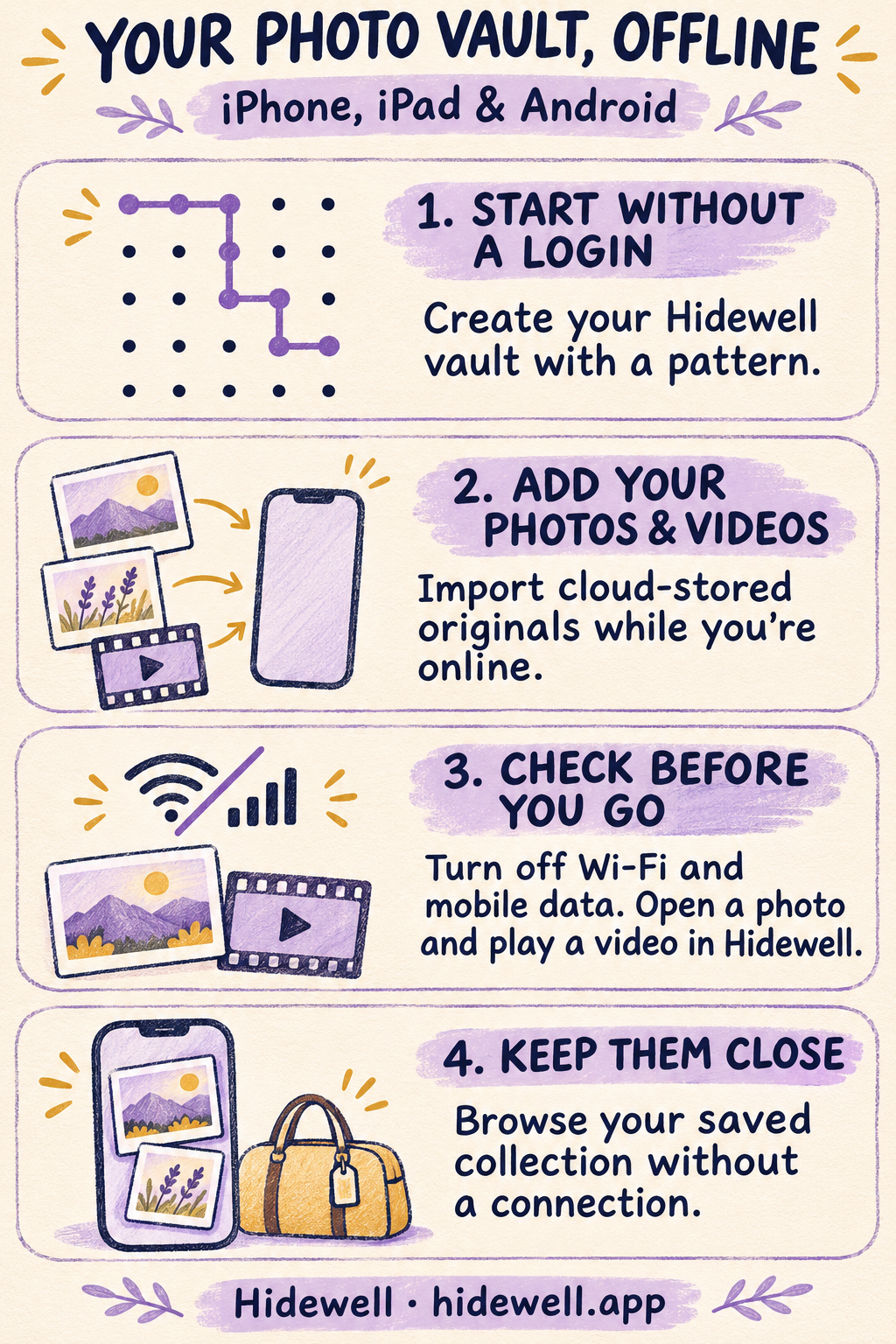
Hidewell works as an offline photo vault on iPhone, iPad and Android. You create a vault with a pattern, add your photos and videos, and open that saved collection without an internet connection. There is no Hidewell account to create and no email address to enter.
That makes it useful on a flight, on a trip with unreliable reception, or simply when you want your private pictures available on your phone. Your collection is stored in an encrypted vault on the device; viewing it does not depend on signing in to a cloud service.
Download Hidewell for iPhone and iPad or Android.
What can you do in an offline photo vault?
With Hidewell installed and your files saved in the vault, you can:
- Unlock with your pattern. You do not need a connection to open your local vault.
- Browse and view saved photos. Open a picture from the gallery and zoom in to see its details.
- Play saved videos. Playback reads the video from your vault on the device.
- Add files that are already on your phone. Local photos, videos and files can be imported while offline.
A photo visible in your usual library may still need downloading before you can import it. Prepare those cloud-stored originals while you have a connection.
Set up Hidewell without an account
Open Hidewell and follow the setup screens: draw and confirm your pattern, then save and check your recovery phrase.
At the backup offer, choose Not Now on iPhone or iPad, or Not now on Android if you want to start without cloud backup. You can turn backup on later in Settings.
Once the vault opens, add a small batch of photos and videos you want to keep available:
| Device | Open the picker |
|---|---|
| iPhone or iPad | Tap + → Photos. For an item in the Files app, choose + → Files. |
| Android | Tap Add → Photos and videos. For another local file, choose Add → Files. |
Continue through the short photo-picker introduction if it appears. Choose your items, confirm the selection and wait for the import to finish.
If Hidewell asks about deleting the originals, choose Keep Originals on iPhone or iPad, or Keep originals on Android while you check the saved copies. After you have opened them in Hidewell, you can remove the matching originals from your everyday gallery if you want them kept only in your private collection.
Prepare cloud photos before going offline
Do the import while you still have Wi-Fi or mobile data if you use a cloud photo library:
- iCloud Photos: with optimized storage, your device can hold smaller versions while the originals stay in iCloud. Import the photos you want into Hidewell while connected, then check that the import finished. Apple explains how optimized storage works.
- Google Photos on Android: open the photo or video, then tap More → Download if it is not already on the device. The Download option does not appear for an item already stored locally. Then import it into Hidewell. See Google’s download instructions.
You only need to prepare the collection you want to use offline. There is no need to download your entire cloud library for a few selected pictures.
Check your collection before you leave
A quick check on your own phone is more useful than discovering a missing import halfway through a journey:
- Turn off Wi-Fi and mobile data.
- Lock Hidewell, then open it again with your pattern.
- Open a saved photo and zoom in. Check that you can see the details you need.
- Play a saved video. Try a point later in the clip as well.
If something is missing from the vault or its import did not finish, reconnect and import it before you go. Tap Lock when you have finished browsing.


Choose backup separately
You do not need to enable cloud backup or LiveSync to use your local vault. If you also want a backup, Hidewell can save an encrypted copy to your iCloud Drive on iPhone and iPad, or Google Drive on Android. The backup guide covers that choice.
Save the quick-reference card
Save this checklist before your next trip or offline session.