Does deleting a photo vault app delete your photos?
Before uninstalling a photo vault, check your copies, backup contents, and recovery credentials. Learn what app deletion means on iPhone and Android.
Yes, deleting a photo vault app can delete photos stored only inside it. Whether you can get them back depends on what other copies exist and whether you can open or restore those copies.
Before uninstalling, answer one question: Where will I open these photos after this app is gone? If the answer is unclear, keep the app installed while you check.
What deleting the app means on your phone
On iPhone
Apple distinguishes three actions:
- Remove from Home Screen leaves the app installed in App Library.
- Offload App removes the app itself but keeps its documents and data on the phone.
- Delete App removes the app and its related local data.
These distinctions come from Apple’s app removal instructions and storage guide. Offloading is not a separate backup: keeping data on the same phone does not give you another copy if that phone is lost.
Apple also notes that app data already stored in iCloud is not deleted just because you delete the app. That does not establish that your vault uploaded its photos. Check the particular app’s backup settings and recovery instructions.
On Android
Android removes files in an app’s private storage when you uninstall it. Files saved separately into shared media storage or shared documents are treated differently: uninstalling the app does not remove those files. See Android’s storage documentation.
The important distinction is where the actual file lives. A photo you can see only inside a vault is not proof that another copy exists in your gallery or cloud account.
For a concrete example, Google warns that uninstalling Google Photos or clearing its app data loses Locked Folder items that have not been backed up. Check Google’s Locked Folder guidance if that is where your photos are stored. Our Locked Folder comparison explains the broader choice.
Which copy are you relying on?
| What you have | What to establish before deleting the app |
|---|---|
| Photos visible only inside the vault | Treat these as your only copy until you find and verify another one. |
| Photos exported to a separate gallery, folder, or computer | Open the exported files in their destination and check that the collection is complete. |
| The vault app’s own cloud backup | Confirm the right account, a completed backup that includes recent items, and the credentials its restore process requires. |
| A general phone backup | Check whether this particular app’s photos are included and how they would be restored. A phone backup setting alone is insufficient evidence. |
| A password or recovery phrase | Keep it securely, but also locate the data it is meant to unlock. Credentials are not a second copy of your photos. |
Google explicitly cautions that not every Android app can back up or restore all its data. Use the vault developer’s instructions to check the scope of its backup on your platform.
Three checks before you uninstall
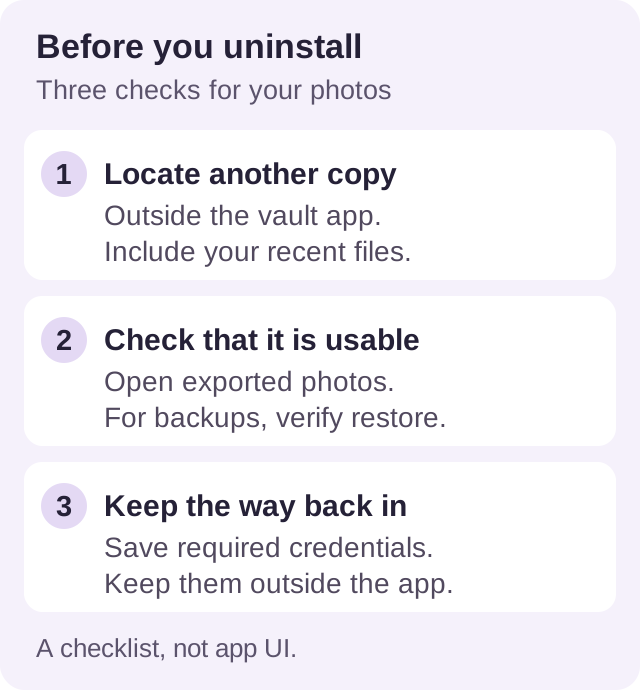
1. Find a copy outside the app
Choose a destination you control: an exported collection on a computer, another protected storage location, or the app’s documented backup service. Include recent photos and videos, not just older files you remember saving.
Record where the copy is and which account holds it. If you export private photos into an ordinary gallery or folder, review who can access that destination and whether it uploads to another service. Those copies need their own privacy protection.
2. Check the files, then the coverage
Open exported photos at full size in their destination. Play videos, including a point near the end. Compare the collection with the vault: check dates, albums, file counts where available, and the items you most want to keep. Opening one photo only checks that one photo.
For an encrypted backup you cannot browse directly, follow the developer’s verification or restore instructions. Where supported, verify a restore on a separate device while keeping the original installation intact. Do not uninstall your only working vault as a test of whether its backup works.
If all you have is an upload toggle, an old completion date, or a backup you cannot access, resolve that gap before deleting anything.
3. Keep the credentials you will need
Check whether restoration requires a cloud account, a separate backup password, a recovery phrase, or another device. Store the required secrets securely somewhere you can access without the app you are about to remove.
If you rely on a Hidewell backup, you need both the recovery phrase and the matching backup data. The recovery phrase alone cannot recreate deleted photos. Keep a usable copy before uninstalling, even when you have written down the phrase.
Already deleted the vault app?
Start by looking for an existing copy:
- Check your gallery, files, computer, and cloud accounts for originals or exports you saved earlier. Open the actual files you find.
- Look up the exact app’s recovery instructions. Confirm the app name and developer, the account used for backup, and any required credentials. Use its documented restore path if you have the prerequisites.
- Ask the developer before resetting or replacing other data. Describe what you deleted, your phone platform, and what backups you have. Never send support your private photos, password, or recovery phrase just to describe the problem.
Reinstalling an app is not proof that it can recover its former local files. If those were the only copies and there is no usable backup, recovery may not be possible. Be cautious about a tool or service that promises success without establishing where the missing data could come from.
Switching to another way of hiding photos?
Keep the old vault until you have opened the transferred files in the new destination and checked that everything you need is there. Then review any temporary exports you made and decide which protected copies to retain.
Our guide to hiding photos on Android explains the built-in options. You can also explore Hidewell and check its approach against your storage and recovery needs before moving your collection.