Photo backup vs sync: what happens when you delete a photo?
Understand photo backup versus sync, what deletion does in iCloud and Google Photos, and how to keep private pictures in Hidewell.
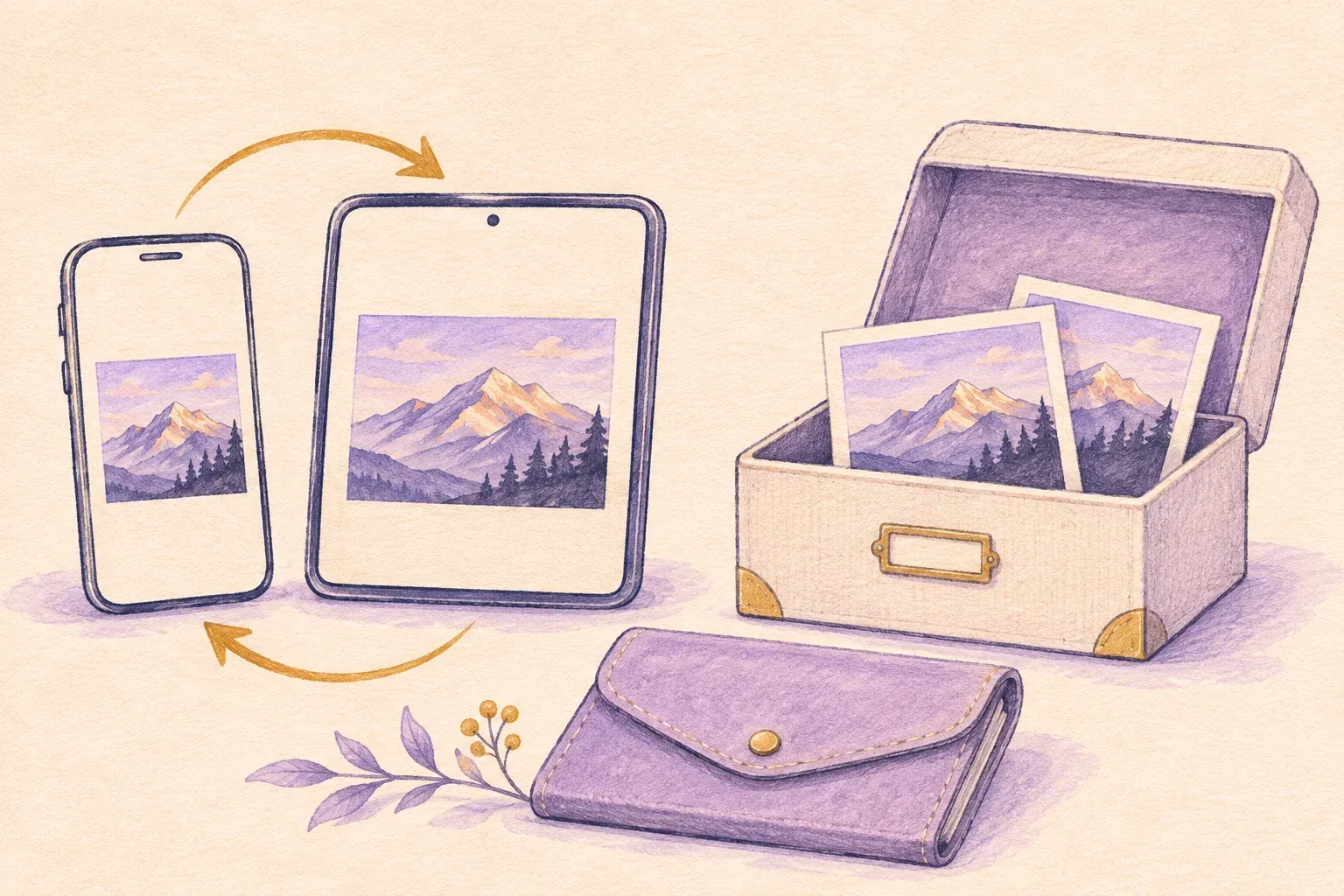
Photo sync keeps a library up to date across devices. A backup gives you a copy to restore from. A service can do both, so the useful question is what happens to its other copies when you delete a picture.
If you want a photo to survive changes to your everyday library, keep a separate copy outside that library. If you want selected pictures kept private, Hidewell gives you an encrypted collection on iPhone, iPad and Android, with optional encrypted backup and LiveSync.
Download Hidewell for iPhone and iPad or Android.
Photo backup vs sync at a glance
Imagine you have a holiday picture on your phone and can also see it on your tablet. That does not necessarily mean you have two independent copies. They may be two views of the same synchronized library.
| What you want | What helps | What to know about deletion |
|---|---|---|
| The same current library on several devices | Photo sync | Deleting a picture can remove it across the connected library. |
| A copy you can restore after losing a device | A completed backup or cloud copy | Check what was saved and whether the service also follows library deletions. |
| A photo kept independently of future library changes | An export stored outside the synced library | Deleting from the library leaves that separate exported file alone. |
| Selected pictures outside your everyday gallery | An encrypted photo vault such as Hidewell | Importing creates separate vault copies; the originals remain until you remove them. |
Sync is convenient precisely because it carries changes between devices. If you remove ten unwanted screenshots on your phone, you usually want them gone from your tablet too. The surprise comes when you delete a picture only to make room on the phone and expect the cloud copy to remain.
Is iCloud Photos a backup or sync?
iCloud Photos keeps one photo library synchronized. Edits and deletions carry across devices using that library. Deleting a picture from Photos is therefore not a way to remove only its local copy while keeping it in iCloud. See Apple’s explanation of iCloud Photos.
If your goal is more room on your iPhone or iPad, Optimize Storage is the relevant option. It keeps full-resolution originals in iCloud and uses smaller device copies when needed. Your pictures stay in the library. Apple explains photo storage optimization.
For a copy that you manage separately, export the pictures to a folder or external drive outside the synchronized photo library. Apple provides instructions for downloading and exporting iCloud photos.
Does Google Photos backup keep pictures after deletion?
Turning on Google Photos backup does not make the Delete button local-only. Google says deleting a backed-up picture in the Google Photos app removes it from Google Photos and your device, and from other devices with backup turned on. Read Google’s deletion guidance before clearing a large batch.
When your goal is storage space, Free up space on this device does something different: it removes local copies that Google Photos has already backed up. Those pictures remain available through Google Photos and its website, although the removed copies are no longer available in the phone’s built-in gallery or offline. See Google’s space-saving instructions.
Google also offers download and export options when you want files to keep separately.
What counts as a separate photo copy?
A separate copy is a file you can open outside the library you are changing. For example, you could export your favourite holiday pictures to an external drive, then remove some from your phone’s synchronized library. The export remains on the drive because it is no longer managed as part of that library.
Before relying on an export, open a few photos at full size and play an important video. Put private exports somewhere protected: saving an ordinary photo file to a folder does not encrypt it.
A second album inside the same library is useful for organization, but it does not create this kind of separate file. Choose a separate destination when you want the copy to remain independent.
Keep private pictures in Hidewell
Hidewell is a place for the photos and videos you want outside your everyday gallery. Importing them saves separate encrypted copies in your vault on the device. Once you have opened those copies in Hidewell, you can remove the matching originals from your photo library without removing the imported vault files.
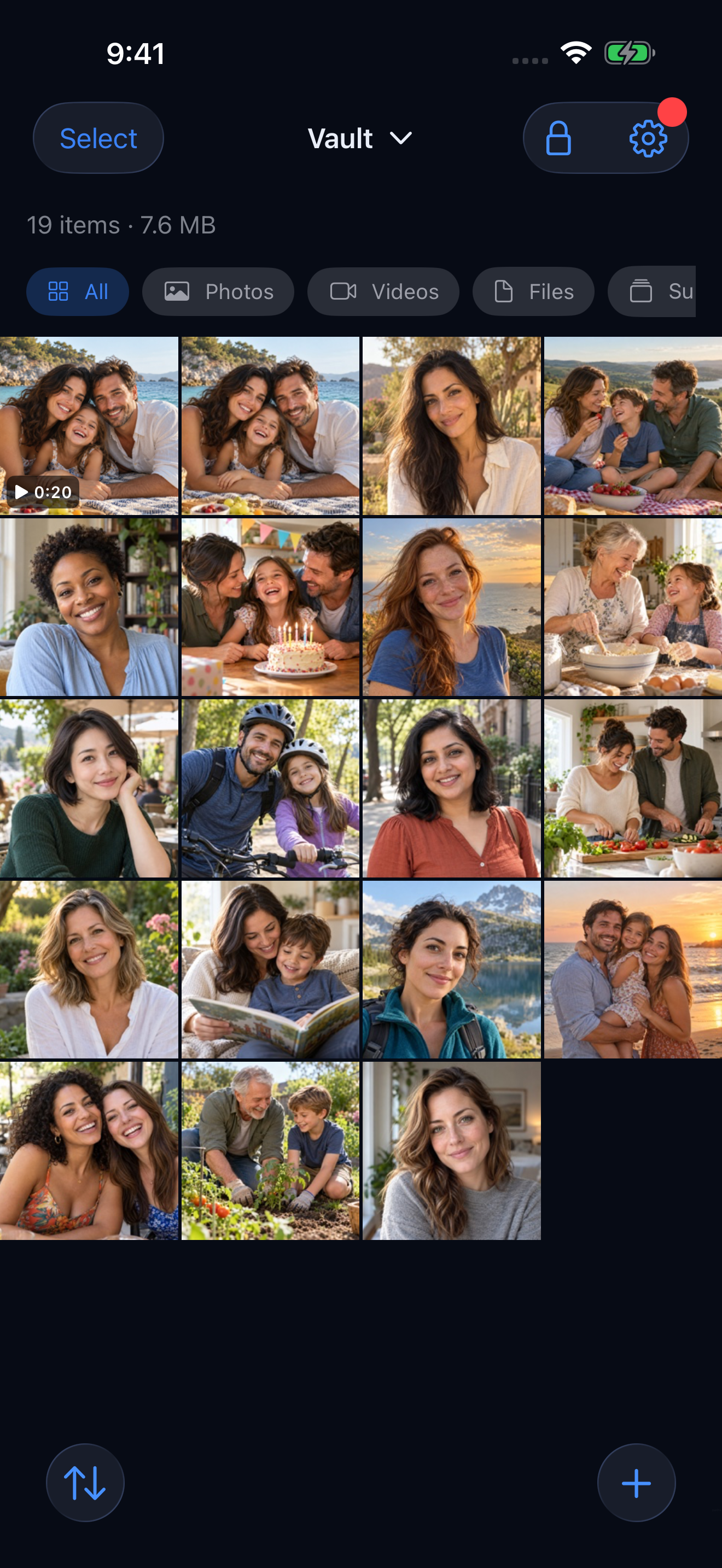
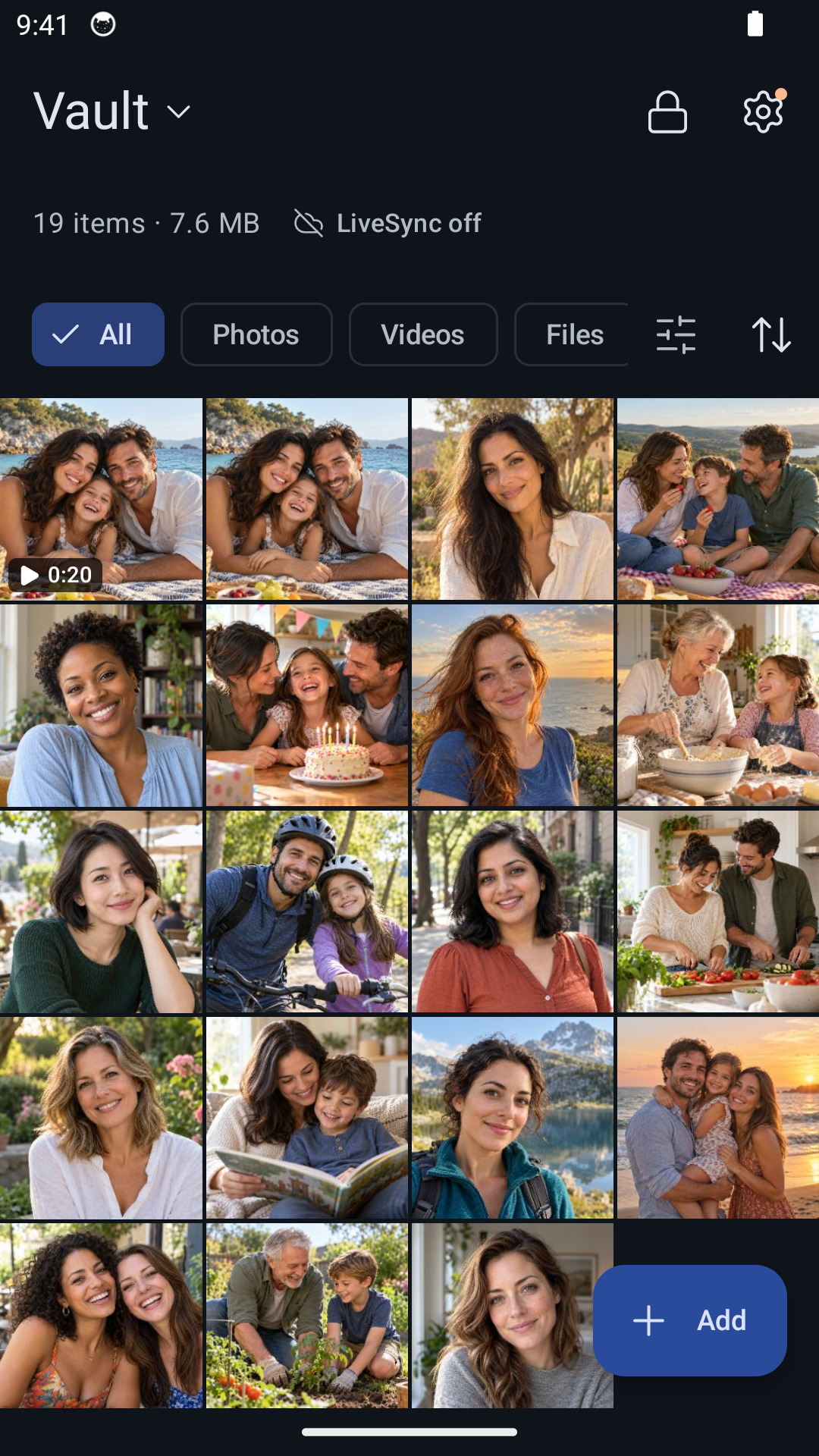
You can choose the cloud features that fit how you use that collection:
- Encrypted backup saves a backup to your iCloud Drive on iPhone and iPad, or Google Drive on Android. See the Hidewell backup guide.
- LiveSync keeps a vault up to date across your iPhone and iPad through iCloud, or across Android devices through Google Drive. Changes include deletions. It does not sync between iPhone and Android.
Use backup when you want a way to restore your collection, and LiveSync when you want to keep using it on several devices. If you are replacing a phone, the new-phone guide covers the transfer.
Choose by the result you want
You do not have to choose one method for every photo.
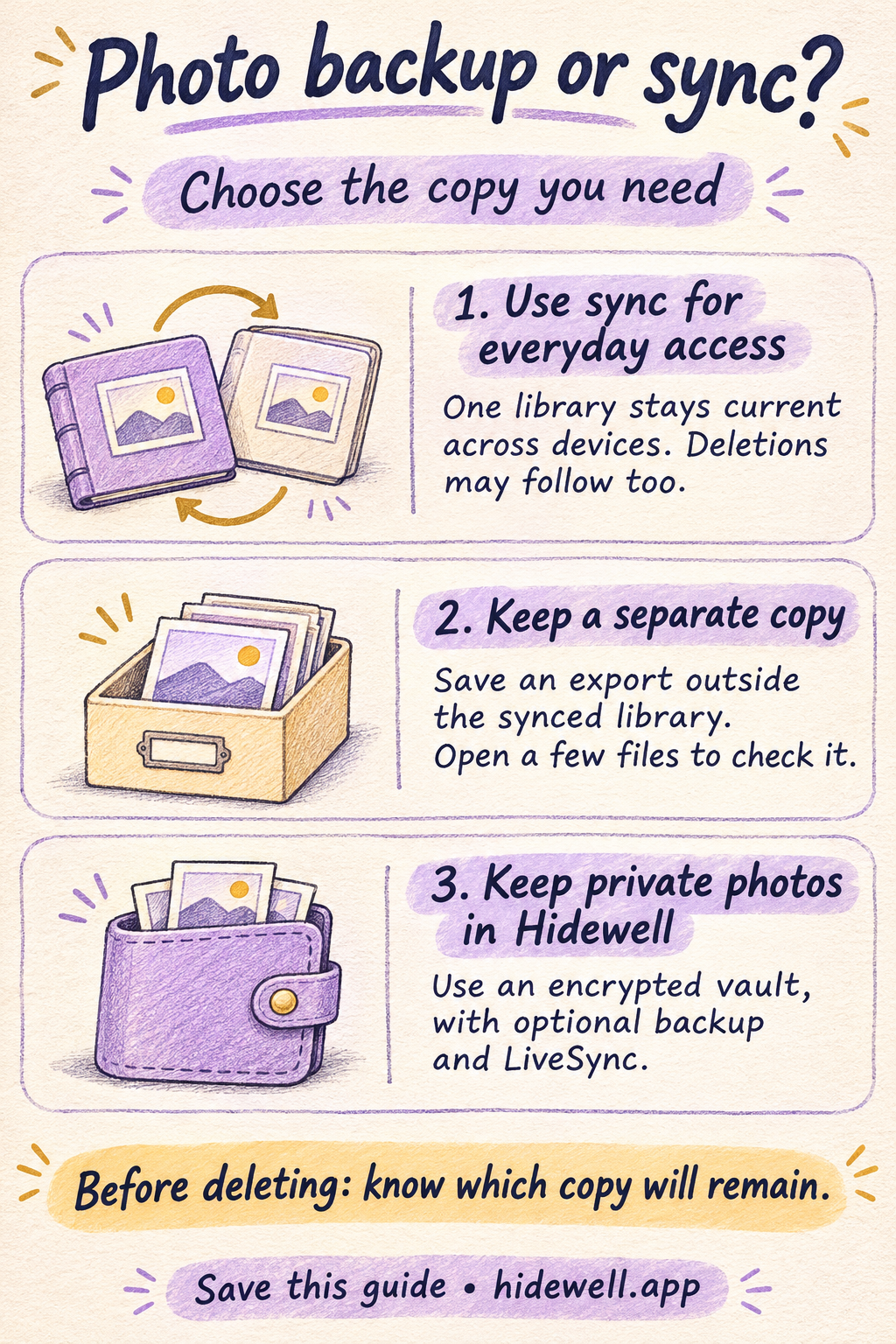
Keep everyday pictures in a synchronized library for convenient access. Save an independent export when you want a collection preserved outside future library changes. Use Hidewell for the private pictures you want in an encrypted vault, then choose its backup or LiveSync options as needed.
Before deleting a batch, be clear about the action: removing it from the library, freeing space on this device, or removing originals after making a separate copy. Those choices can look similar on a small screen but leave different files behind.
Save the quick-reference card
Keep this decision aid handy the next time you organize your photos.