How to transfer your photo vault to a new phone
Move your Hidewell photos and videos to a new iPhone or Android phone: finish your backup, restore with your recovery phrase, and check your collection.
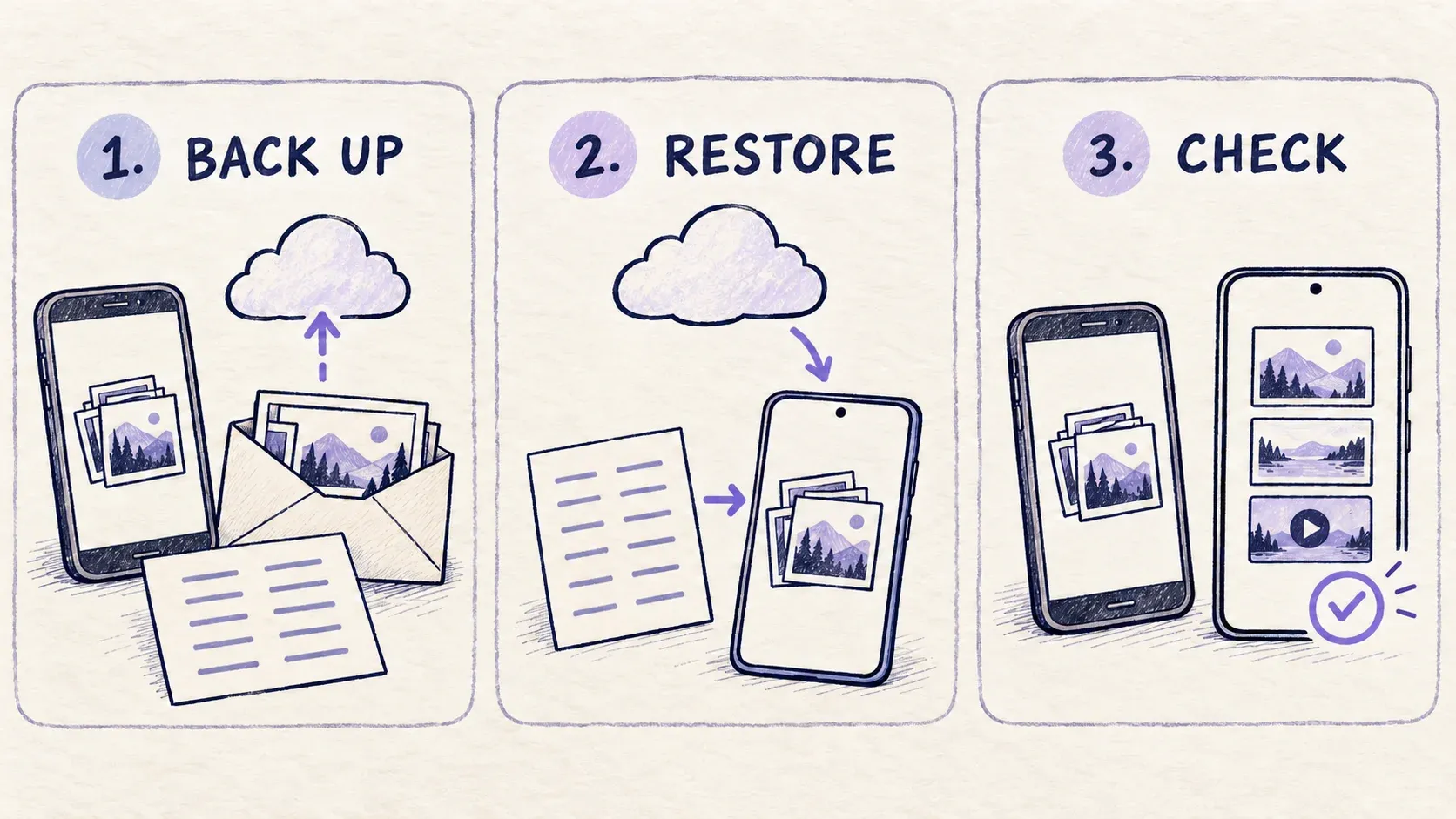
Keep your old phone until you have opened your private photos and videos on the new one. In Hidewell, the backup route is straightforward: finish a backup on the old phone, restore it on the replacement with your 12-word recovery phrase, then check the restored collection.
This walkthrough covers Android to Android using Google Drive and iPhone to iPhone using iCloud Drive. If you are switching between iPhone and Android, the different backup providers change the route.
Before you start
Have these ready:
- Your 12-word recovery phrase, in order. Keep it somewhere private that you can reach without the old phone.
- Access to the account holding the backup: the Google account used by Hidewell on Android, or the iCloud account used on iPhone.
- Both phones, with enough time and storage for the collection. Keep the old vault available until you have checked the new copy.
The recovery phrase opens the matching backup; it does not contain the photos themselves. You need both. Hidewell includes encrypted backup and restore in Free and Pro. Our encrypted-backup guide explains how those pieces fit together.
1. Finish a backup on your old phone
Open the vault containing the photos you want to move. Repeat this step for each ordinary vault you want to transfer.
On Android
- Open Settings → Vault settings. Check Include this vault in backups. If backup is off, choose Turn on backup and enter the 12 words of your recovery phrase.
- Open Settings → Backup on this phone and enable Allow backup on this phone. Connect Google Drive when prompted, using the account you will use on the new phone.
- Check Only on Wi-Fi and Only while charging. Meet those conditions, or change them for this backup.
- Return to Vault settings, choose Back up now, and keep the vault open until the backup finishes. Resolve any error before continuing.
On iPhone
- Open Settings, tap your vault under Current unlocked vault, then choose Backup.
- Enable Include this vault in backups. If needed, choose Enable backup with recovery words and enter the words.
- Under Settings → Backup on this phone, enable Allow backup on this phone. Make sure iCloud Drive is available with the account holding your backup.
- Return to the vault’s Backup screen and choose Back Up Now. Keep the vault open until the backup finishes, and resolve any error before continuing.
Make this your final backup after adding the items you want to transfer. A backup completed before your latest import cannot contain those new photos.
2. Restore on the new phone
Install Hidewell on the replacement phone. On its welcome screen, choose Restore from Backup.
On Android
Enter the 12 words of your recovery phrase and tap Find backup. At Connect Google Drive, tap Connect and authorize the Google account containing your backup.
On iPhone
Use the iCloud account containing your backup and make sure iCloud Drive is enabled. In Hidewell, enter the 12 words of your recovery phrase and tap Find Backup.
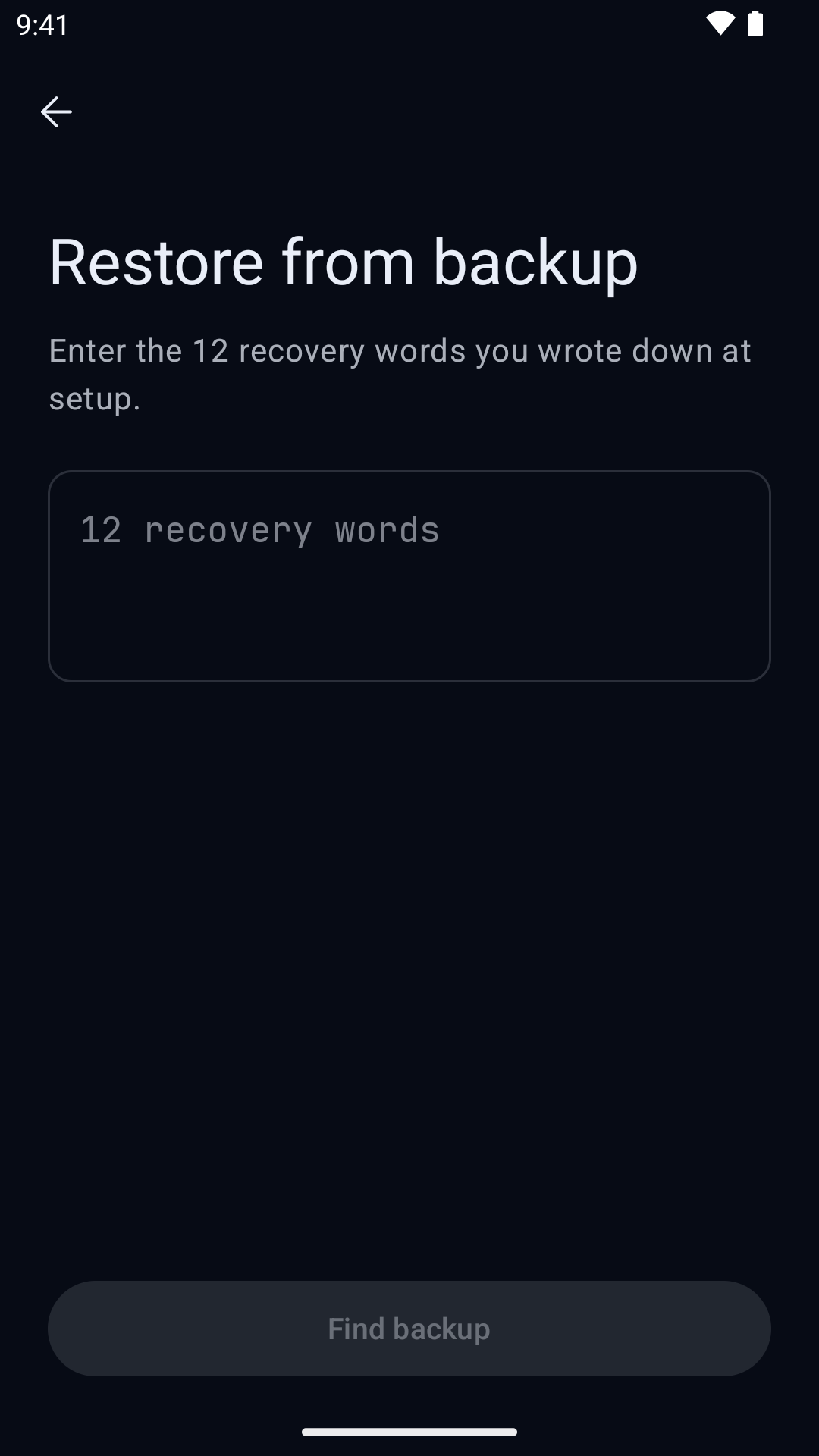
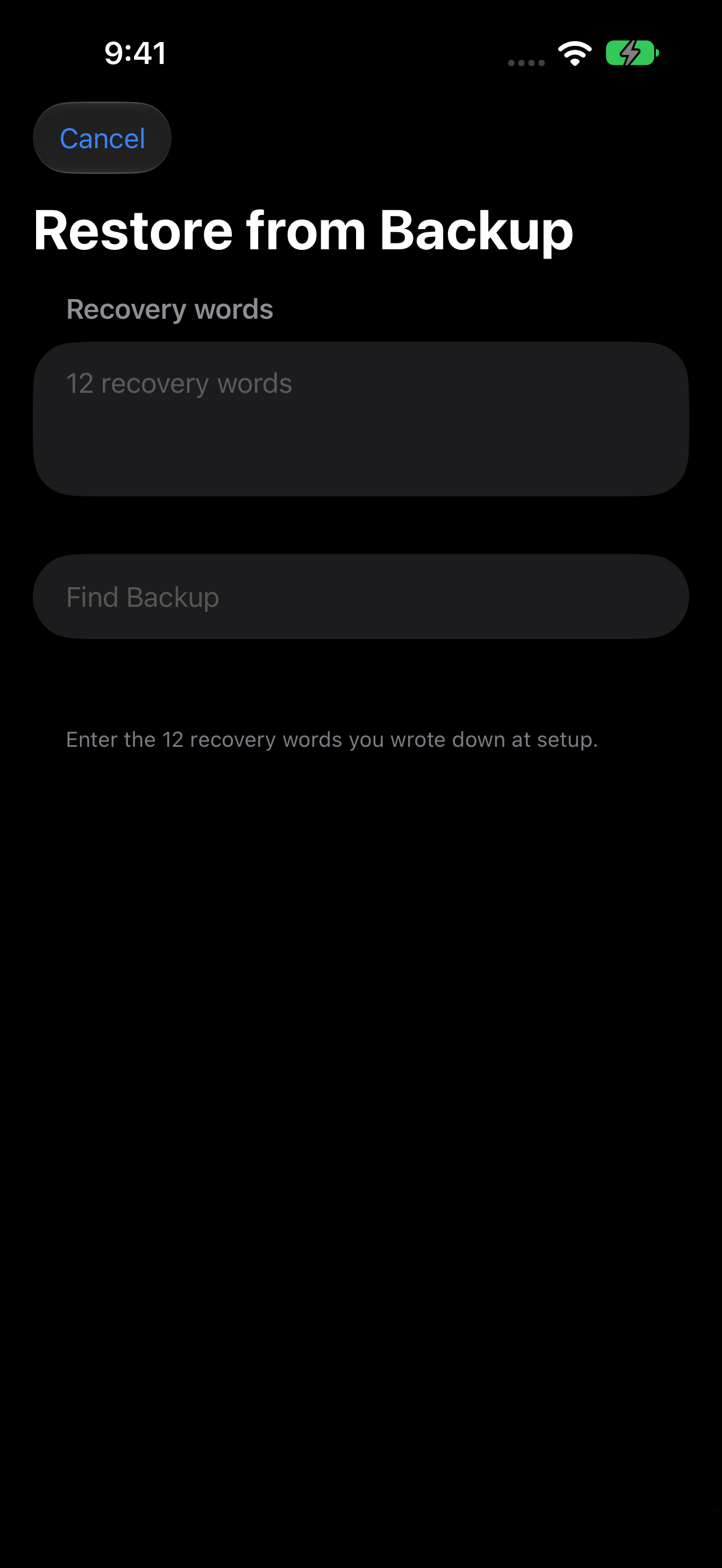
Choose a pattern for each vault
Once Hidewell finds the backup, follow the prompts to choose and confirm a new vault pattern. Each vault you restore gets a pattern for the new phone. Keep the app open while it restores, and wait for Restore finished.
If the app identifies a decoy vault, read its warning before continuing. Entering a decoy’s pattern on the lock screen deletes the other vaults on that phone. You can skip it during restoration; do not open it with its pattern as part of the checks below.
3. Check your collection before retiring the old phone
Open each restored ordinary vault with the pattern you just set. Check the collection against the old phone:
- Open recent photos at full size, including the last ones you added.
- Play important videos and check a point near the end.
- Look through the albums and older items you want to keep.
Keep using the old phone as your reference until you are satisfied. If something is missing, stop here and check the backup instead of removing the original.
When you are ready to make the new phone your everyday device, check its backup settings and finish a backup from that phone before retiring the old one. Avoid using Delete this vault on the old phone as a cleanup step: that action can also remove the vault’s cloud backup. See what to check before deleting a photo vault app before removing your old installation.
If Hidewell cannot find or finish the restore
Check these in order:
- The account. On Android, reconnect the Google account that held the old phone’s backup. On iPhone, check the iCloud account and iCloud Drive access.
- The phrase. Check all 12 words and their order against your saved copy. Use the phrase for the old phone’s vaults, not a new one created on the replacement.
- The final backup. Return to the old phone and check that backup is enabled for that vault and allowed on the phone. Open the vault and finish the backup, including any upload still waiting for a connection.
If the app reports that backup data is not fully available yet, let the upload finish and try again. Keep the original vault intact while you resolve the issue. If you need help, contact Hidewell support with the error message; keep your recovery phrase private.
Switching between iPhone and Android
Hidewell runs on both platforms, but their backup connections are different: Android restores from Google Drive; iPhone restores from iCloud Drive. These restore screens do not read a backup held by the other provider.
If you are changing platforms, keep the old phone and plan an export-and-import move for your photos and videos. On iPhone, select items and use Export → Share… or Save to Photos. On Android, select items and use Share or Save to gallery. Transfer those files using a method and destination you trust, then import them into Hidewell on the new phone and check the result.
Exported copies are outside the vault’s protection. Check who can access the destination and whether your photo library uploads them elsewhere. After checking the new vault, review the extra copies you created and keep only the ones you intend to retain.