Best apps to hide photos on iPhone and Android
Compare six ways to hide photos: Apple Hidden album, Google Locked Folder, Samsung Secure Folder, Hidewell, Keepsafe, and Vaultaire. Find the right fit.
The best app to hide photos depends on the lock you need. For keeping pictures out of everyday browsing, start with Apple’s Hidden album on iPhone or Google Photos Locked Folder on Android. For a private collection with its own secret, choose a dedicated photo vault. On a supported Samsung Galaxy, Secure Folder can protect separate copies of apps as well as photos.
Hidewell is a pattern-based encrypted photo vault for both iPhone and Android. It is a good fit when you want your private collection to open with a pattern different from your phone’s passcode.
Hidewell publishes this guide and is one of the options below. Choose by platform, access method, storage, and the features you will actually use.
Which photo-hiding app fits your needs?
| Option | Available on | Choose it for | Free starting point |
|---|---|---|---|
| Apple Hidden album | iPhone and other Apple devices | Hiding pictures inside Photos | Included in Photos |
| Google Photos Locked Folder | iPhone and Android | Keeping pictures out of your Google Photos feed | Included in Google Photos |
| Samsung Secure Folder | Supported Galaxy devices | A separate space for photos, files, and apps | Included on supported devices |
| Hidewell | iPhone and Android | An encrypted collection behind its own pattern | One vault, up to 200 items |
| Keepsafe | iPhone and Android | A PIN-protected collection with Keepsafe cloud backup | Basic includes backup for 200 items |
| Vaultaire | iPhone and iPad | A pattern vault within the Apple ecosystem | Up to three vaults, 100 photos and 10 videos total |
The key question is whether someone else knows your phone’s passcode. Apple’s Hidden album and Google Photos Locked Folder use device authentication. If you need a different secret for your pictures, look at the separate-lock options. Samsung Secure Folder offers that too; you do not need to replace it just to get another PIN or pattern.
Apple Hidden album: for simple iPhone privacy
Start here if you want sensitive pictures out of your main library without installing another app. Hidden photos disappear from the library, other albums, and the Photos widget. The Hidden album is locked by default. If you use iCloud Photos, the hidden status follows your pictures across your Apple devices. See Apple’s Hidden album guide.
Its main trade-off is the lock: you use Face ID, Touch ID, or the device passcode, rather than a separate album password. Apple’s Photos user guide explains those controls.
Choose it if: your iPhone’s existing lock is enough and you want to keep using Photos. Our iPhone photo-hiding guide covers setup and separate-password alternatives.
Google Photos Locked Folder: for Google Photos users
Locked Folder keeps selected pictures out of the Photos grid, memories, search, and albums. It works on both Android and iPhone, so it is worth considering on either platform. You can enable backup to access the protected collection from other devices through your Google Account. See Google’s instructions for Android and iPhone.
On your phone, it uses device authentication; you cannot set a separate Locked Folder password. You also need to move a picture out before sharing or editing it. Backed-up items count toward your Google storage allowance.
Choose it if: Google Photos is already your main photo app and its access method suits you. Read our Locked Folder comparison if you are deciding between it and a dedicated vault.
Samsung Secure Folder: for photos and apps on Galaxy
Secure Folder is the most relevant option here when you want more than a private photo collection. On supported Galaxy devices, it can hold files and separate copies of apps behind its own PIN, password, or pattern. That is useful if you also want a separate messaging or account space. Samsung’s Secure Folder guide covers supported-device setup and moving content in and out.
The trade-off is device choice: this is a Samsung feature, not an iPhone app or a general Android vault. Samsung has also stopped offering new Secure Folder backups, although it supports transfers through Smart Switch.
Choose it if: you have a compatible Galaxy and want a protected space for apps as well as media. Our Secure Folder alternatives comparison explains where a photo vault fits instead.
Hidewell: for a separate pattern vault on iPhone or Android
Hidewell keeps imported photos and videos encrypted in its own vault. You draw a pattern to open the collection, using a secret you choose separately from your phone’s screen lock. Both iPhone and Android support this experience.
This is useful when you sometimes share your phone passcode but want to keep your private photo collection behind a different lock. It also gives you a dedicated place to browse private media instead of mixing it into your everyday photo library.
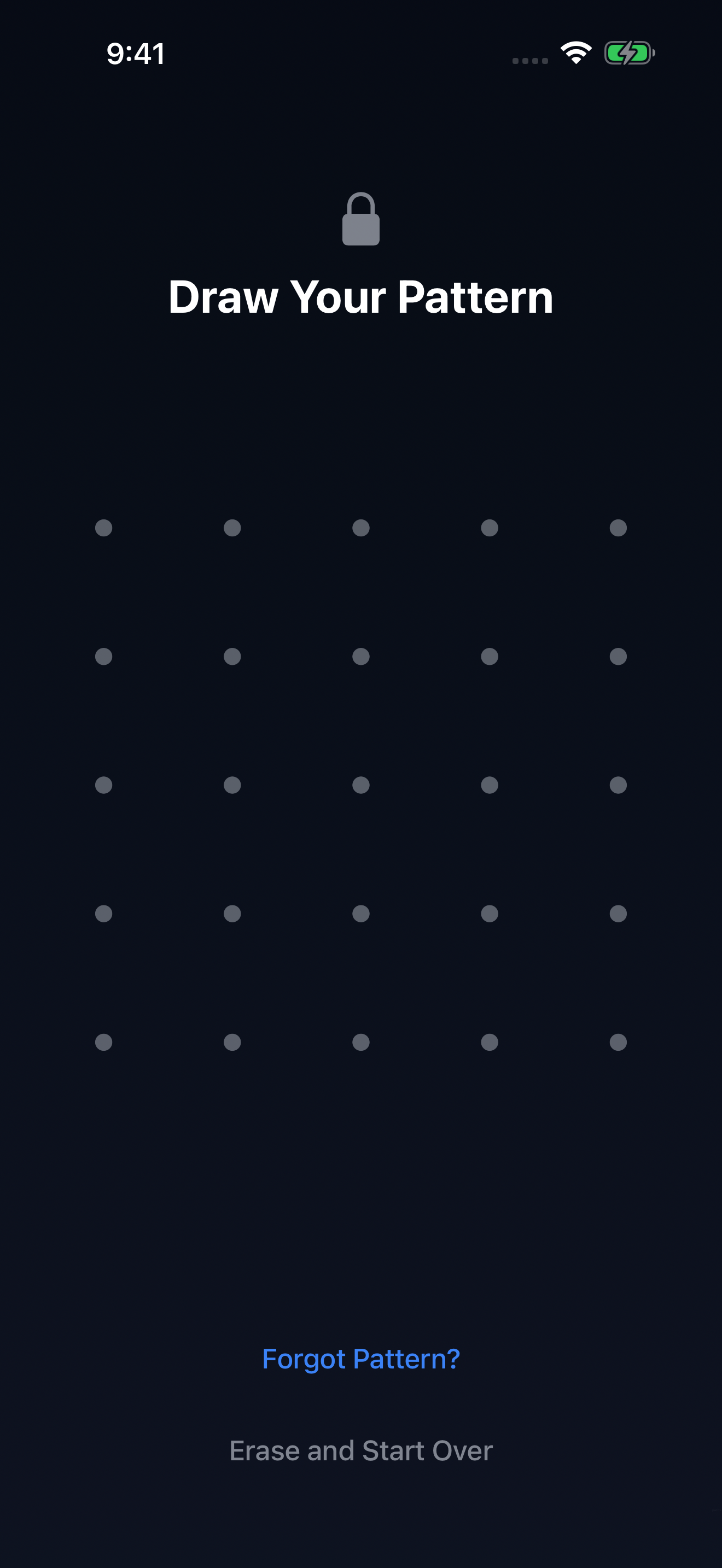
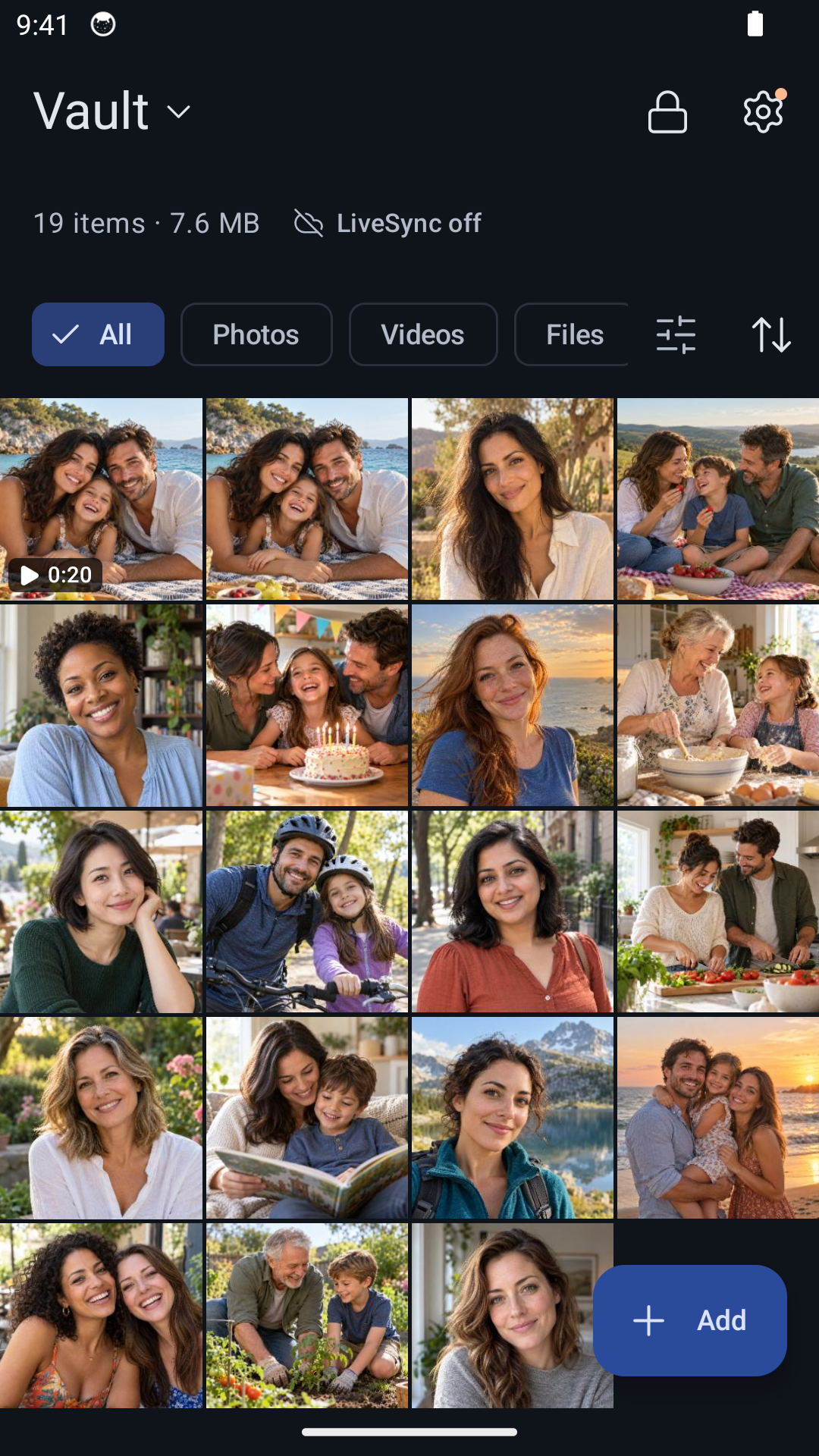
The free plan provides one vault with up to 200 items. Optional encrypted backup uses your iCloud Drive on iPhone or Google Drive on Android and is included in the free plan; cloud storage is separate. Pro offers monthly, yearly, and lifetime options, removes the item-count limit, and lets you create more vaults. Your phone still needs room for the files.
Hidewell is a media and file vault, not a container for running separate copies of other apps.
Choose it if: you want a pattern-based private photo vault on iPhone or Android. Download Hidewell from the App Store or Google Play. For the first import, follow the iPhone or Android guide.
Keepsafe: for a PIN vault with its own cloud
Keepsafe is an option for people who prefer a PIN-based photo vault on iPhone or Android and want backup through the app’s own cloud service. Its Photo Vault product page links to both stores and describes PIN and biometric access.
Keepsafe Basic includes cloud backup for 200 items. Premium raises that to 10,000, while its Lifetime plan offers 100,000; these are cloud backup limits, not the same thing as the number of files present on your phone. Premium also includes features such as a decoy PIN and Trash recovery. See Keepsafe’s plan details.
Choose it if: you prefer its PIN workflow and bundled cloud service. Compare the paid plan with the size of your collection, or read our Keepsafe comparison for the differences from Hidewell.
Vaultaire: for a pattern vault on iPhone and iPad
Vaultaire is another pattern-based encrypted vault, currently offered for iPhone and iPad. It does not require an identity account and offers encrypted iCloud backup. The free version allows up to three vaults with 100 photos and 10 videos in total; paid features include device sync. Its official site has the current features and App Store download.
If keeping untouched originals matters to you, select Original in its settings: Vaultaire says it optimizes photos and videos by default.
Choose it if: you want a pattern vault for your Apple devices. For Android, consider Hidewell or another Android option in this guide. Our Vaultaire comparison covers the closer product decision.
Make the choice with a small collection first
Pick the option that matches your phone and preferred lock, then try it with a few ordinary photos and one video. Check that browsing, playback, and getting a file back out feel right before moving your whole collection. Compare any paid upgrade in your store before subscribing.
Once you are happy with the app, check the imported copies and set up backup before removing originals from your main library. Our photo-vault transfer guide covers moving the collection when you change phones.
For a separate pattern around an encrypted private collection, start with Hidewell for iPhone or Hidewell for Android.