How to export photos from Keepsafe and move them to Hidewell
Move your Keepsafe photos into Hidewell on iPhone or Android: download originals, export a batch, import it and check your pictures before cleaning up.
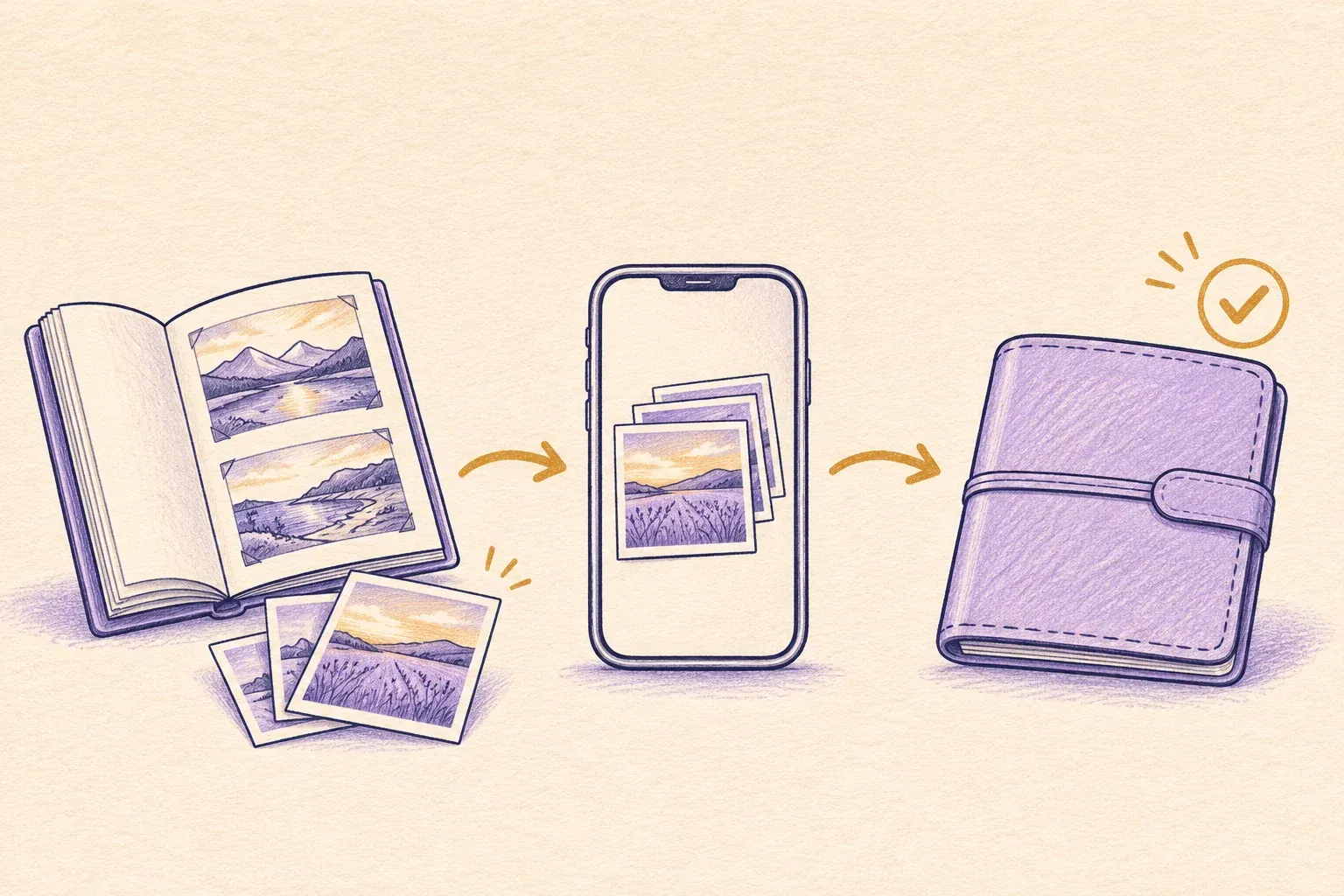
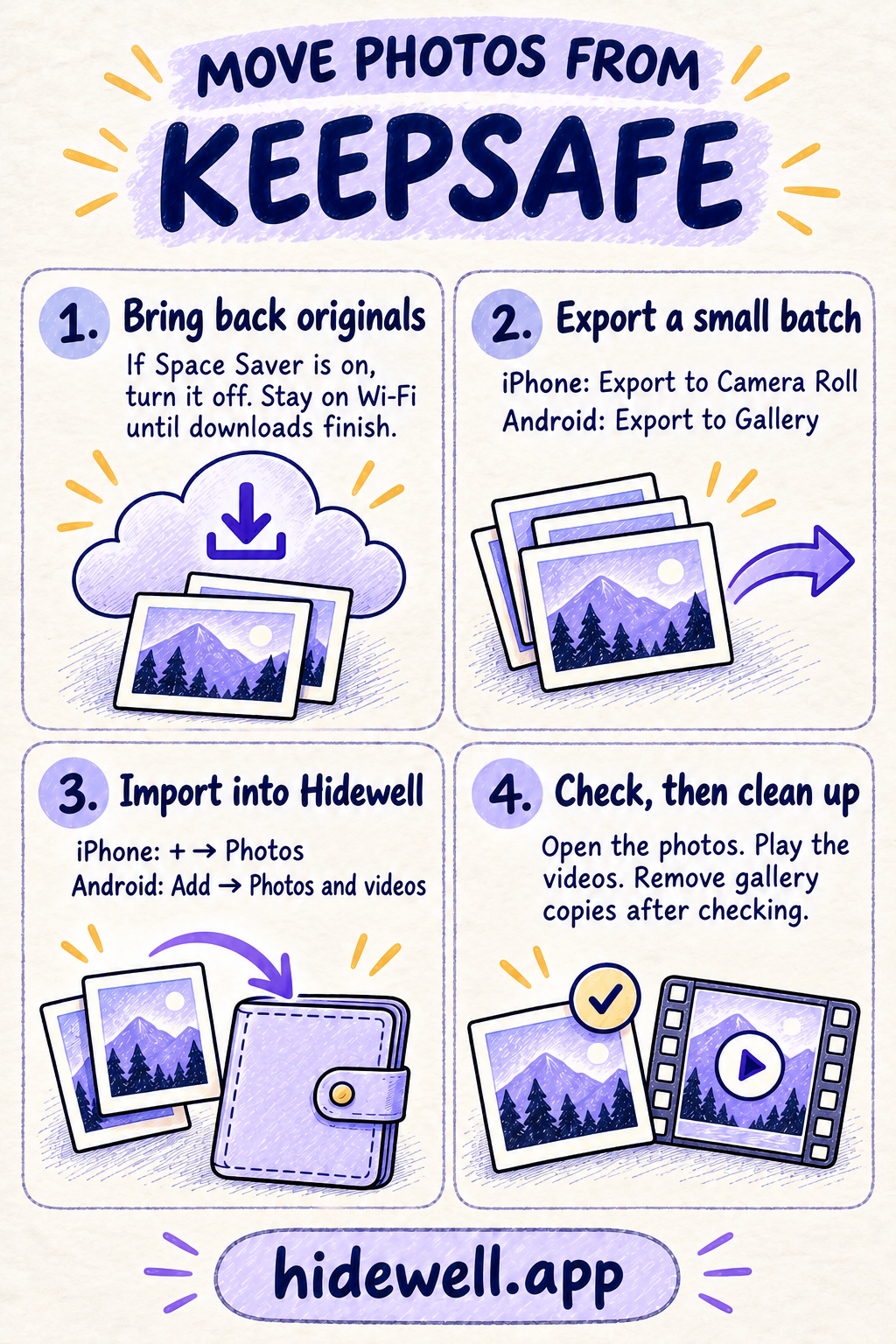
To move photos from Keepsafe, export them to your phone’s photo library, then import them into Hidewell. In Keepsafe, select pictures inside an album and use Export to Camera Roll on iPhone or Export to Gallery on Android.
Hidewell gives those pictures a new home in an encrypted vault that you open with your own pattern. It is available for iPhone and iPad and Android. The steps below move your collection on the phone you already use.
Still deciding whether to switch? Our Keepsafe comparison covers the differences between the apps.
1. Get your full-size photos ready
If you use Keepsafe’s Space Saver, switch it off before exporting. This downloads the full-size photos to your phone, so allow enough storage for them.
| Phone | Where to turn off Space Saver in Keepsafe |
|---|---|
| iPhone | Settings → Backup & Sync → Space Saver, then turn the switch off. |
| Android | Tap the cloud icon at the bottom right, turn Space Saver off, then tap Download. |
Stay on Wi-Fi and keep Keepsafe open until the downloads finish. If Space Saver was already off, continue with your first batch. See Keepsafe’s Space Saver instructions.
Before selecting hundreds of pictures, choose a small group you can recognize easily. A few photos and a video make a useful first batch: you can check both types before moving the rest.
2. Export from Keepsafe
On iPhone
- Open the Keepsafe album you want to move.
- Tap Select at the top right and choose your batch.
- Tap the send icon at the bottom left.
- Choose Export to Camera Roll.
On Android
- Open the Keepsafe album and select your batch.
- Tap the send icon at the bottom left.
- Choose Export to Gallery.
Now look for the exported pictures in your phone’s photo library. Check their original dates, too: Keepsafe says exports may return to the date they were taken rather than appearing as the newest pictures. Keepsafe’s export instructions.
At this stage, the exported pictures are in your ordinary gallery. Finish importing and checking this batch before exporting the next one, so you have fewer extra copies to sort through.
3. Import the batch into Hidewell
Open your Hidewell vault, then follow the path for your phone:
| Phone | Hidewell import controls |
|---|---|
| iPhone or iPad | Tap + → Photos, then select the exported pictures and videos. |
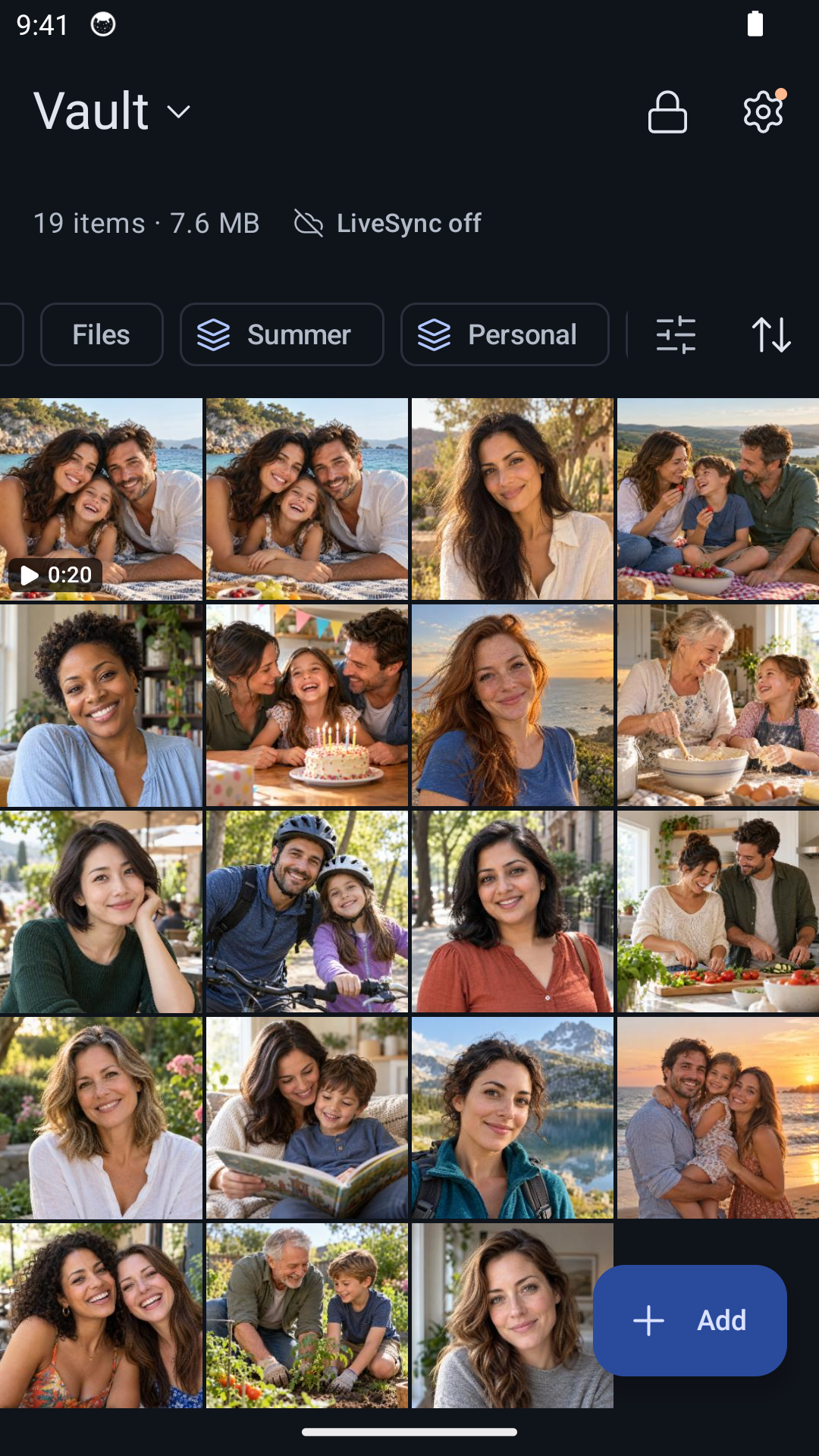
| Android | Tap Add → Photos and videos, then select the exported pictures and videos. |
If this is your first import, follow the short photo-access explanation before choosing your files. Wait for the import to finish. If Hidewell asks whether to remove the originals, choose Keep Originals on iPhone or iPad, or Keep originals on Android while you check the new copies.
Open the photos in Hidewell and play the video, including its sound. Check that every item in your batch arrived. If an import reports that some items failed, keep the gallery copies and retry those items before continuing.

4. Keep track as you move each album
Use the first successful batch as your routine for the rest. A simple note helps when you have several Keepsafe albums:
- Holiday photos, first batch: 10 selected, all 10 checked in Hidewell, gallery copies removed.
- Holiday photos, second batch: 10 selected, still to check in Hidewell, gallery copies kept.
These are example counts; use your own. Note which batch you finished before starting another, especially if your photos span several years.
You can create albums and tags in Hidewell to organize the imported collection. Recreate the groups you want to keep rather than assuming the old Keepsafe album arrangement will come across with individual photo files.
For a large collection, check the size of your destination vault before you start: Hidewell’s free plan allows 200 items per vault. If a batch would take you over that limit, Hidewell asks you to upgrade before importing it.
If something does not look right
| What you see | What to do next |
|---|---|
| Exported photos seem to be missing | Look around their original capture dates in your phone’s photo library. |
| Space Saver is still downloading | Leave Keepsafe open on Wi-Fi and check that your phone has room for the full-size files. |
| Only part of a batch reached Hidewell | Keep the gallery copies, check which items arrived and retry the missing ones. |
| The new album looks incomplete | Check the batch list before exporting the same group again. |
Finish the move
Once you have checked a batch in Hidewell, remove its matching gallery copies if you no longer want them there. Keep Keepsafe installed until you have finished checking the whole collection.
If you are leaving Keepsafe Premium, uninstalling the app does not cancel the subscription. Cancel through the App Store or Google Play, depending on where you bought it. For account removal, follow Keepsafe’s account-deletion instructions.
Moving to a different phone as well? Finish this move first, then follow our separate guide to transferring your Hidewell vault to a new phone.
Save the quick-reference card
Keep the export and import paths beside you as you work through your albums.