How to protect private photos before a phone repair
Prepare private photos before an iPhone or Android repair: Apple’s service checklist, Samsung Maintenance mode, Pixel Repair mode and a locked Hidewell vault.
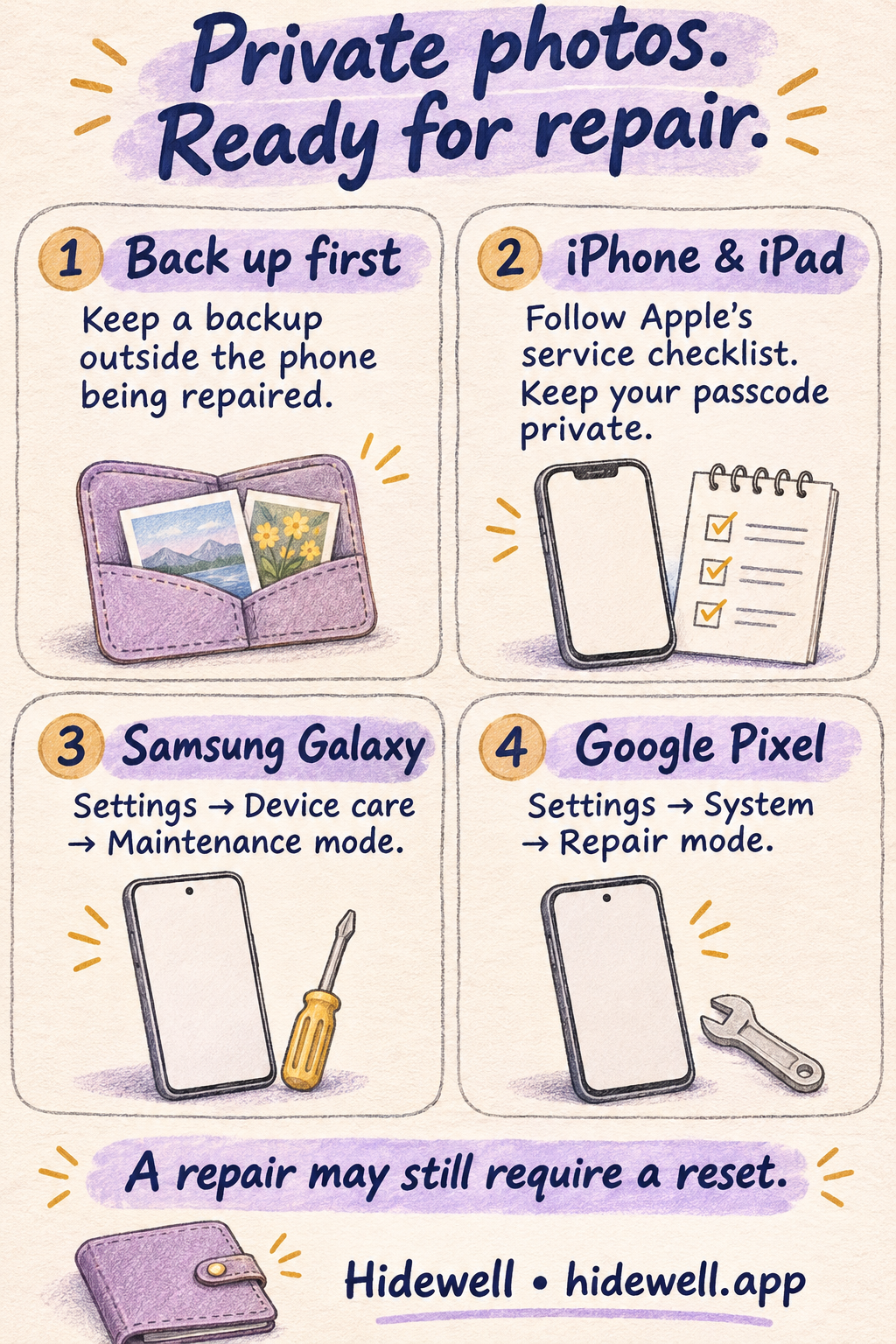
Before handing your phone over for repair, make a backup you can access without the phone, follow the service instructions for your model, and keep your passcode private. Samsung Galaxy and Google Pixel have repair modes that let a technician work without opening your personal collection. For an iPhone or iPad, follow Apple’s service checklist for your appointment or shipment.
For pictures you want separate from your everyday photo library, Hidewell stores selected photos and videos in an encrypted vault on iPhone, iPad and Android, opened with your own pattern. You can prepare and lock that collection before your appointment.
Start with the right repair option
| Your device | What to use before handing it over |
|---|---|
| iPhone or iPad | Apple’s service checklist, including its instructions for Find My. |
| Samsung Galaxy | Maintenance mode in Device care. |
| Google Pixel | Repair mode in System settings. |
| Another Android phone | Ask the manufacturer or repair provider for its preparation steps and whether the repair requires a reset. |
Back up before changing anything. A repair can involve erasing the phone or replacing its storage, even when a repair mode is available. Make sure your important files are saved somewhere you can access without the phone being repaired. If you use Hidewell, finish its encrypted backup too.
iPhone and iPad: keep your passcode private
Apple says you should not give anyone your device passcode, Apple Account password or account security details. Apple and its authorized service providers do not ask you to disclose them.
Before an appointment:
- Finish your backup and iCloud sync. Allow time for them before leaving for the repair.
- Follow the service checklist for your device. It covers Wallet and the appropriate Find My preparation, including Ready for Repair or Trade-In where offered.
- Keep control of any unlocking. If software support needs the device unlocked, enter the passcode or password yourself and stay present while the technician has access.
Use Apple’s appointment checklist for the complete steps.
Mailing it in? Follow the preparation instructions supplied for that repair, including any instruction to erase the device after backing it up. If you are returning an original iPhone through Express Replacement Service, use Apple’s replacement return instructions.
Samsung Galaxy: turn on Maintenance mode
Maintenance mode gives the technician a separate account for the repair, keeping your personal photos, videos and other personal data out of that view.
- Open Settings → Device care → Maintenance mode.
- Tap Turn on.
- Follow the prompts and let the phone restart into Maintenance mode before handing it over.
When you get it back, exit Maintenance mode and unlock with your own screen-lock credential. If the option is absent, ask Samsung or your repair provider which preparation route to use for that phone.
Samsung’s Maintenance mode guide explains the feature and why you should still back up before service.
Google Pixel: turn on Repair mode
On supported Pixel phones, Repair mode starts a separate, limited Android environment for diagnosis, without giving the technician access to your personal data.
- Open Settings → System → Repair mode.
- Follow the prompts and enter your existing PIN, password or pattern yourself.
- Wait for the restart before handing over the phone.
Keep your screen-lock credential to yourself. When the phone is returned, leave Repair mode through the same settings page or its notification, confirm with your credential and restart.
If you cannot find Repair mode, use the repair provider’s instructions for your device. Google’s Repair mode guide also explains that the repair partner may still need to reset the phone for some repairs.
Prepare your private collection in Hidewell
A repair appointment is a useful moment to separate personal pictures you do not want in your everyday gallery. Hidewell gives those pictures their own encrypted collection and pattern, which you can keep using after the repair.
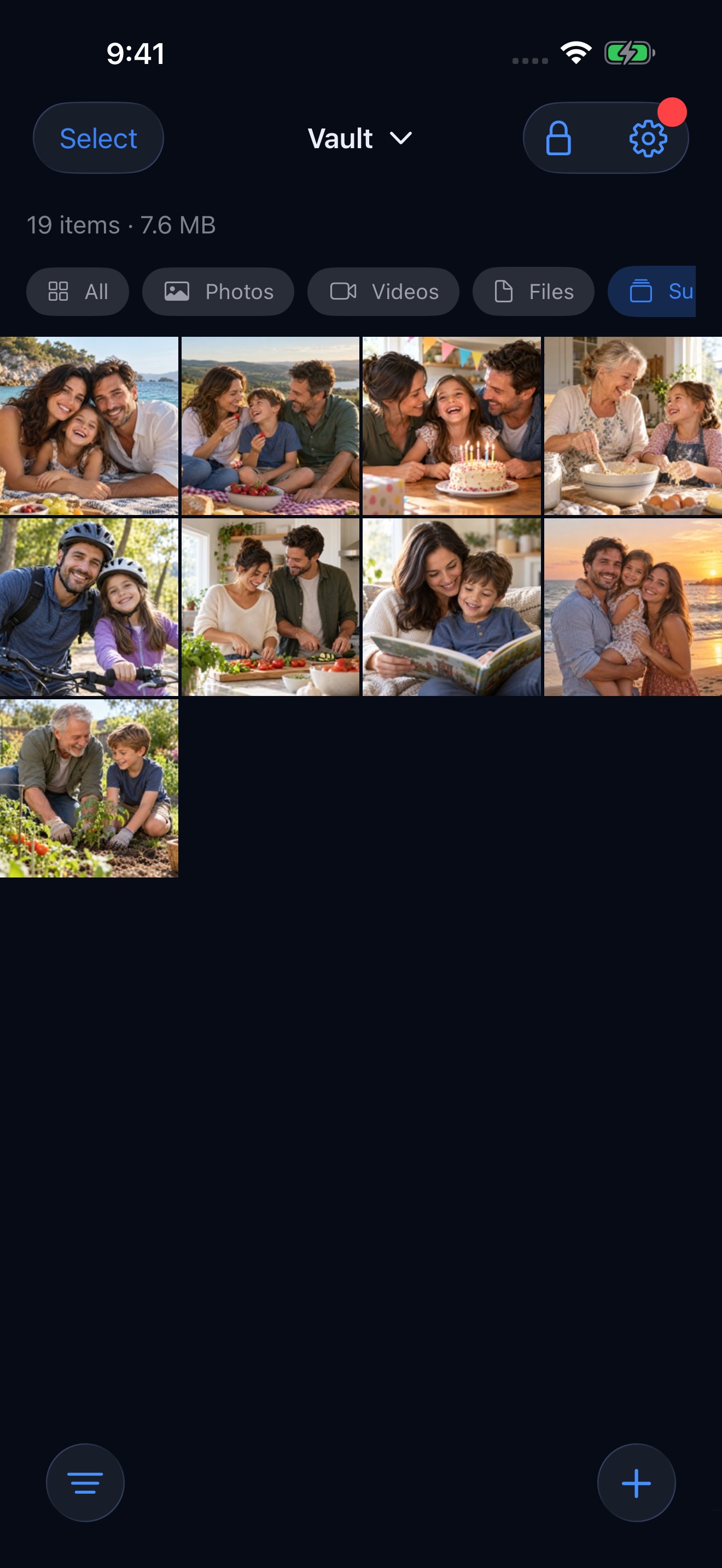
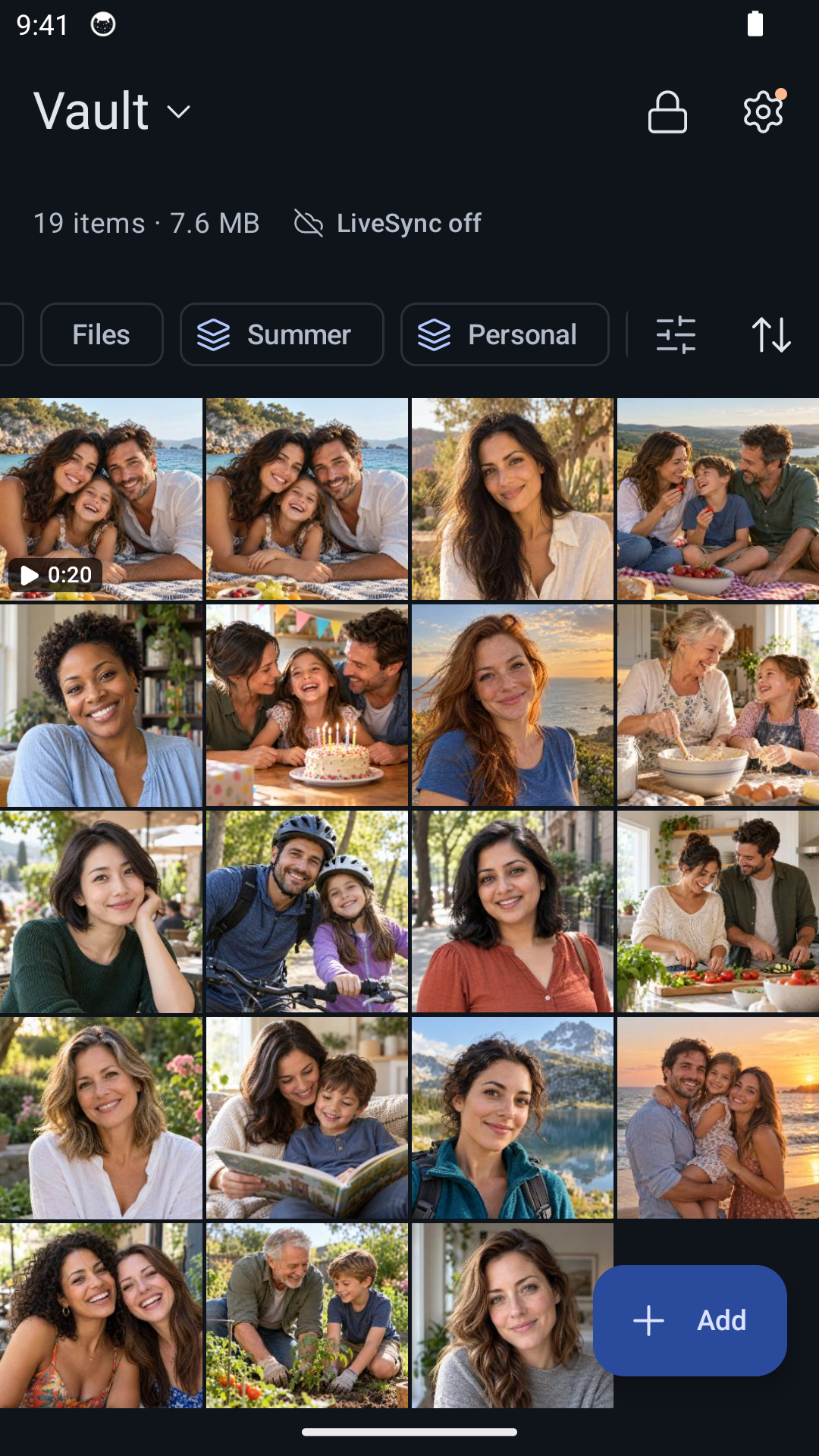
- Open Hidewell and create or unlock your vault. Choose a pattern you will keep private.
- Add the pictures you want to keep there. On iPhone or iPad, tap + → Photos. On Android, tap Add → Photos and videos. Continue through the first-import introduction if it appears.
- Open the saved pictures to check the import. Then remove ordinary library copies you no longer want there. Importing creates vault copies; existing copies do not become private just because you imported them.
- Finish your vault backup, then tap the lock icon. Do this before handing over the phone. Keep your Hidewell pattern private too.
Hidewell protects the files you store in it. Follow the manufacturer’s repair preparation for the rest of the phone.
Get Hidewell for iPhone and iPad or download Hidewell for Android.
If the screen is already broken
Tell the repair provider which preparation steps you cannot complete before handing over the device. Ask how it will handle your data and whether you can unlock the phone yourself for any checks that need access. Do not write your passcode on the repair form or put it in the package.
When your phone comes back
Leave its repair mode if you used one, restore from your backup if it was reset, and check that your pictures open. Turn Find My back on if you disabled it as part of Apple’s service instructions.
For everyday handoffs that do not involve a repair, see how to show someone one photo without exposing the rest of your gallery.
Save the quick-reference card
Download this checklist to keep with your repair appointment details.