How to show someone a photo without letting them swipe
Show one photo without exposing the rest: use Guided Access on iPhone, share selected pictures on Android, and keep private photos in Hidewell.
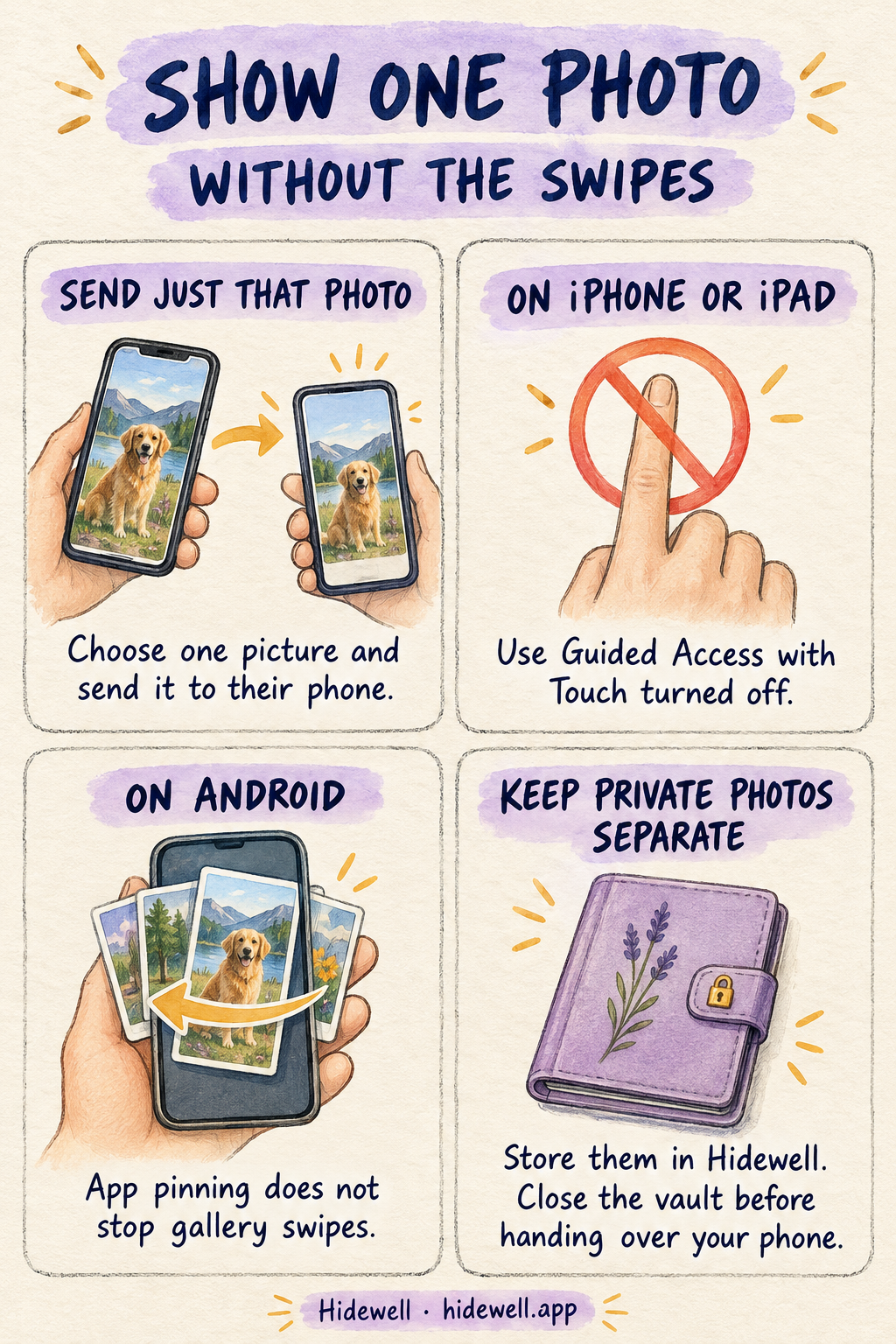
To show someone one photo without letting them swipe, send that picture to their phone or keep your phone in your hand. On iPhone and iPad, Guided Access with Touch turned off can also hold the screen on the photo. Android app pinning alone does not stop swiping inside a gallery.
For pictures you want to keep away from everyday browsing, Hidewell gives you a separate encrypted vault on iPhone, iPad and Android, opened with your own pattern. Keep that vault locked when handing over your phone. If you want to share something from it, send the chosen photo instead of handing someone an open vault.
Choose how you want to show the picture
| Your situation | What to do |
|---|---|
| They only need a quick look | Keep the phone in your hand and turn the screen toward them. |
| They want to zoom in or keep the picture | Send just that photo to their phone. |
| You need to hand over an iPhone or iPad | Open the photo, then use Guided Access with Touch off. |
| You need to hand over an Android phone | Share the selected photo first; pinning a gallery still allows browsing inside it. |
Pick the photo before offering the phone. That avoids opening your library and searching through nearby pictures while someone else is looking over your shoulder.
Send the photo without sharing your camera roll
Sending a single picture lets the other person look at it on their own screen. They receive what you choose, rather than control of your photo library.
On iPhone or iPad: open the picture in Photos, tap the Share button, then choose Messages, Mail or AirDrop. For several pictures, select only the thumbnails you want before sharing. See Apple’s photo-sharing instructions.
On Android: open the picture in Google Photos, tap Share, then choose the recipient or messaging app. If sharing several images, check the selected set before sending. See Google’s sharing instructions.
Check the recipient and the attachment preview before you send. Choose a single photo rather than an album link when that is all they need. The recipient can save a sent picture, so keep the phone in your hand if you only want to show it briefly without sending a copy.
Stop photo swiping on iPhone and iPad
- Turn on Settings → Accessibility → Guided Access and set its passcode.
- Open your photo. Triple-click the side button on iPhone, top button on iPad, or Home button if your device has one. Choose Guided Access if prompted.
- Open Session Settings or Options, turn Touch off, then tap Start.
- Try a swipe before handing over the device.
To finish, use the same button shortcut, authenticate and tap End. Some devices use a double-click to pause instead; Apple’s Guided Access guide covers that variation. If a session resumes with saved settings, pause it and check that Touch is off.
Why Android app pinning is not a one-photo lock
Android app pinning keeps someone in the selected app. That is useful when you want to lend an app without letting them switch to other apps.
It does not turn off the gallery’s own controls. If the pinned app lets you swipe between photos, the person holding the phone can still do that. For this particular task, sending the chosen picture is a more useful option than pinning Google Photos or another full gallery.
Share a chosen photo from Hidewell
You can share a picture from Hidewell without first saving it back to your everyday photo library:
- Open your vault and select the photo. Draw your pattern, then tap the picture you want to send.
- Open sharing. On iPhone or iPad, tap the export icon at the lower left, then Share…. On Android, tap the Share icon at the lower left.
- Confirm if prompted. The first export explains that a copy will leave the vault. Tap Continue when you want to proceed, then choose your recipient in the sharing screen.
- Lock the vault afterward. Return to the gallery and tap Lock before handing over your phone.


An open Hidewell vault still lets you browse its pictures. Keeping it locked protects the private collection during a handoff; sharing sends a copy that Hidewell no longer controls.
If you are setting up your private collection, follow the hiding guides for iPhone or Android. For access granted to software rather than a person holding your phone, see how to stop apps accessing all your photos.
Download Hidewell for iPhone and iPad or Android.
Save the quick-reference card
Keep these options handy for the next time someone asks to see a picture.