How to remove location data from photos before sharing
Remove photo location data on iPhone, iPad and Samsung Galaxy, understand Google Photos sharing settings, and keep private originals in Hidewell.
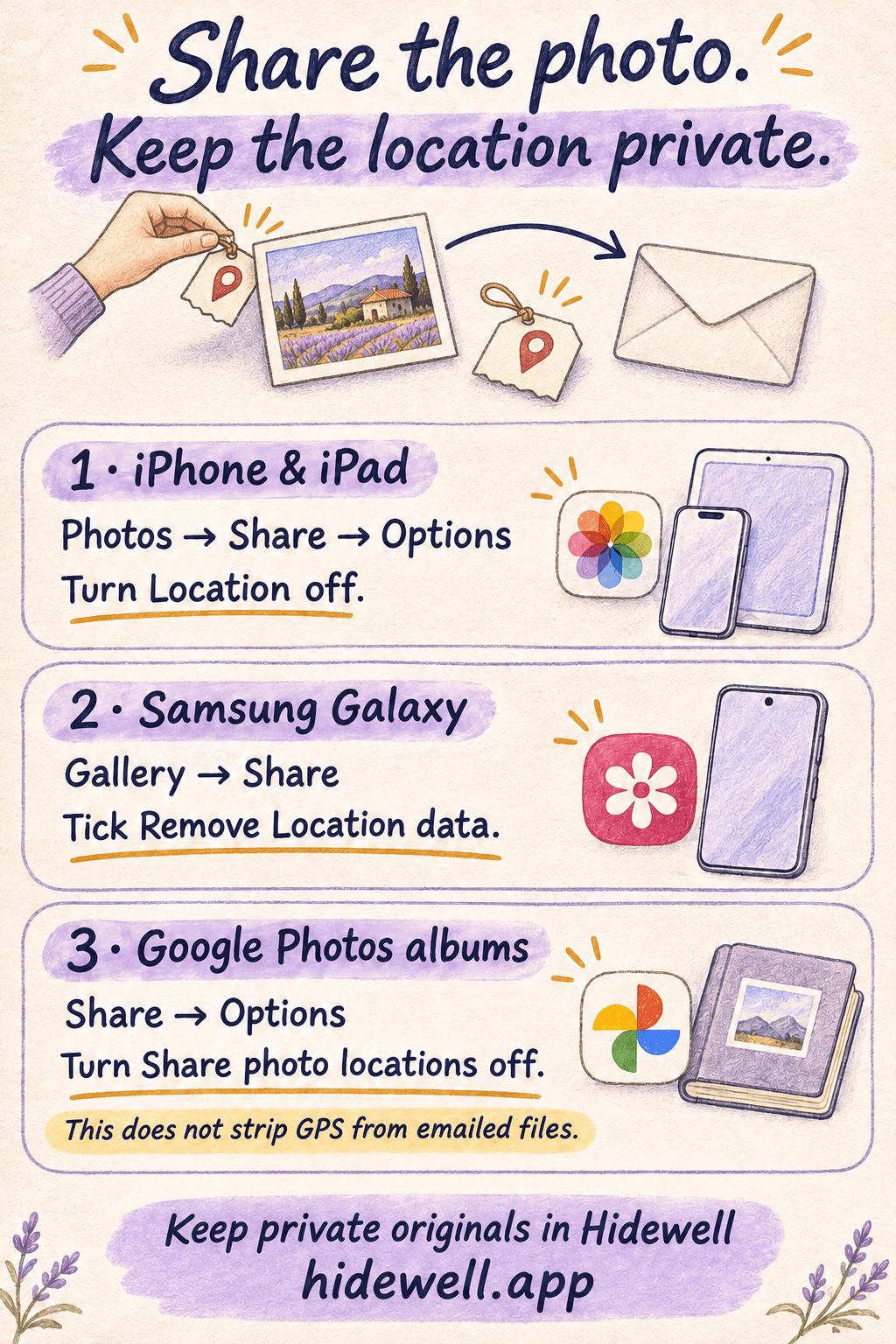
On iPhone or iPad, choose a photo in Photos, tap Share → Options and turn off Location before sending. On Samsung Galaxy, select it in Gallery, tap Share and enable Remove Location data. Google Photos album settings control location sharing inside Photos.
A photo can carry the place it was taken along with the picture itself. That can be useful for finding a holiday album later, yet unnecessary when you are sending a picture of something for sale or sharing a family photo. Choose the instructions for the app you are sending from.
| Where you are sharing from | What to use |
|---|---|
| Apple Photos on iPhone or iPad | Turn Location off in the share options. |
| Samsung Gallery | Select Remove Location data before choosing the recipient app. |
| A Google Photos shared album | Turn Share photo locations off for that album. This controls sharing inside Google Photos. |
iPhone and iPad: leave location out of the share
- Open Photos and select the picture or pictures you want to send.
- Tap the Share button, then Options.
- Switch Location off. Look for Location Not Included above the Options button.
- Choose the recipient app and send your selection.
This is a convenient choice when you want to keep the location for your own photo collection while leaving it out of this share. Check the option when preparing another share, especially if you switch to a different sending app. Apple explains these photo-location controls.
If you want to see what location is attached first, open the picture in Photos and swipe up or tap the information button. You can inspect the location before deciding how to send it.
Samsung Galaxy: remove location in Gallery
For pictures you are about to send:
- Open Gallery and select the photo. Long-press to select several pictures if needed.
- Tap Share.
- Tick Remove Location data.
- Choose the app you want to send with and finish sharing.
Samsung’s sharing instructions show this option on the Gallery share screen. It is a Samsung Gallery control; other Android photo apps can use a different menu.
If the checkbox is absent, Samsung also documents removing the location from a picture’s details: open the photo, choose More options → Details → Edit, tap the red minus beside its location and Save. Then share the saved picture. This route is useful when you want to change the photo before choosing a sending app. See Samsung’s Gallery guide.
Google Photos: check how you are sending it
For a shared album on Android, open Collections → Albums, select the album and choose Share → Options. Turn Share photo locations off, then tap Done.
Camera-added GPS is different: Google Photos cannot remove it from the original file. Its sharing settings also do not strip that location when you download the picture and email it. For a file you plan to send outside Google Photos, use a location-removal option such as Samsung Gallery’s before attaching it. Google’s location help covers these differences.
Keep private originals in Hidewell
Some photos are worth keeping without leaving them in your everyday library. Hidewell stores your chosen pictures in an encrypted vault on iPhone, iPad and Android. You can keep a private original there and prepare only the picture you intend to share.
To import a photo, open your vault and use + → Photos on iPhone or iPad, or Add → Photos and videos on Android. Continue through the picker introduction if it appears, select the pictures and wait for the import to finish. Open the vault copy to check it before removing an everyday copy you no longer want.
Storing a photo in Hidewell does not remove its embedded location data. When you want to send a vault photo without that information:
- iPhone or iPad: open the picture, tap the export icon at the bottom left and choose Save to Photos. Prepare the share in Photos with Location off.
- Android: open the picture and tap the downward-arrow Save to gallery control. Prepare that saved copy using the appropriate Gallery or Google Photos instructions above.
Continue through the export prompt and allow photo-library access if asked. Saving creates a copy in your ordinary library, so remove that copy afterward if you no longer want it there.


Get Hidewell for iPhone and iPad or Android. For more about preserving imported photos, see original quality in Hidewell.
Give the picture itself a quick look
Before sending, check the selection and recipient, then look for details in the picture you would rather keep private: a door number, a delivery label, a school badge or a document on the table. Crop an unwanted detail or choose another picture. Removing a location tag does not change what is visible in the scene.
If you only want to show someone a picture in person, the guide to showing a photo without gallery swipes covers that separate task.
Save the quick-reference card
Keep these photo-sharing controls handy for next time.