How to stop WhatsApp saving photos to your gallery
Stop WhatsApp photos filling your iPhone or Android gallery. Turn off automatic saving, change one chat’s setting and keep chosen private photos in Hidewell.
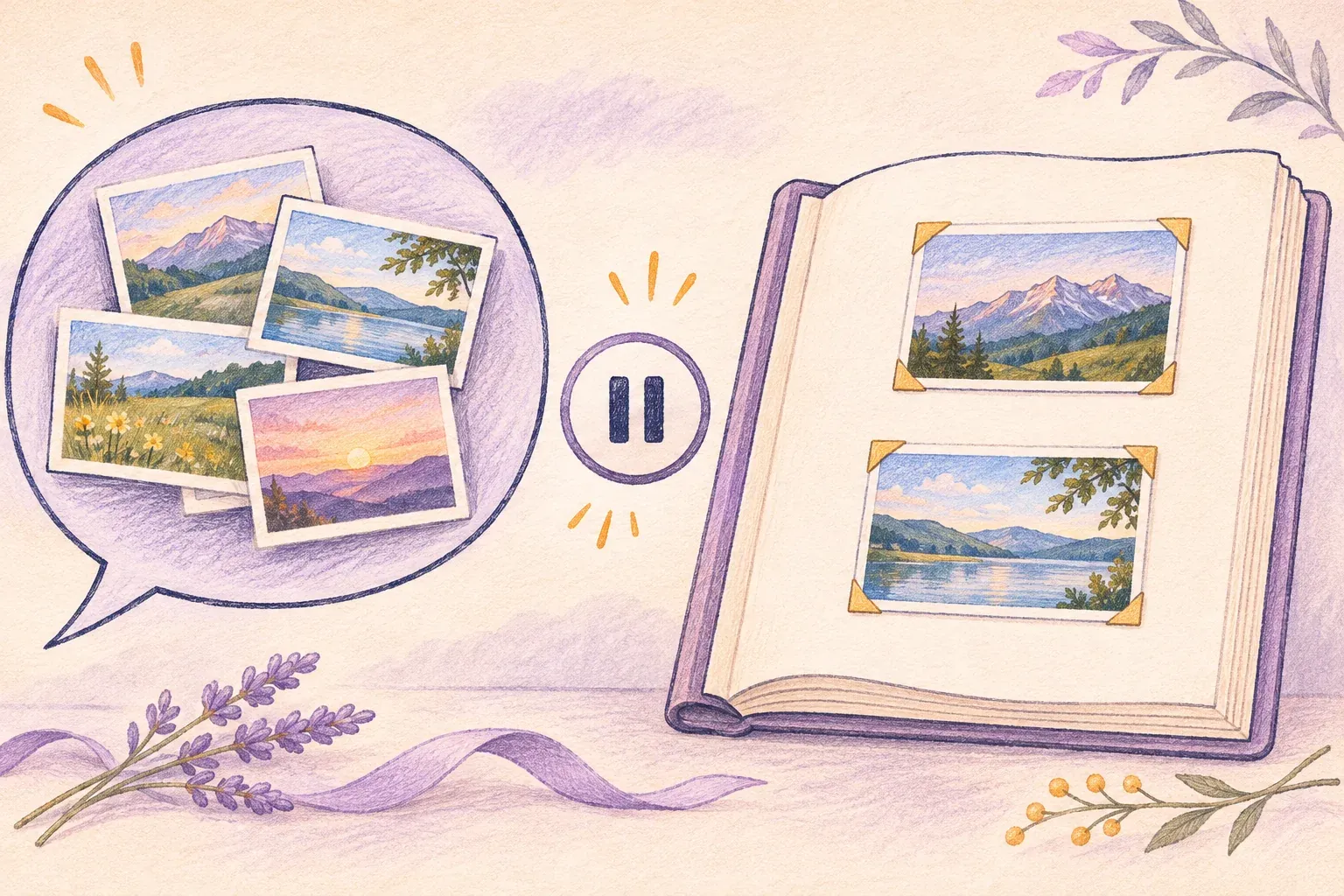
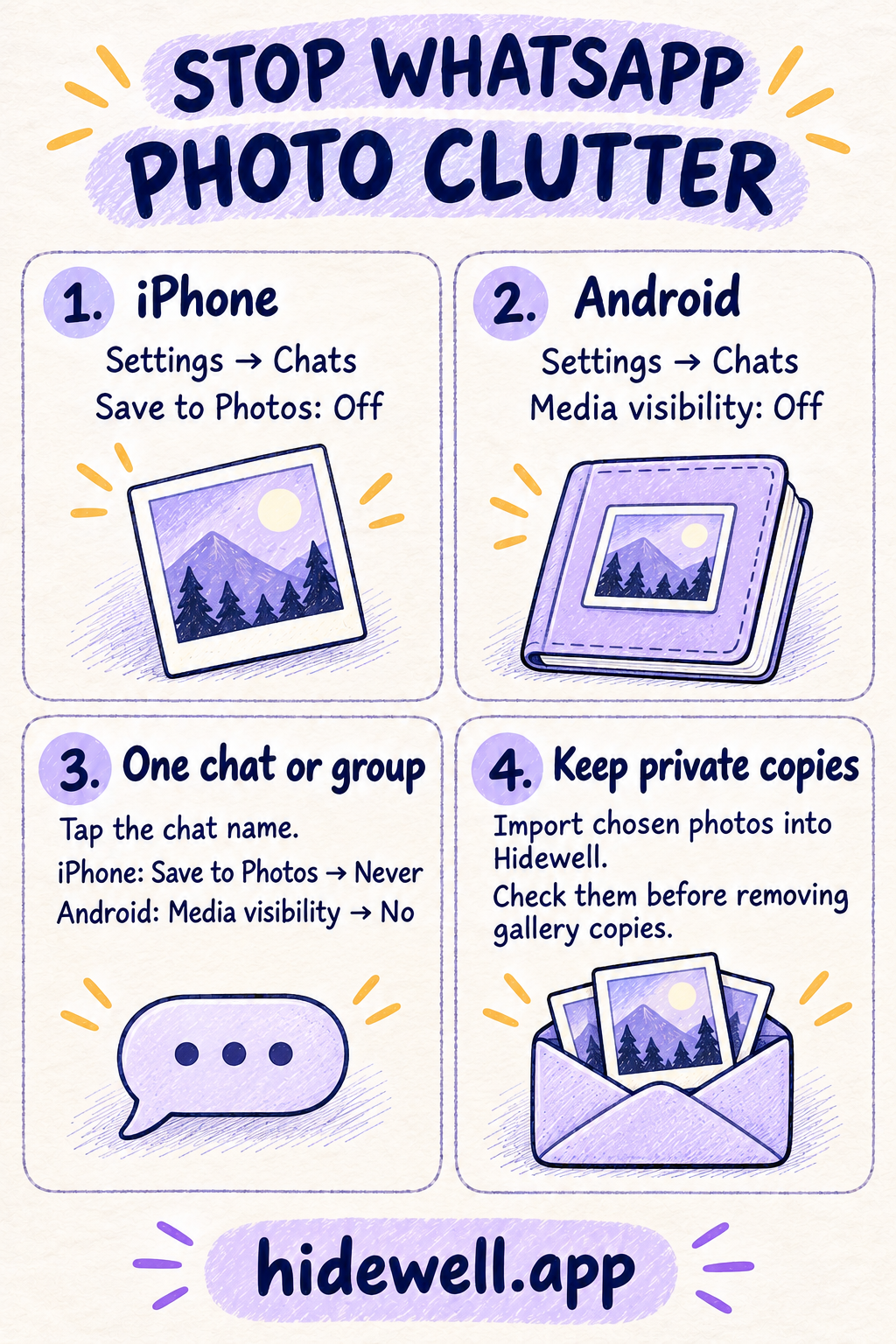
To stop WhatsApp photos appearing in your gallery, switch off Save to Photos on iPhone or Media visibility on Android. Both settings are under WhatsApp → Settings → Chats.
If you already have private pictures mixed into your library, you can also move chosen copies into Hidewell, an encrypted photo vault for iPhone, iPad and Android. First, stop new WhatsApp pictures adding to the clutter.
Stop WhatsApp saving photos on iPhone
- Open WhatsApp and tap Settings, or your profile picture.
- Open Chats.
- Turn Save to Photos off.
See WhatsApp’s iPhone instructions.
Stop WhatsApp photos appearing in your Android gallery
- Open WhatsApp and tap the three-dot menu → Settings.
- Open Chats.
- Turn Media visibility off.
See WhatsApp’s Android instructions.
Stop photos from one chat or group
Want to keep family pictures coming through but stop a busy group filling your gallery? Open that conversation, tap its name at the top, then choose:
| Phone | Setting for that chat |
|---|---|
| iPhone | Save to Photos → Never |
| Android | Media visibility → No → OK |
Check this setting if pictures from one conversation keep appearing: changing the general switch does not replace choices you previously made for individual chats. These settings affect incoming media; pictures already saved in your gallery stay there.
Also want to stop automatic downloads?
Keeping pictures out of your gallery and deciding which files WhatsApp downloads are separate choices. To download photos only when you choose:
- iPhone: open Settings → Storage and data. Under Media auto-download, select Photos → Never. You can do the same for videos. WhatsApp’s iPhone download settings.
- Android: open Settings → Storage and data. Under Media auto-download, open each connection type, clear Photos and any other media you do not want downloaded automatically, then tap OK. WhatsApp’s Android download settings.
Keep chosen private photos in Hidewell
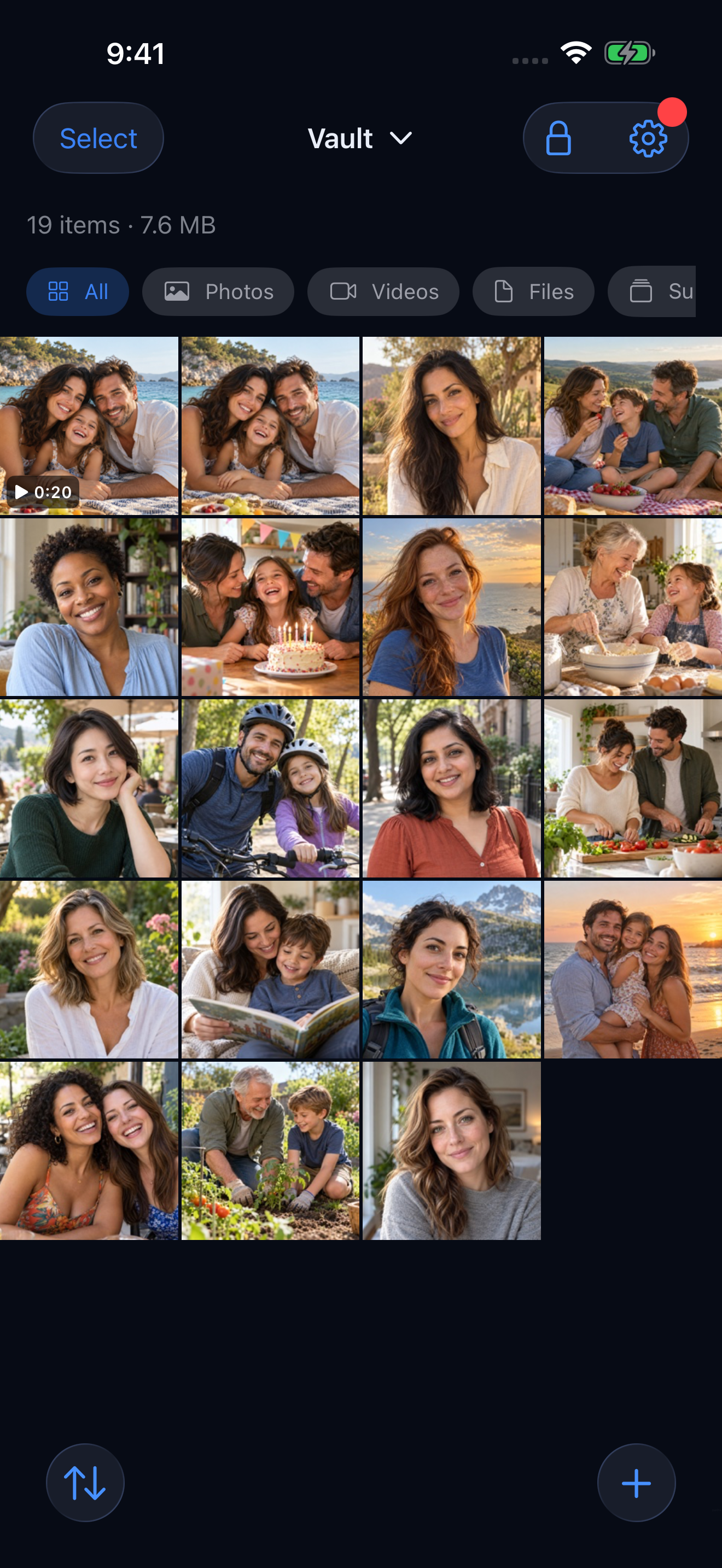
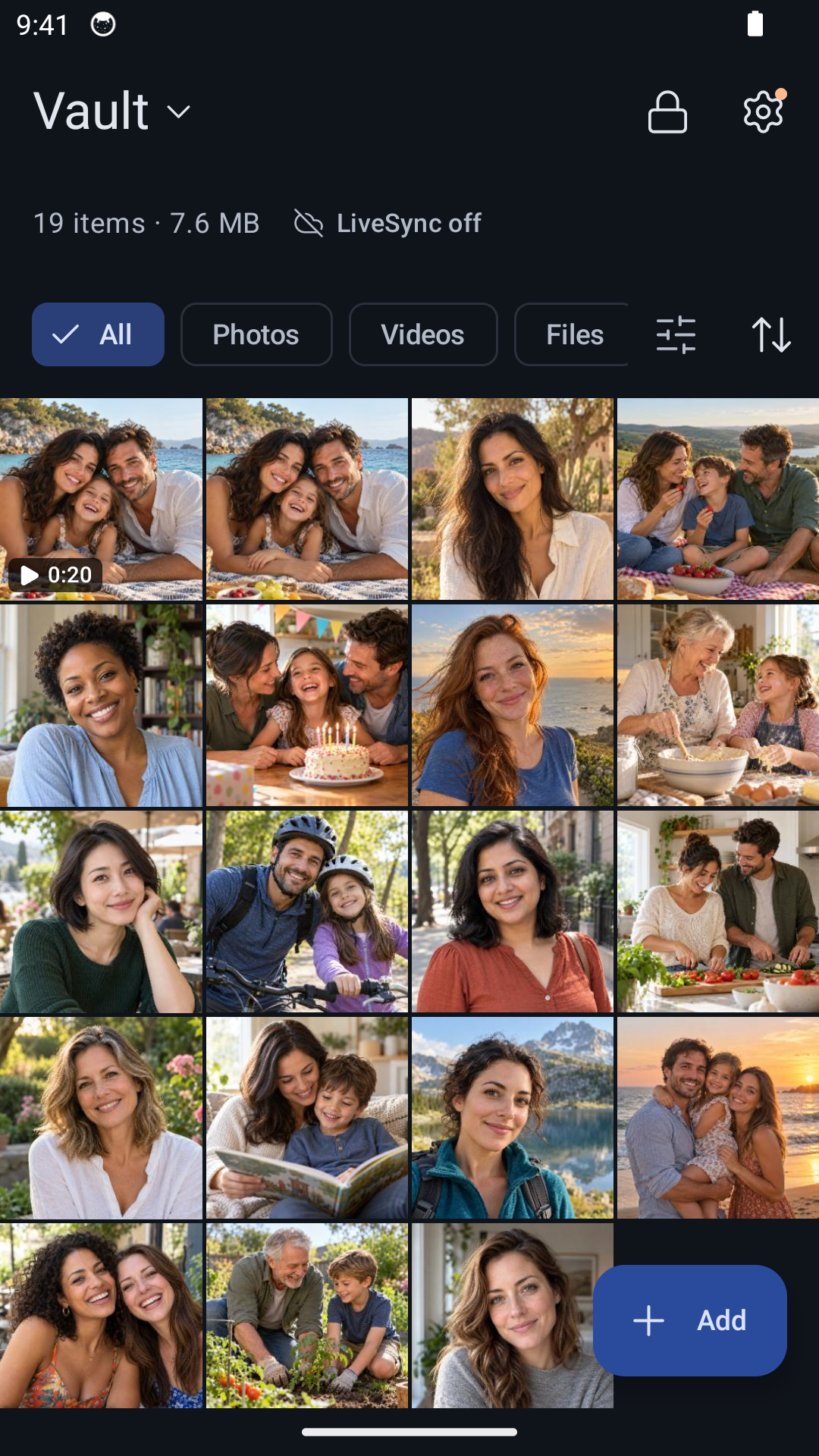
Some pictures are worth keeping without leaving them among your everyday photos. Hidewell stores the pictures you import in an encrypted vault that you open with your own pattern.
For pictures already saved in your phone’s library:
- Open your Hidewell vault.
- Choose the photos to import. On iPhone or iPad, tap + → Photos. On Android, tap Add → Photos and videos.
- Wait for the import to finish, then open the pictures in Hidewell. If asked about the originals, choose Keep Originals on iPhone or iPad, or Keep originals on Android while you check. Once you have the copies you want, remove the matching pictures from your everyday gallery.
Importing a picture does not remove it from the WhatsApp conversation. You choose which copies to keep or remove.
Download Hidewell for iPhone and iPad or Android.
If you also want to control which apps can read your existing photo library, follow our guide to stopping apps accessing your photos.
Save the quick-reference card
Keep these WhatsApp settings handy for your next gallery clean-up.