How to stop apps accessing all your photos
Check photo permissions on iPhone, iPad and Android, share selected pictures with apps, and keep a separate encrypted collection in Hidewell.
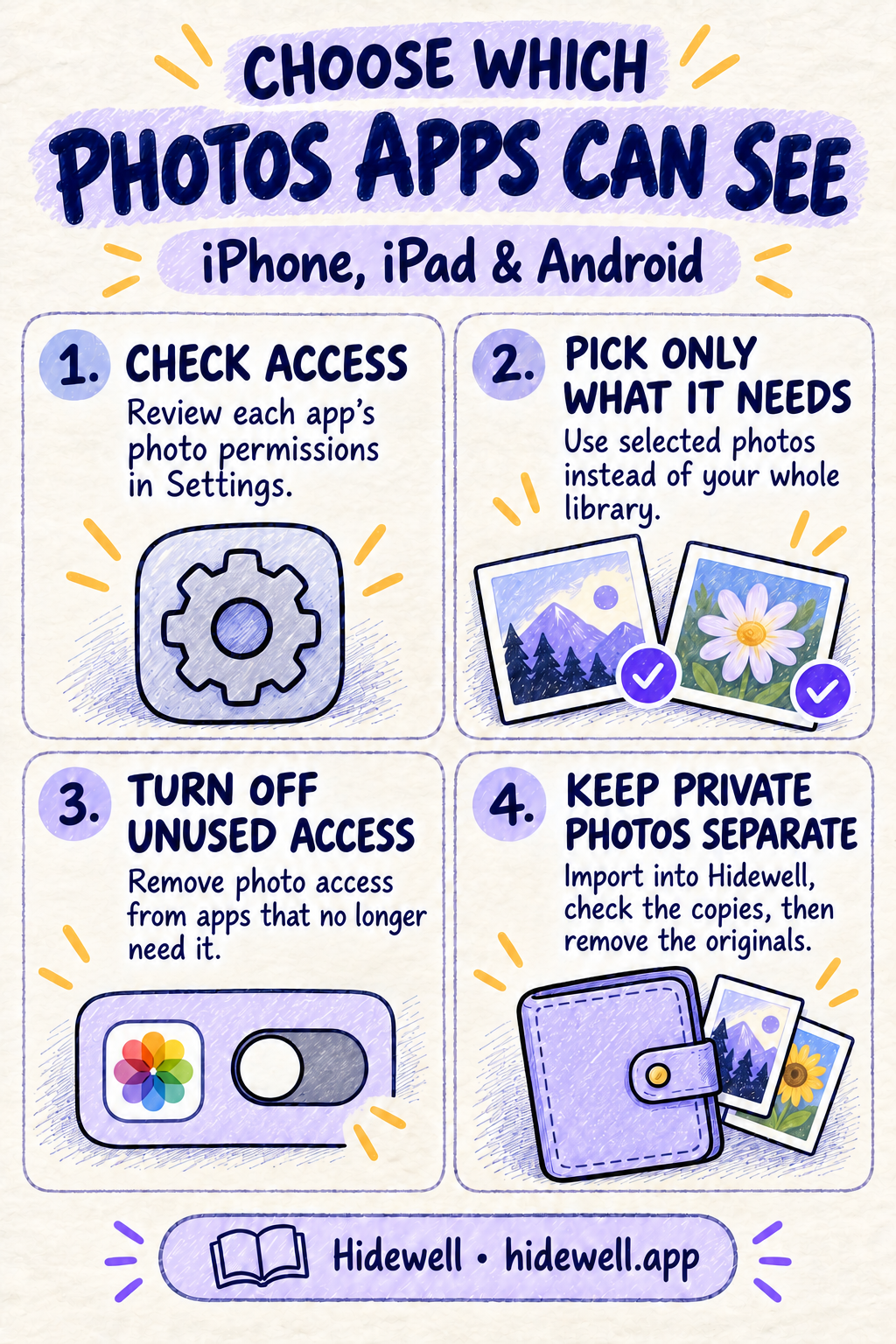
To stop an app accessing your whole photo library, change its photo permission in Settings. Choose selected photos when the option is available, or turn photo access off. You can then share the pictures an app needs without leaving broad access switched on.
For sensitive pictures you want outside your everyday library, Hidewell keeps a separate encrypted collection on iPhone, iPad and Android, opened with your own pattern. Use the permission controls below for everyday sharing, then move your private pictures into their own collection.
Check photo access on iPhone and iPad
- Open Settings → Privacy & Security → Photos.
- Tap an app to review its access.
- Choose limited access and select the pictures it needs, or choose None to turn photo-library access off.
- Return to this screen when you want to change the selection or remove access.
Start with apps you tried once, old photo editors and social apps that only need an occasional picture. Apple’s controls let you change permissions after granting them, on both iPhone and iPad.
Limited access gives an app the photos and videos you select instead of broad access to the library. If a picture is missing from an app’s own gallery, add it to that selection; you do not need to switch straight to full access. Apple explains how selected photo access works.
Check photo access on Android
- Open Settings → Apps and choose the app. Tap See all apps if needed.
- Open Permissions → Photos and videos.
- Choose the option to allow selected photos and videos, if offered, or Don’t allow to remove broad access.
- Repeat for other apps you no longer want browsing your photo collection.
You can also review apps together through Settings → Security & privacy → Privacy → Permission manager, then choose Photos and videos. Menu names can differ between phones. Google’s permission instructions cover both routes.
The selected-photo option depends on the app and phone. Where it appears, choose the pictures you need for the task. Otherwise, remove broad access and try the app’s photo-selection button: apps using Android’s system picker can receive chosen pictures without access to your entire library. See Google’s explanations of selected-photo access and the photo picker.
Choose enough access for the task
| What you want to do | A useful starting point |
|---|---|
| Add a profile picture or attach a receipt | Choose that one picture in the system photo picker. |
| Edit several holiday pictures | Give the editor selected-photo access to that set. |
| Back up your ordinary photo library | Decide whether you want that trusted backup app to have broader access. |
| Stop using an app’s photo features | Turn its photo permission off. |
A system picker can show you your library while giving the app only the items you choose. Seeing all your pictures in that selection screen does not by itself mean the app has full access. Both Apple’s picker and Android’s picker support this approach.
Changing permissions controls access on your phone. If you want to remove a picture you already posted or sent, deal with that copy in the app where you shared it too.
Keep private pictures in Hidewell
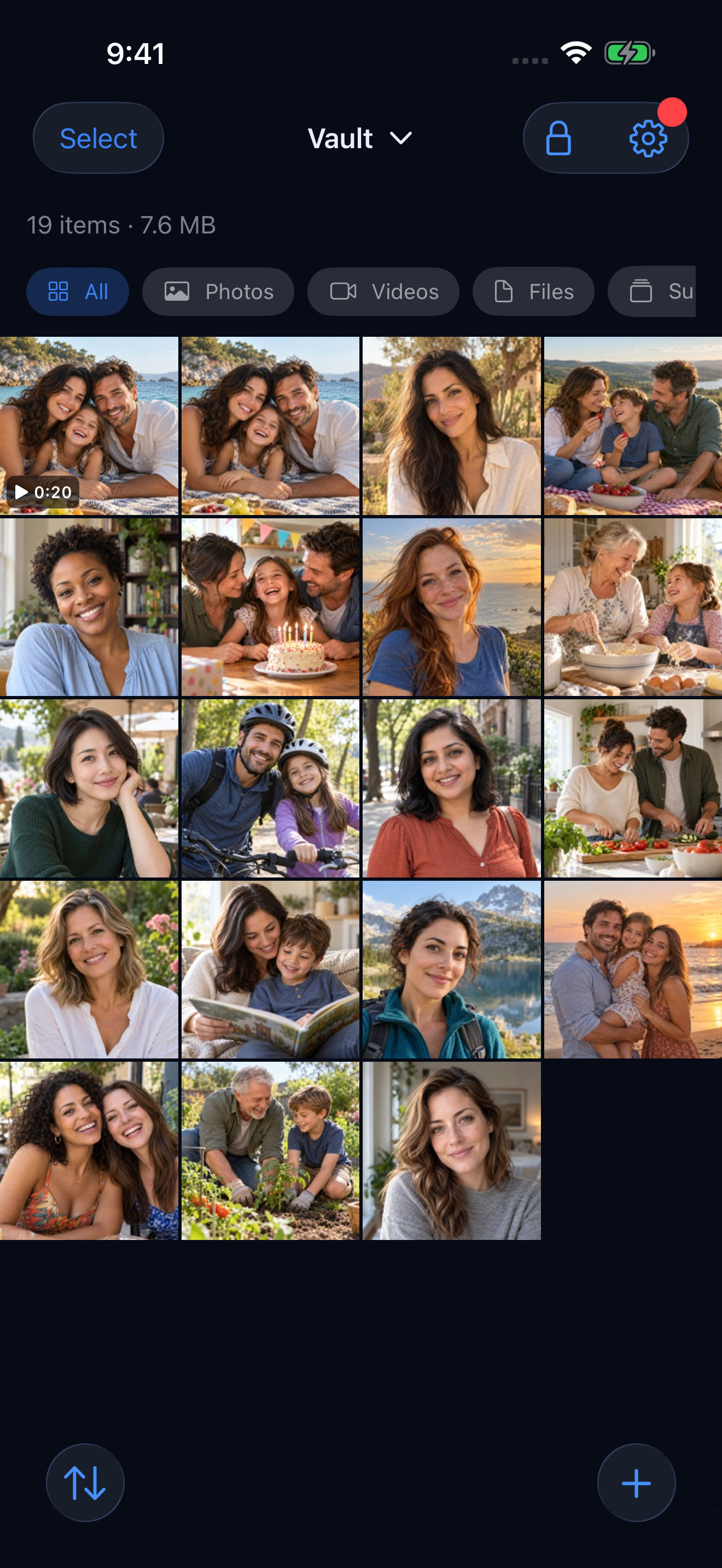
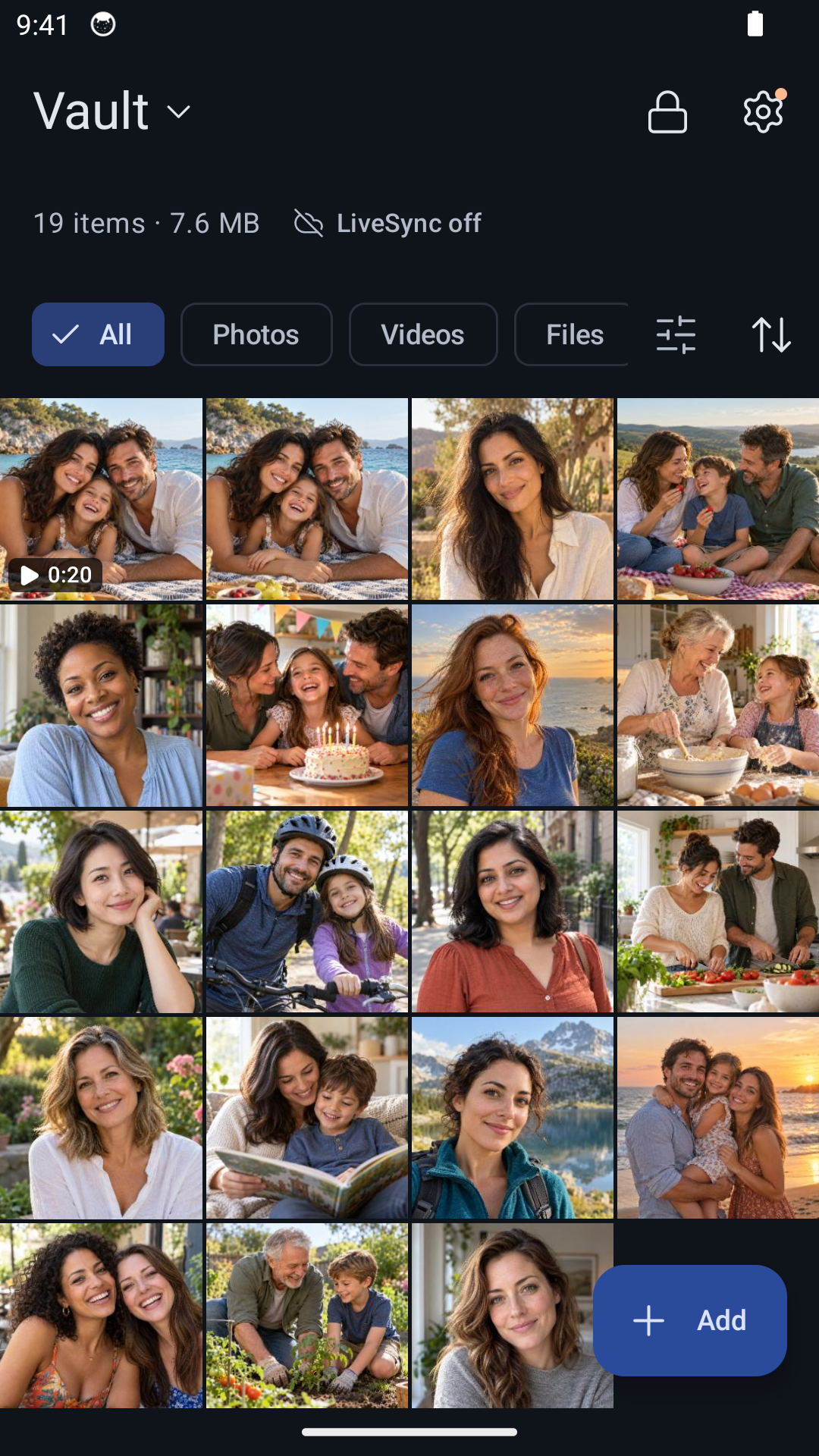
Photo permissions help you share less with each app. Hidewell gives pictures you want to keep separately their own encrypted vault. Importing into Hidewell uses the system photo picker on both platforms, so you can choose what to add without granting whole-library access for the import.
- Open your vault. Finish setup if this is your first use, then draw your pattern to open the collection.
- Choose your pictures. On iPhone or iPad, tap + → Photos. On Android, tap Add → Photos and videos. Continue through the first-import explanation if it appears.
- Wait for the import, then check the copies. Open the imported pictures in Hidewell.
- Remove the originals from your ordinary photo library. Importing creates encrypted vault copies; it does not automatically remove the originals. You can delete them in your usual photo app after checking the import.
For built-in hiding options, see our guides for iPhone and Android. To start new pictures inside your private collection, see taking photos directly into Hidewell.
Download Hidewell for iPhone and iPad or Android.
Save the quick-reference card
Keep this checklist handy when reviewing the apps on your phone.