Vaultaire for Android? Meet Hidewell’s pattern-based photo vault
Looking for Vaultaire on Android? Try Hidewell’s encrypted photo and video vault: draw a pattern, add your photos, and get started on Google Play.
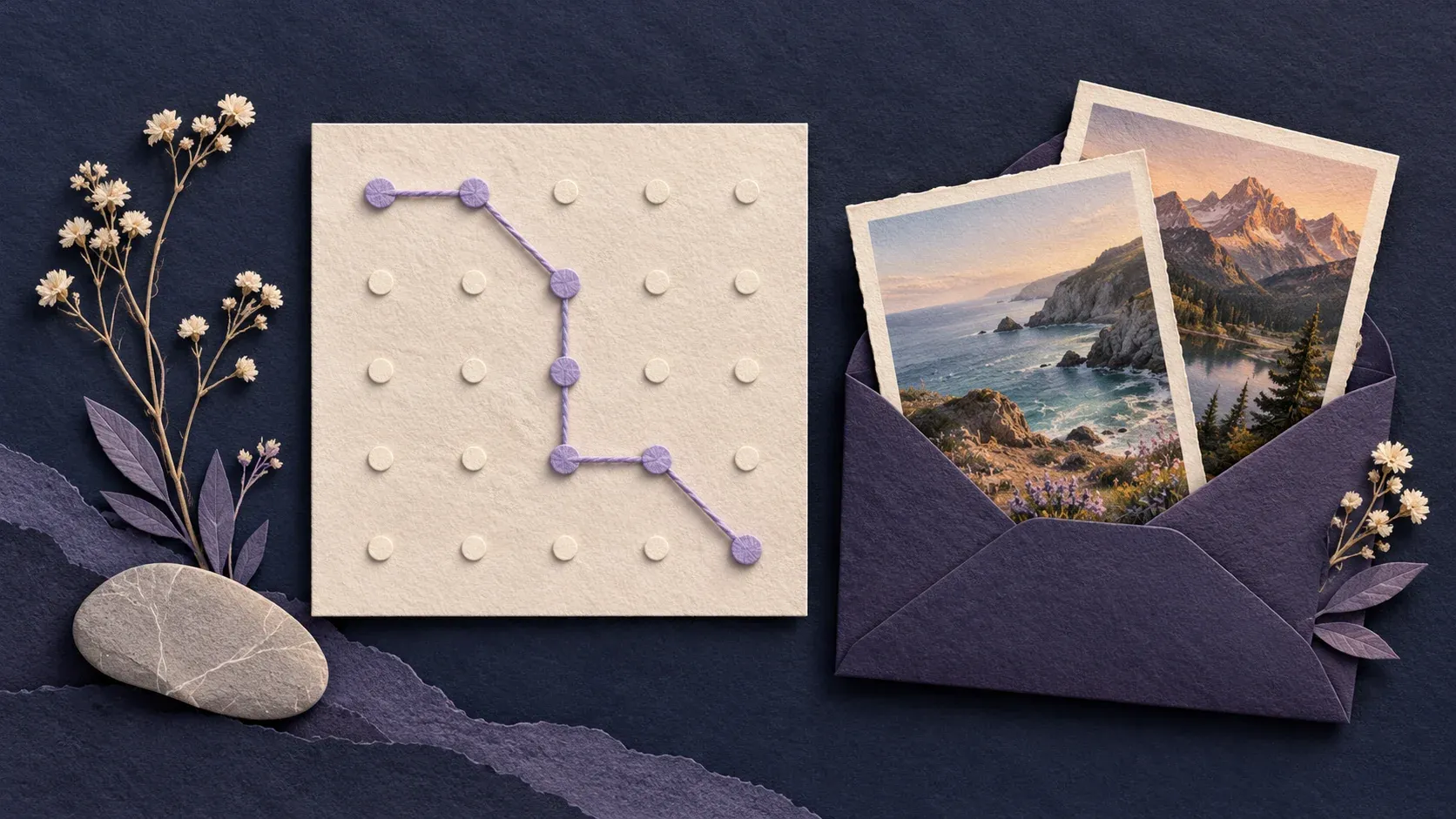
Vaultaire is not available for Android. Its official guide lists it as iOS-only. If you like the idea of drawing a pattern to open an encrypted photo vault, Hidewell brings that experience to Android. It also supports iPhone.
Hidewell is a separate app with its own vaults and features. You can download Hidewell from Google Play and try it with a few photos before moving a larger collection.
A familiar way to open your private photos
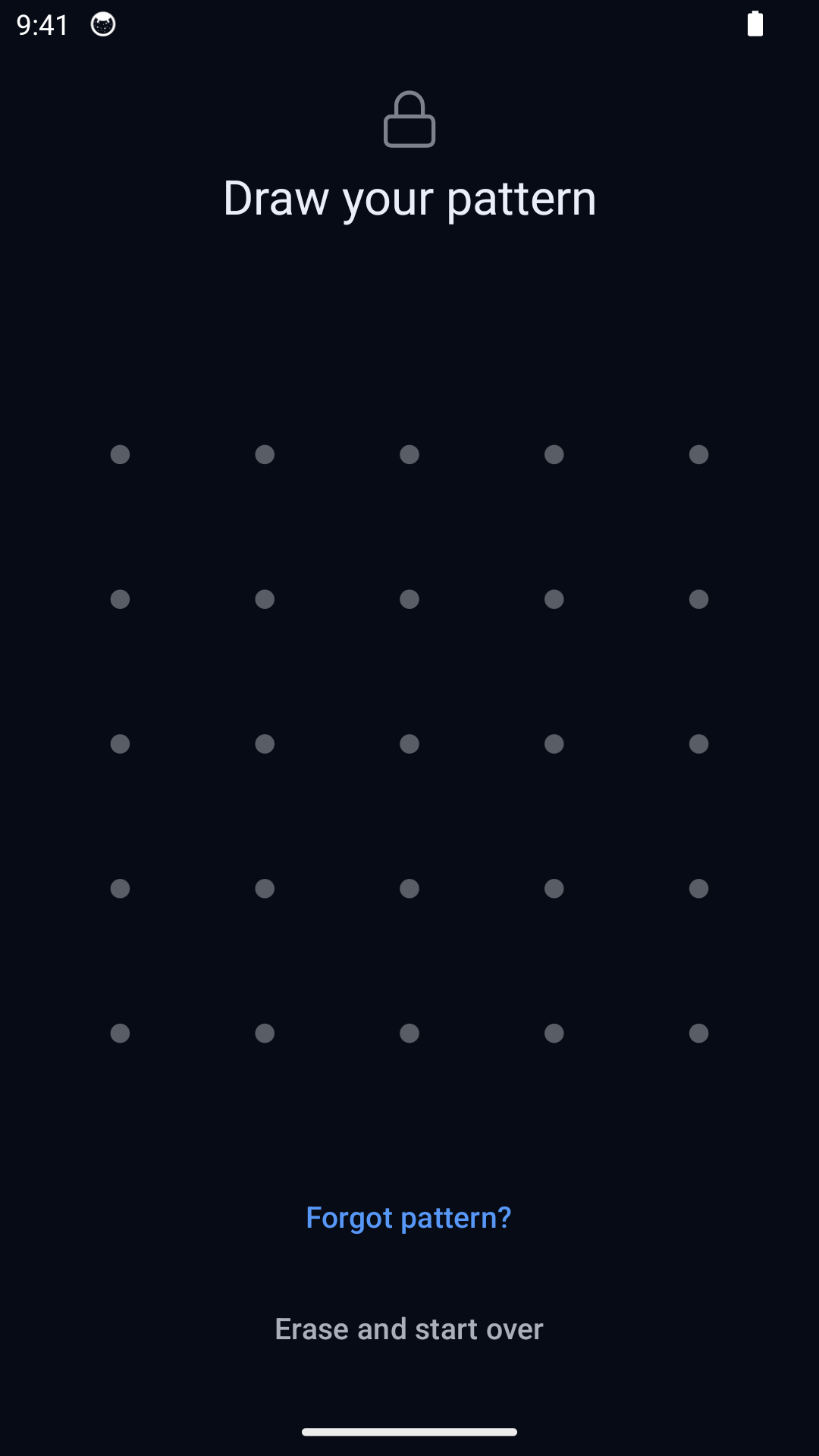
Part of Vaultaire’s appeal is its pattern-based approach: draw on a five-by-five grid to open a vault. Hidewell uses that same kind of interaction. You choose a vault pattern, then draw it when you want to see the photos and videos inside.
The pattern is separate from your phone’s screen lock. Hidewell encrypts the files you add to the vault, so they are stored as encrypted data, not ordinary photos hidden behind a gallery screen.
With Hidewell Pro, you can create additional vaults, each with its own pattern and contents. To open another one, lock the current vault and draw that vault’s pattern. This is useful when you want to keep different collections separate.
Set up Hidewell on Android
1. Install the app and choose your pattern
Open Hidewell’s Google Play listing and install the app. Follow the introduction to create your first vault.
Draw a pattern on the grid, follow the strength guidance, and draw it again to confirm. Choose one you can remember without reusing your phone’s unlock pattern.
2. Write down your recovery phrase
During setup, Hidewell shows a 12-word recovery phrase. Write the words down in order, keep them somewhere private, and complete the word check. Keep this copy somewhere you can reach even if you lose your phone.
3. Add a few photos or videos
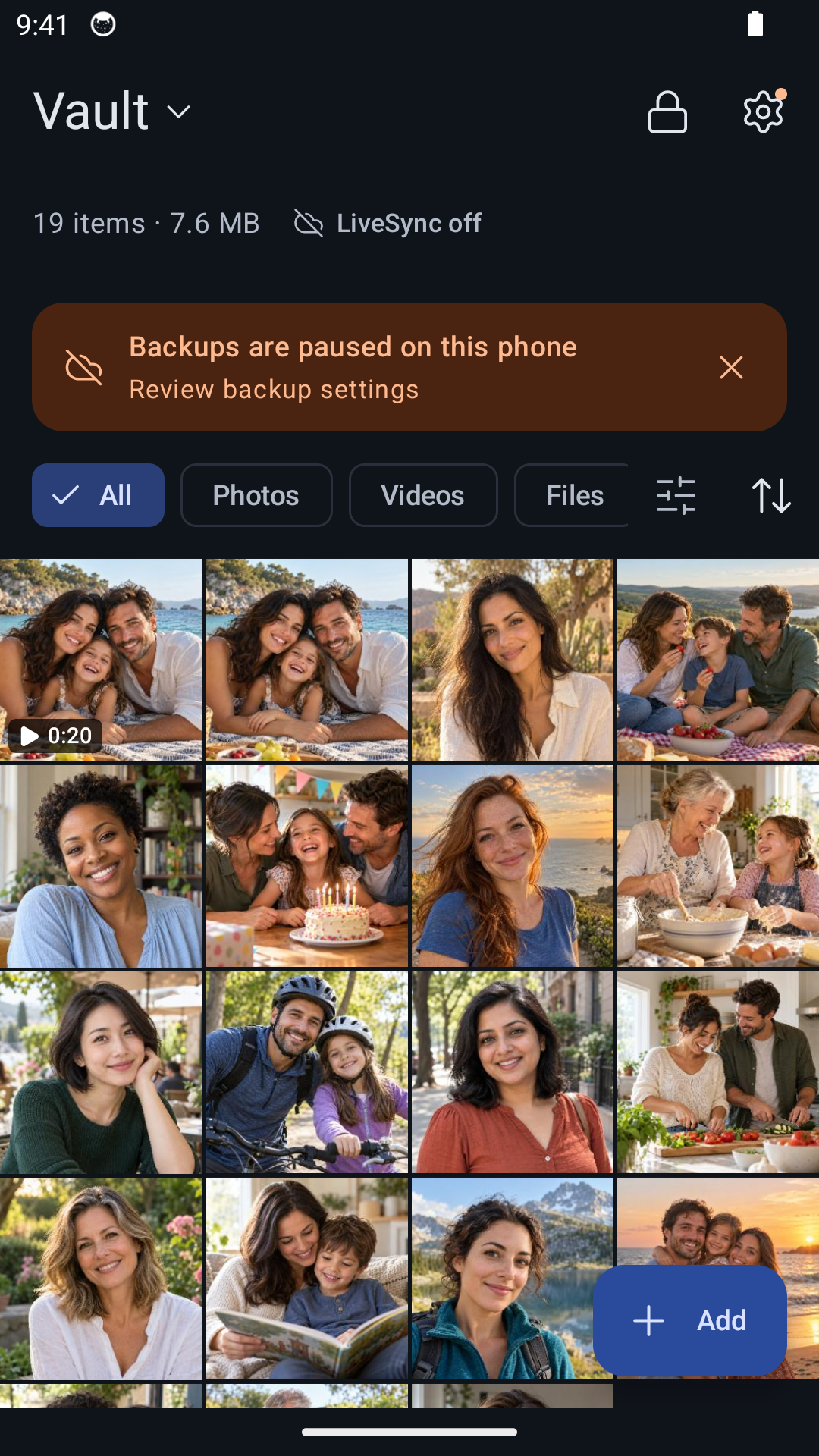
Inside the vault, tap + Add → Photos and videos, then select the items to import. Start with a small selection and open them in the vault to check the result.
Importing does not automatically clear every original or cloud copy. After checking your vault copies, follow the app’s removal prompt if offered and review anything you still have in your gallery or cloud photo library. Our Android photo-hiding guide covers that housekeeping in more detail.
For something new, choose + Add → Camera. Use Photo to take a picture or Video to record a clip into the vault. Allow camera access, and microphone access for video with sound. See how Hidewell captures photos and videos directly into the encrypted vault for the full walkthrough.
4. Lock it and open it again
Tap the lock icon in the vault’s toolbar. Draw your pattern to reopen the vault and find the items you just added. You now know the everyday routine: unlock, browse or add, then lock.
What to know before choosing
You can start with one free vault holding up to 200 items. Creating additional vaults and storing beyond the free item limit require Hidewell Pro. You do not need Pro to try the pattern lock or import your first photos and videos.
Hidewell and Vaultaire have different features, plans, and recovery options. For those details, read our Hidewell versus Vaultaire comparison. If your immediate goal is a pattern-based encrypted vault for your Android phone, you can start here:
Get Hidewell on Google Play — create your pattern, save your recovery phrase, and add your first photos.