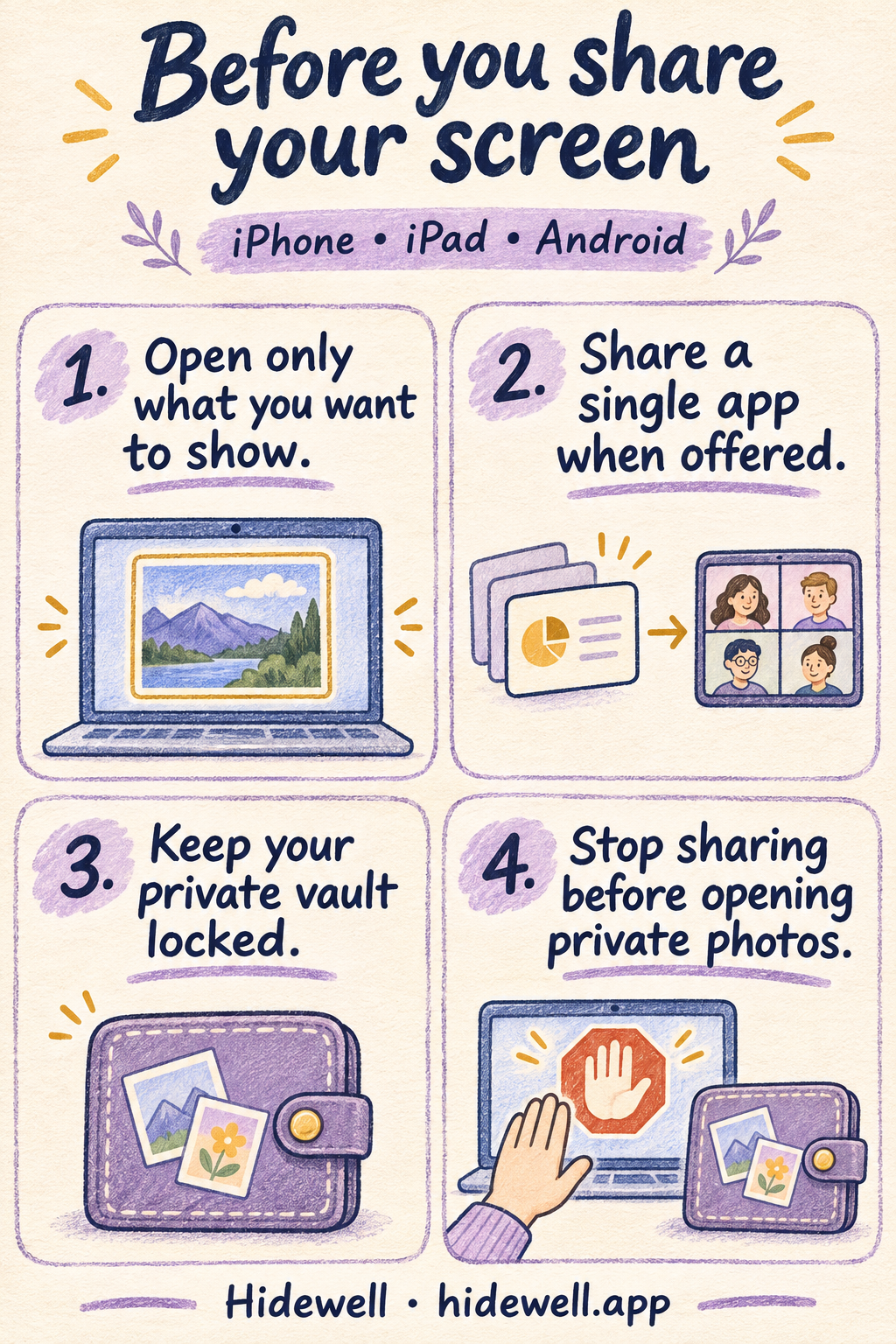
Keep private photos out of screen sharing on iPhone and Android
Keep private photos off your next screen share: prepare what to show, choose one app when available, and lock your vault on iPhone, iPad or Android.
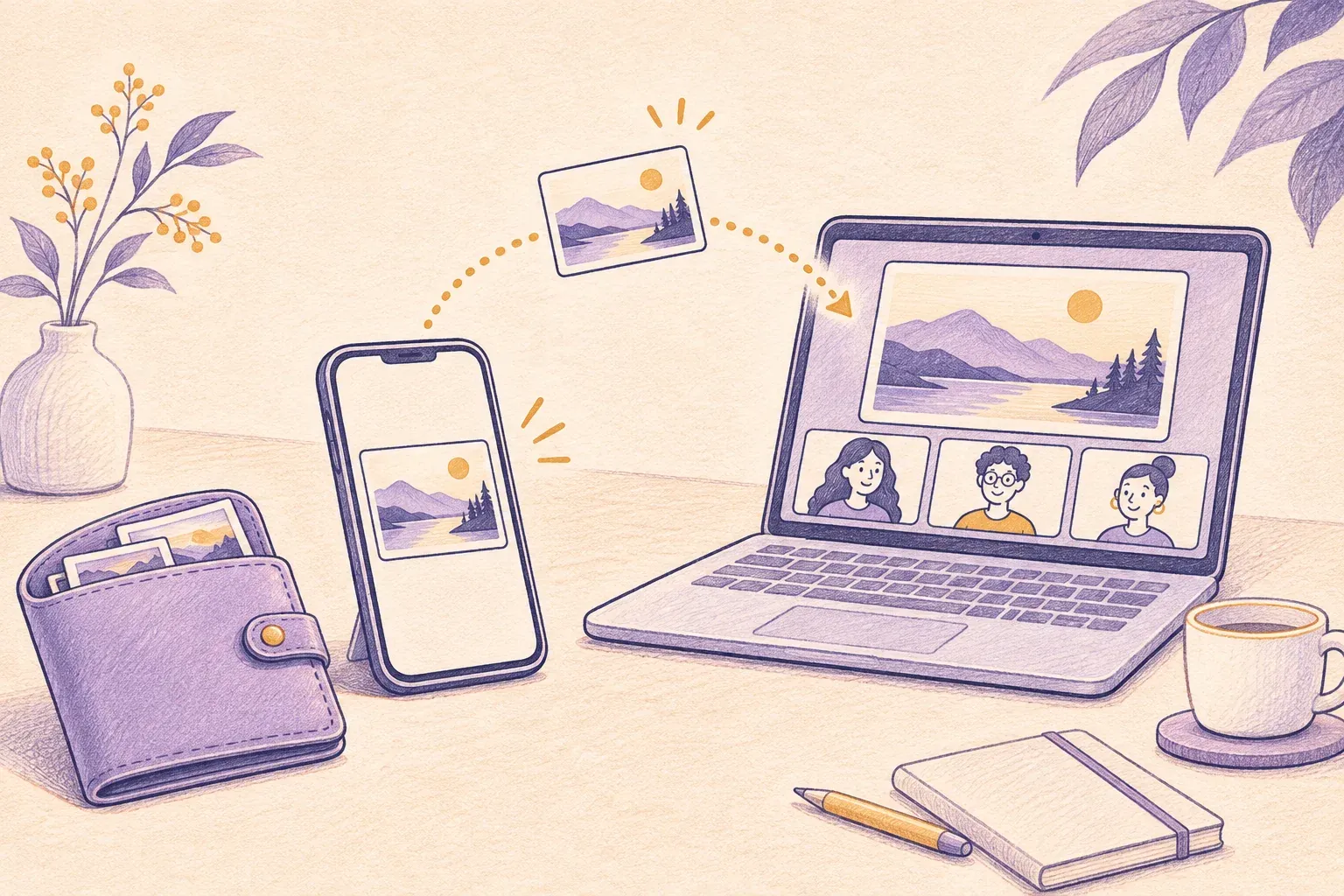
To keep private photos out of a screen share, open what you want to show before starting, choose a single app when that option appears, and stop sharing before looking for anything private. Sharing your whole screen can turn a quick trip through your photo library into part of the presentation.
If you regularly share your screen, keep your private collection separate from the pictures you browse during calls. Hidewell stores imported photos and videos in an encrypted vault on iPhone and iPad and Android. You open it with your own vault pattern and can lock it before a call.
Prepare the photos you want to show
Pick the pictures beforehand. Put them in a presentation or a small album you can open directly, rather than searching through your entire library while everyone watches. If someone only needs one picture, sending that selected picture may be simpler than broadcasting your screen.
A presentation album is a convenient starting point, not a separate lock. Stay in the prepared view during the call. If you need a different picture, stop sharing, find it privately, then start again.
For private pictures you want to keep outside that everyday library, import them into Hidewell and check that they open correctly. Remove the originals from the gallery if you no longer want them visible there. Importing a picture does not hide another copy still in Photos or Google Photos.
Lock your private collection before the call
In Hidewell, return to the gallery and tap the lock icon at the top. The same action works on iPhone, iPad and Android. Leave the vault locked while you present; you can draw your pattern to open it again after sharing has stopped.
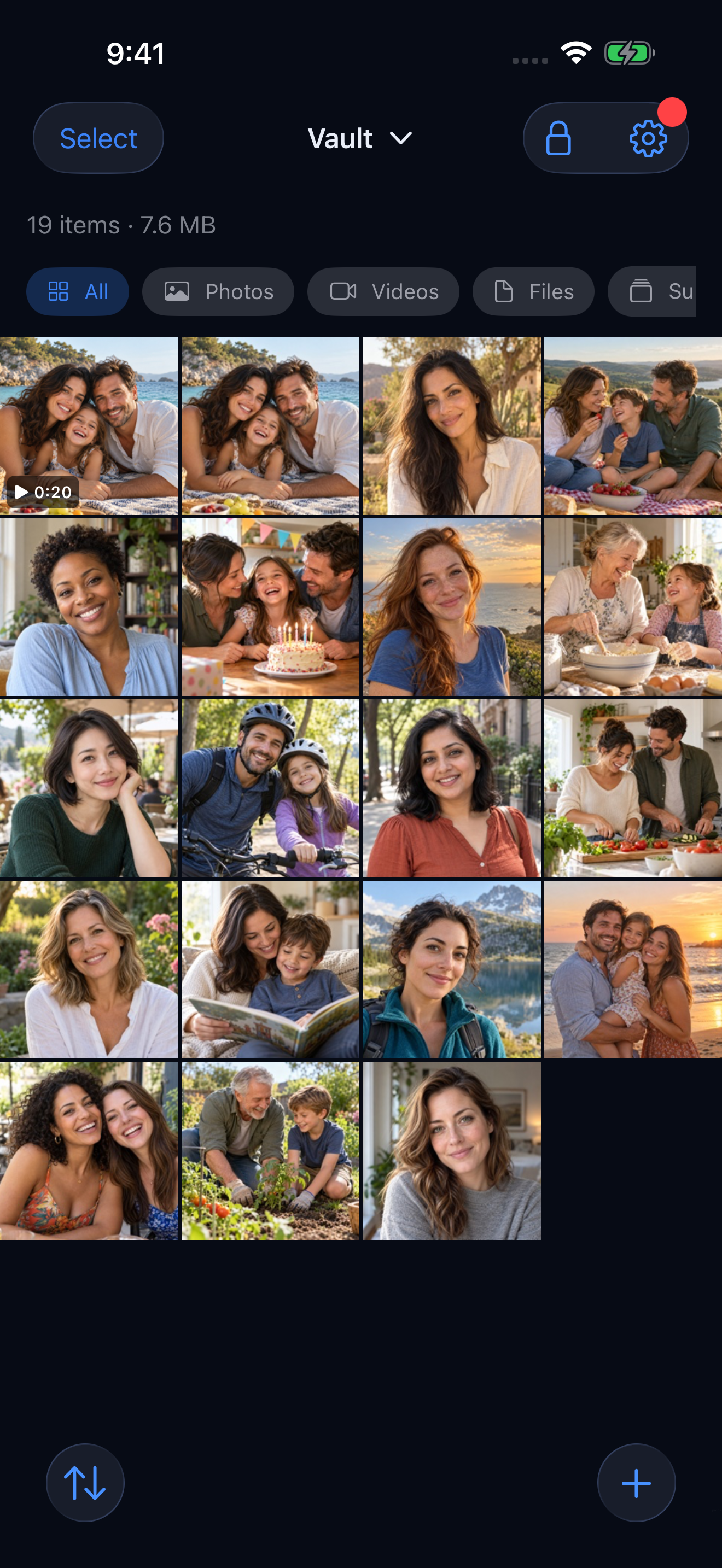
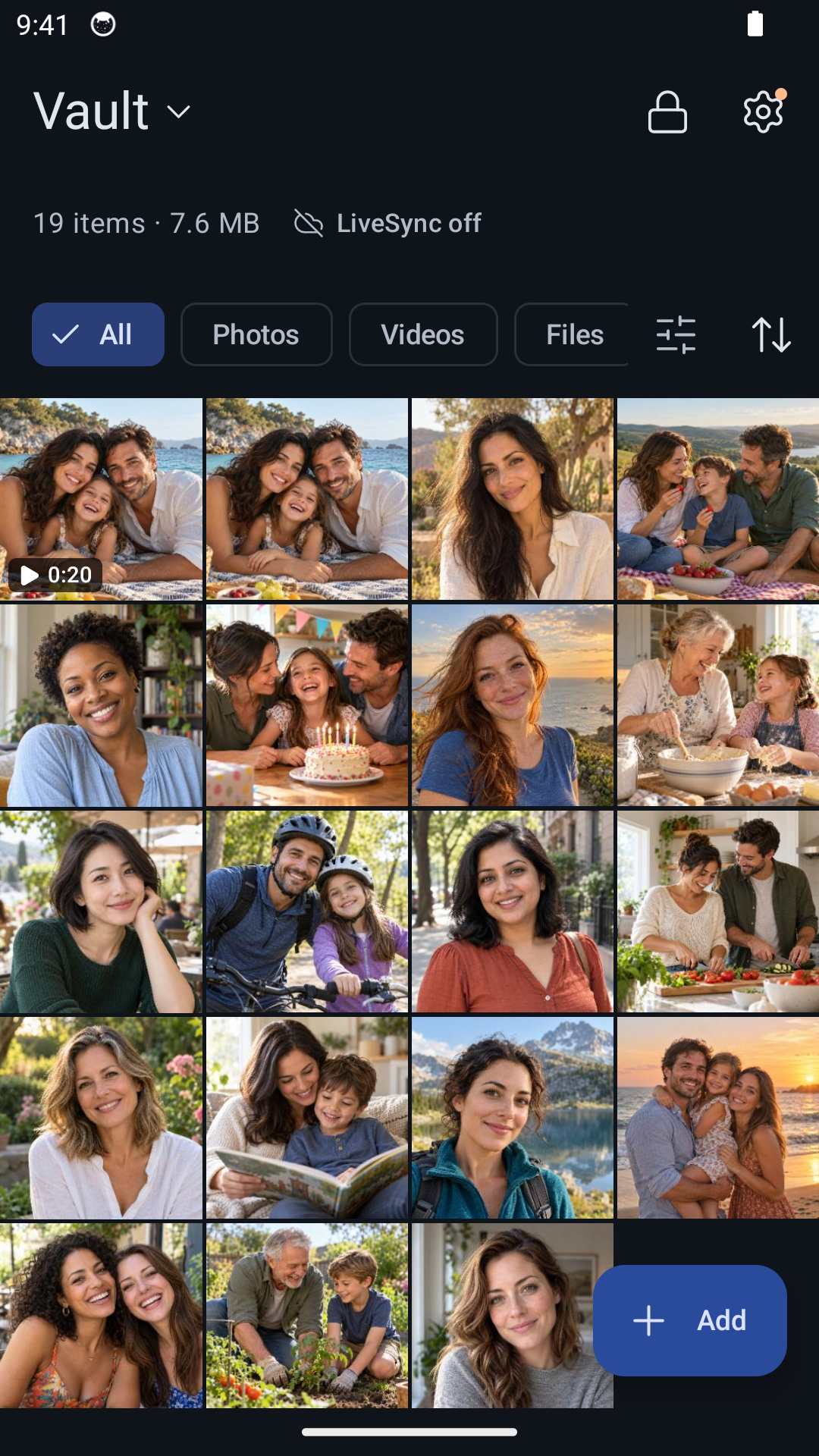
Hidewell also protects its own display during capture: on iPhone and iPad, it covers the app when screen recording or mirroring is detected; on Android, it blocks screenshots and screen recording of its app window. Those protections belong to Hidewell. Pictures you open in another app are governed by that app’s sharing behavior.
Learn more about Hidewell’s separate vault pattern.
iPhone and iPad: know where FaceTime’s Stop button is
Prepare your content before using Share My Screen. During a FaceTime call:
- Tap the screen to reveal the call controls, then tap More.
- Choose Screen Sharing → Share My Screen.
- After the countdown, open only the content you prepared.
- Before returning to private photos, tap More, then Stop beside Screen Sharing.
Ending the FaceTime call also ends the screen share. These controls are described in Apple’s guides for iPhone and iPad.
Treat Share My Screen as a live view of what you navigate to. Keep photo searches, private messages and account details for after you have stopped sharing.
Android: choose one app when offered
When the sharing prompt offers A single app, select the app you intend to present. On Pixel, this limits the stream to that app; switching to another app does not show the second app to participants. Google documents the option in its screen-sharing guide.
For Google Meet on Android:
- Join the meeting and open More → Share screen.
- If the system asks what to share, choose A single app and select your presentation app.
- Start sharing. If your version of Meet offers Present now → Present a single app instead, use that route.
- When finished, use Stop sharing or Stop presenting in the call controls.
Google’s Meet instructions cover the mobile sharing controls. If your phone or calling app offers only the entire screen, prepare it as you would a FaceTime screen share and stop before switching to private content.
Choosing the Photos app still shares what you browse inside Photos. A single-app share is useful for presenting slides or a webpage; it does not select which pictures inside a gallery are private.
Finish the share before you finish the call
You can keep talking after you stop presenting. Use the call’s stop-sharing control as soon as you have shown what you intended, then return to your usual phone use. On Pixel, locking the phone can leave the last shared frame visible until sharing stops, so use Stop presenting rather than relying on the phone lock.
If the situation is a physical phone handoff instead, see how to show a photo without letting someone swipe. To control which apps can read your photo library, use our photo-permissions guide.
Keep the pictures you want to browse privately in Hidewell: download for iPhone and iPad or get it on Google Play.
Save the quick-reference card