How to keep private photos out of widgets and memories
Stop private photos appearing in widgets and memories on iPhone, iPad and Android. Adjust photo suggestions and keep sensitive pictures in Hidewell.
To stop private photos appearing unexpectedly, remove unwanted photo widgets, adjust your photo app’s memory suggestions, and keep sensitive pictures outside your everyday photo library. Start with the widget: it is the quickest change when a picture is already visible on your Home Screen.
You can still enjoy holiday photos and family memories without asking your phone to choose from everything you have saved. For pictures you want to keep separately, Hidewell gives you an encrypted photo collection on iPhone, iPad and Android, opened with its own pattern. First, fix the places where photos are showing up.
Remove the photo widget that is surprising you
On iPhone, press and hold the photo widget, choose Remove Widget, then confirm. Also check the widgets to the left of your first Home Screen and any stacks: a photo widget may be inside a stack even when another widget is showing. You can open Edit Stack and turn off Widget Suggestions to stop suggested widgets appearing automatically. See Apple’s widget controls.
On Android, press and hold the photo widget, then drag it to Remove or use the removal option your Home Screen offers. Google’s Home Screen instructions explain this action. Repeat for other photo widgets you have added.
Removing a widget removes that display, not your photo collection. If you want a photo widget back later, choose one that lets you select the pictures or album yourself, and use a collection you are comfortable displaying.
Turn off featured photos and memories on iPhone and iPad
In Photos, open Collections, tap your account at the top, and switch off Show Featured Content. This stops Apple Photos from automatically generating featured photos and memories, including featured content for its Photos widget. Apple gives the steps for iPhone and iPad.
If you enjoy most suggestions and want to change who appears, open a photo of them and tap More. Choose Don’t Feature a Person on iPhone or Feature a Person on iPad, then choose to feature them less or never. This is useful for unwanted reminders; for a sensitive picture you want to keep private, use the iPhone photo-hiding options or keep it in your separate vault.
Choose what Google Photos brings back as a memory
On Android, open Google Photos and tap your profile picture. Go to Photos settings → Preferences → Memories.
- Hide faces: choose someone to feature less or block from featured memories. The lighter option can still include them in group pictures.
- Hide dates: exclude dates you do not want resurfacing.
- Notifications: switch off the memory alerts you do not want.
- Memory types: turn off the time-based and themed categories, then open Creations and disable its types to stop featured memories altogether.
These settings control the featured-memory carousel; they do not remove pictures from the separate Moments area. Face matching can also miss a photo. For a picture you need kept private, do not rely on face filtering alone. See Google’s memory controls.
Treat the Home Screen widget separately: remove it if you do not want it displaying photos. For built-in private storage, our Android photo-hiding guide also covers Google Photos Locked Folder.
Keep sensitive photos in a separate Hidewell collection
Suggestion settings help you choose what a photo app brings back. Hidewell gives your private pictures their own place, separate from that everyday collection. The copies you import are encrypted in the vault, and you can open them inside Hidewell when you want to see them.
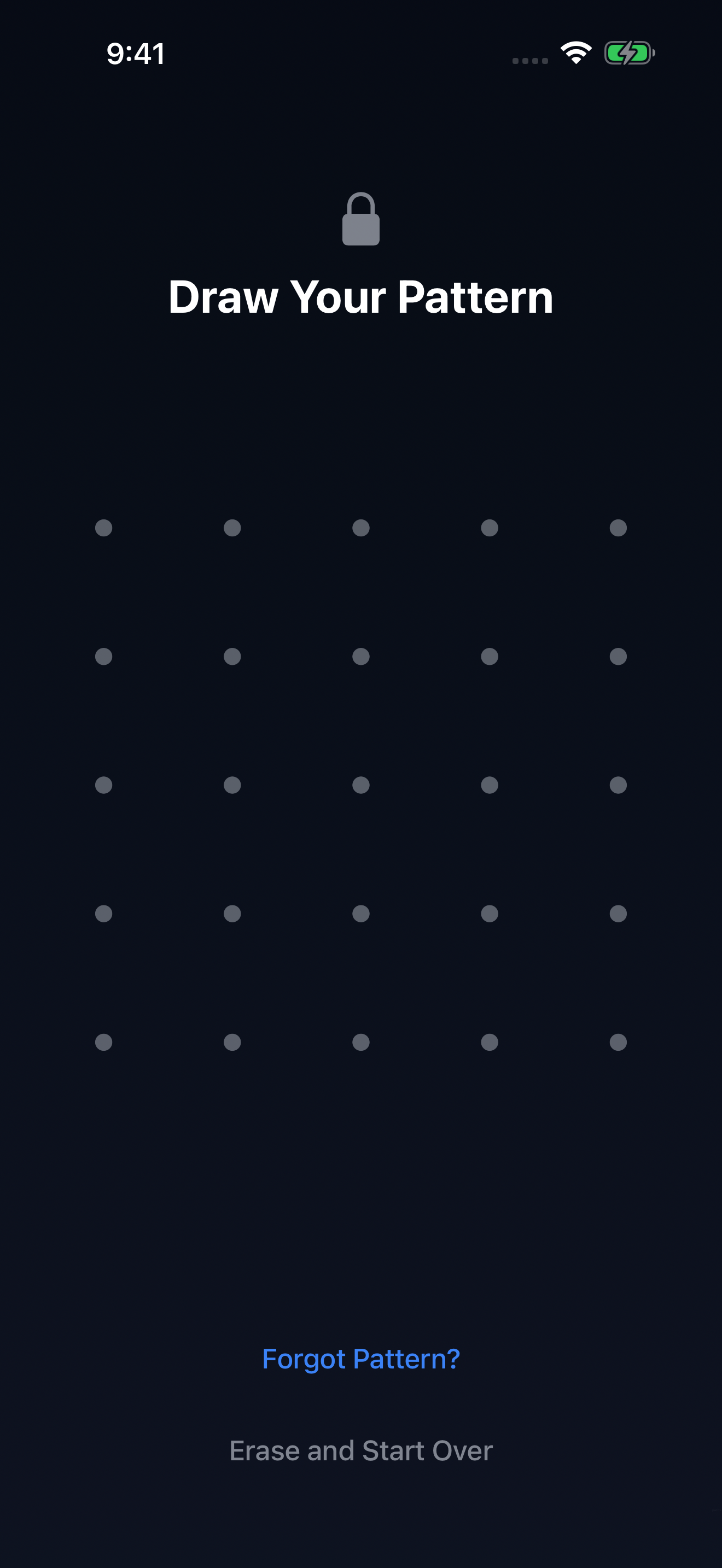
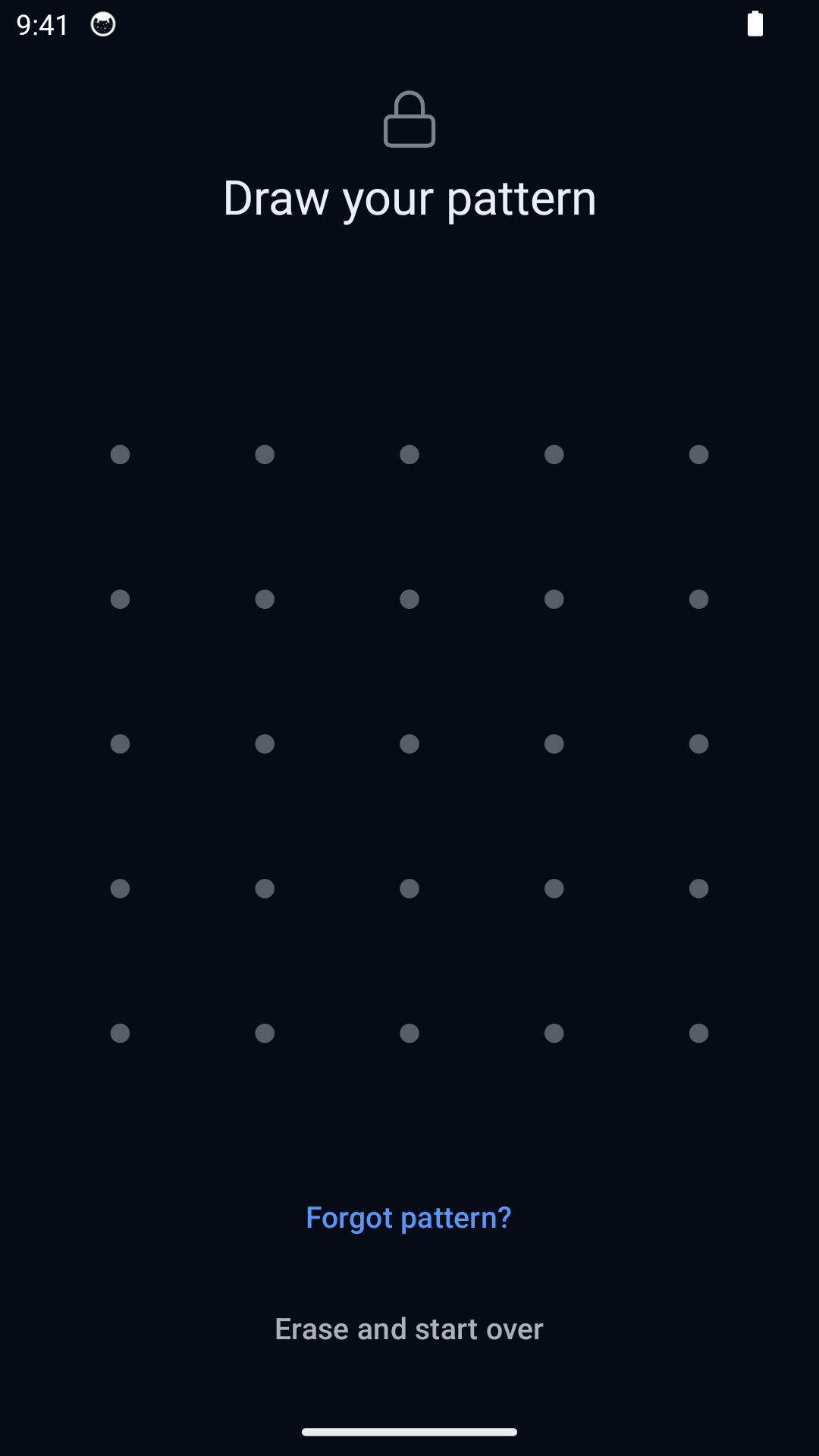
- Open your vault in Hidewell. If this is your first use, finish the vault setup and choose your pattern.
- Add the pictures. Tap +, then Photos on iPhone or iPad. On Android, tap Add → Photos and videos. Follow the first-import explanation if it appears, then select your pictures.
- Check the imported copies. Wait until the import finishes and open the pictures in Hidewell.
- Remove the originals from your ordinary photo library. Importing creates vault copies; it does not automatically remove the originals. Hidewell can offer to help after import, depending on your settings. If you kept the originals, remove them in the photo app that still holds them.
For new pictures, you can also take photos directly into Hidewell instead of starting in your everyday camera roll.
Download Hidewell for iPhone and iPad or Android to start a separate private collection.
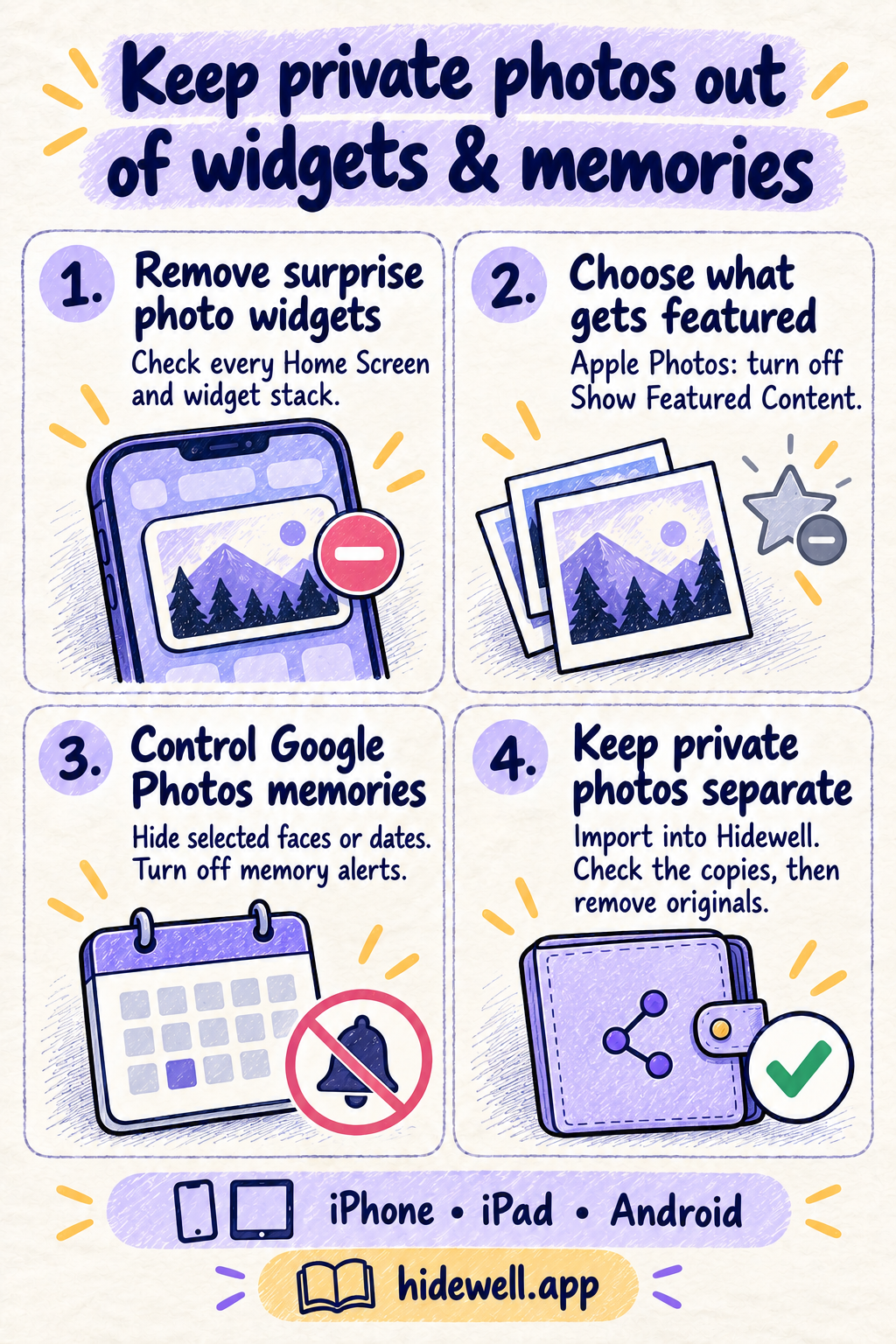
Save the quick-reference card
Keep this checklist handy when you tidy up your Home Screen and photo suggestions.