How to stop Telegram saving photos to your Android gallery
Stop Telegram photos filling your Android gallery. Change Save to Gallery for chats, groups and channels, check exceptions and keep private pictures in Hidewell.
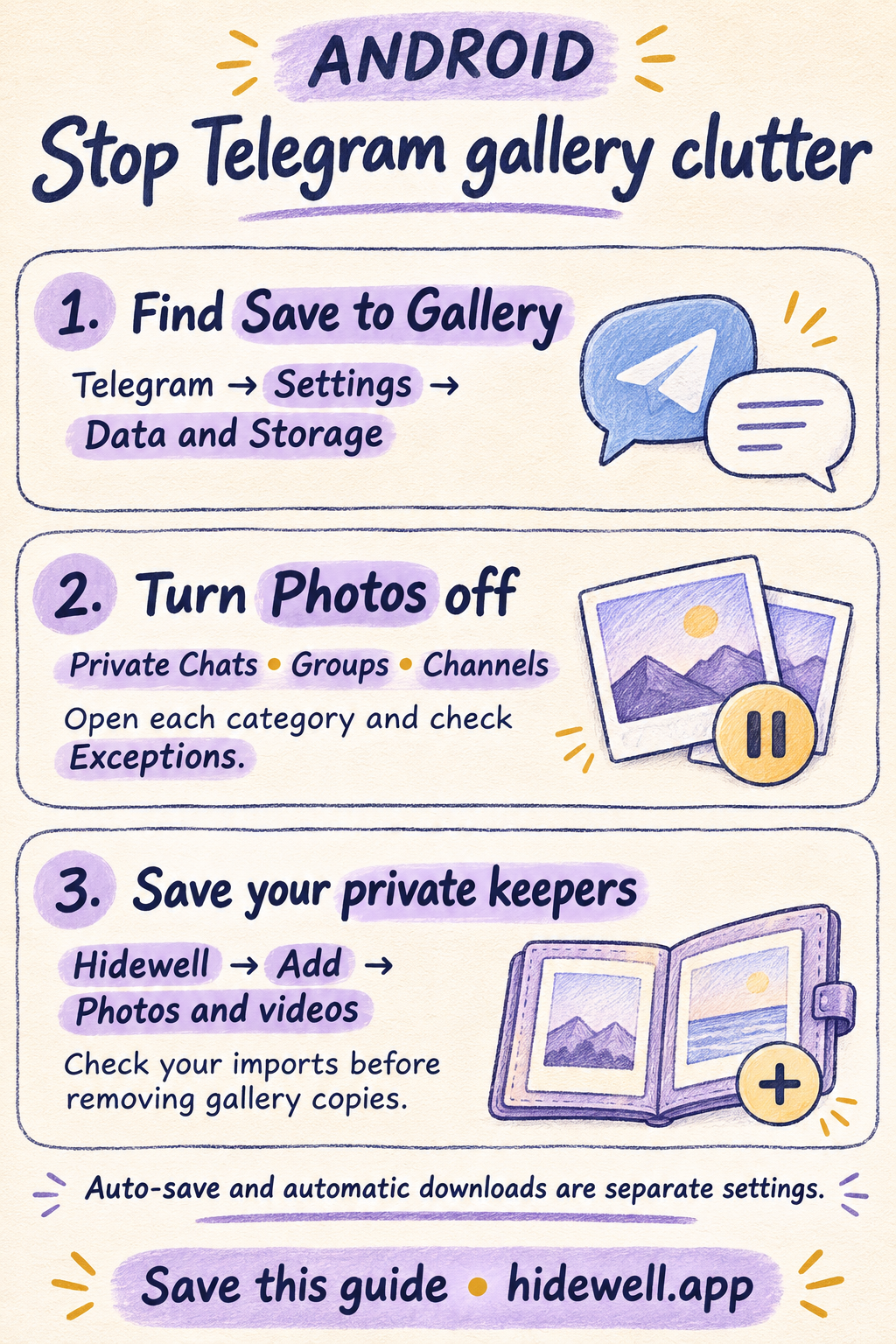
To stop Telegram saving photos to your Android gallery, open Telegram → Settings → Data and Storage → Save to Gallery. Open Private Chats, Groups and Channels in turn, then switch Photos off in each. Review chat exceptions as well if some pictures keep appearing.
For the private pictures you want to keep, Hidewell provides an encrypted photo vault on Android that you open with your own pattern. You can choose what belongs there after stopping new Telegram gallery copies.
Change Telegram’s Save to Gallery settings
- Open Telegram → Settings → Data and Storage.
- Scroll to Save to Gallery.
- Tap the Private Chats row to open its settings. Turn Photos off. Turn Videos off too if you also want to stop clips appearing in your gallery.
- Repeat for Groups and Channels.
Open the category name to see its separate photo, video and exception controls. This is useful if you want photos off but still want to save videos—or only want to change one type of chat. Telegram’s official auto-save guide identifies Save to Gallery as the Android control.
Stop one group or channel from saving photos
You can keep automatic saving for some conversations and switch it off for a busy group:
- Open that chat’s category under Save to Gallery.
- Choose Add Exception, then select the conversation.
- Turn Photos off, choose the Videos setting you want, and save the exception.
If you want automatic saving off everywhere, also open the exceptions already listed in each category and switch their photo-saving setting off. Telegram’s explanation of auto-save exceptions covers these per-chat choices.
Save to Gallery or automatic downloads—which should I change?
Use Save to Gallery to stop automatic gallery copies. Automatic media download, also under Data and Storage, controls what Telegram downloads inside the app over mobile data, Wi-Fi or roaming. Change those options as well only if you want to reduce automatic downloads.
Pictures already saved in your gallery stay there when you turn auto-save off. Check those existing pictures separately; changing a switch does not organize or remove them.
Move your private keepers into Hidewell
For Telegram pictures already saved in your gallery:
- Open Hidewell and unlock your vault.
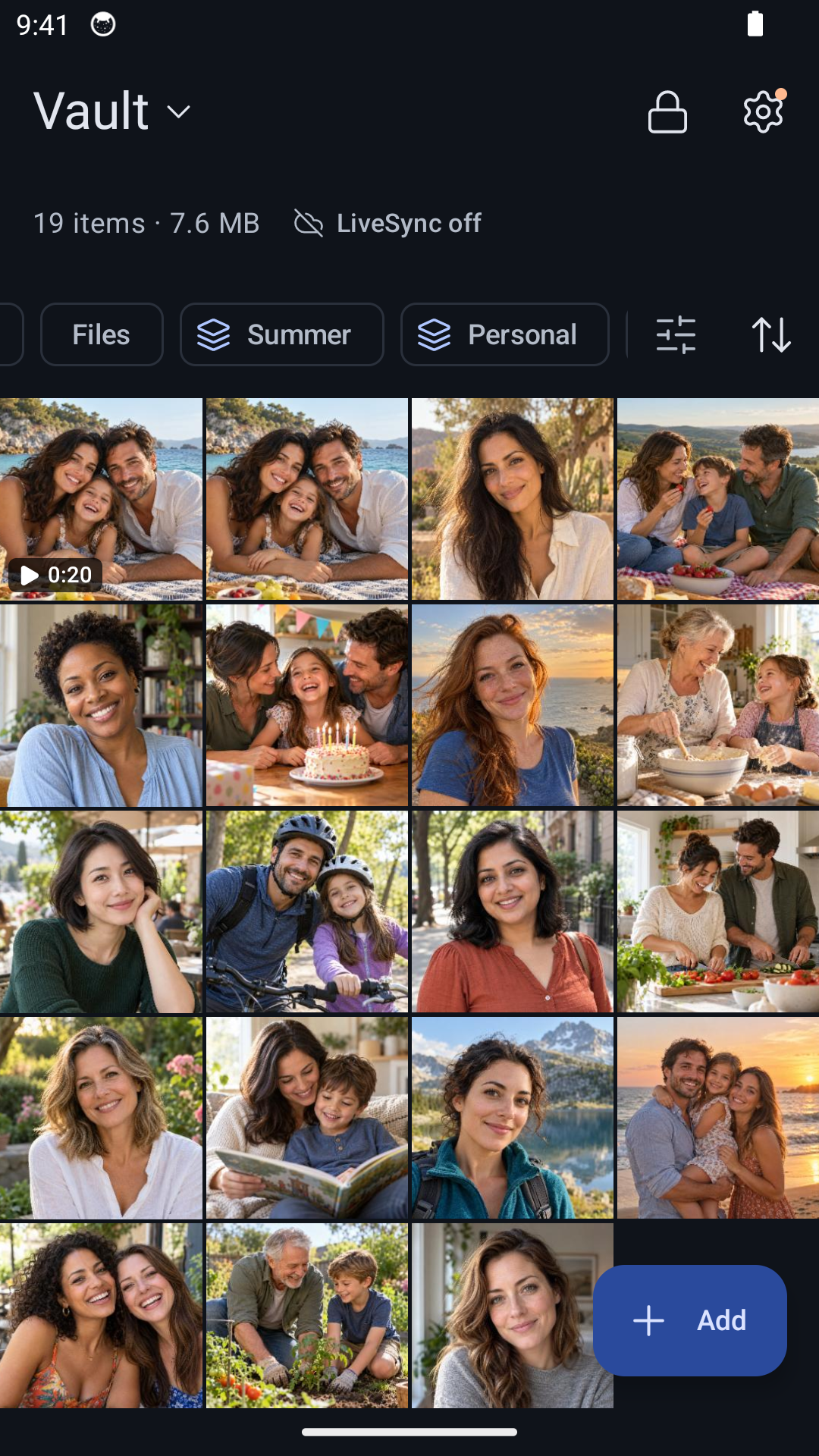
- Tap Add → Photos and videos, choose the pictures you want to keep and let the import finish.
- If Hidewell asks about originals, choose Keep originals while you check. Open the imported pictures in the vault, then remove the matching gallery copies you no longer want there.
Use albums to organize your private collection. You can tap an album above the grid to find its pictures again. The copies in the Telegram conversation are separate; importing gallery pictures does not remove them from the chat.
If another messaging app is filling your gallery, see how to stop WhatsApp saving photos. For an Apple device, use the Telegram iPhone and iPad guide.
Save the quick-reference card
Save these Android controls for the next time Telegram pictures start filling your gallery.