How to stop Telegram saving photos on iPhone and iPad
Stop Telegram photos appearing in your iPhone or iPad camera roll. Change photo-saving settings, check chat exceptions and keep private pictures in Hidewell.
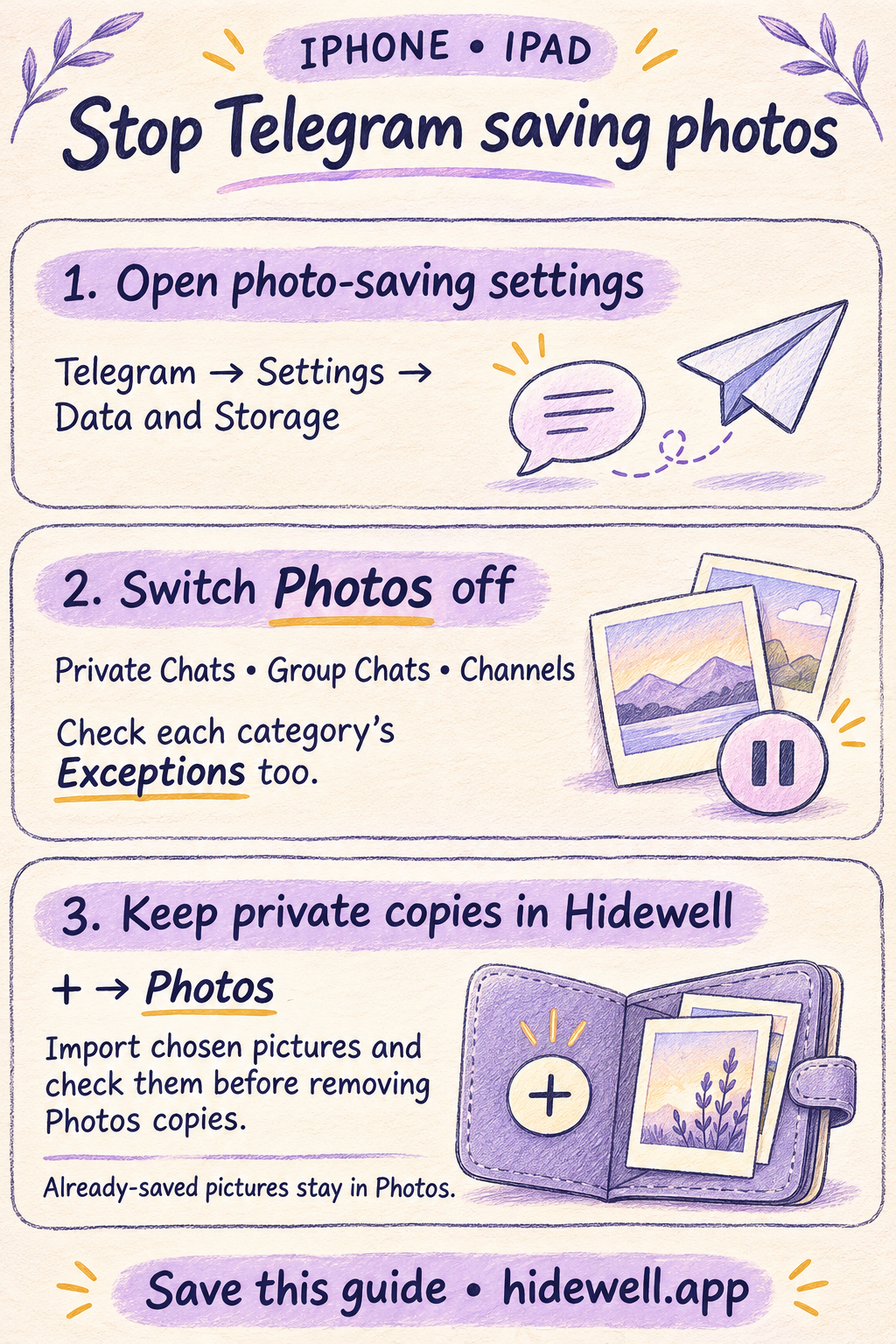
To stop Telegram saving photos on iPhone or iPad, open Telegram → Settings → Data and Storage. In the photo-saving section, turn Photos off for Private Chats, Group Chats and Channels. Check the exceptions in each category too: a chat can have its own saving rules.
For private pictures you want to keep, Hidewell gives you an encrypted photo vault on iPhone and iPad, opened with your own pattern. First, stop Telegram adding new pictures to your everyday library.
Turn off Telegram’s automatic photo saving
- Open Telegram → Settings → Data and Storage.
- Find Save to Photos, also called Save to Camera Roll.
- Open Private Chats and turn Photos off. Turn Videos off as well if you do not want clips saved automatically.
- Go back and repeat for Group Chats and Channels.
Telegram separates these categories so you can keep one type of conversation saving pictures while switching the others off. Its official auto-save guide explains the photo-saving section and chat exceptions.
Check exceptions if one chat keeps saving pictures
Inside each category, look under Exceptions. Open any chat listed there and turn its Photos switch off. Do the same for Videos if needed.
You can also use Add Exception to make a deliberate exception—for example, to keep saving family pictures from one conversation while the rest stay in Telegram. Telegram explains how exceptions work here.
If pictures you edit in Telegram are still appearing in Photos, switch off Save Edited Photos in Data and Storage too.
Do I also need to turn off automatic downloads?
Only if you want to change what Telegram downloads inside the app. Automatic Media Download, in the same Data and Storage screen, is separate from saving copies to Apple Photos. Use the photo-saving controls above when your goal is a cleaner camera roll.
Changing auto-save does not remove pictures already saved in Photos. Review those separately and keep the ones you still need.
Keep selected private pictures in Hidewell
If Telegram pictures are already in Photos, you can put the private keepers in your Hidewell vault:
- Open Hidewell and unlock your vault.
- Tap + → Photos, select the pictures and wait for the import to finish.
- If asked about originals, choose Keep Originals while you check. Open the imported pictures in Hidewell, then remove the copies you no longer want in Photos.
Albums help you organize what you keep in the vault. Importing a picture does not remove it from its Telegram conversation.
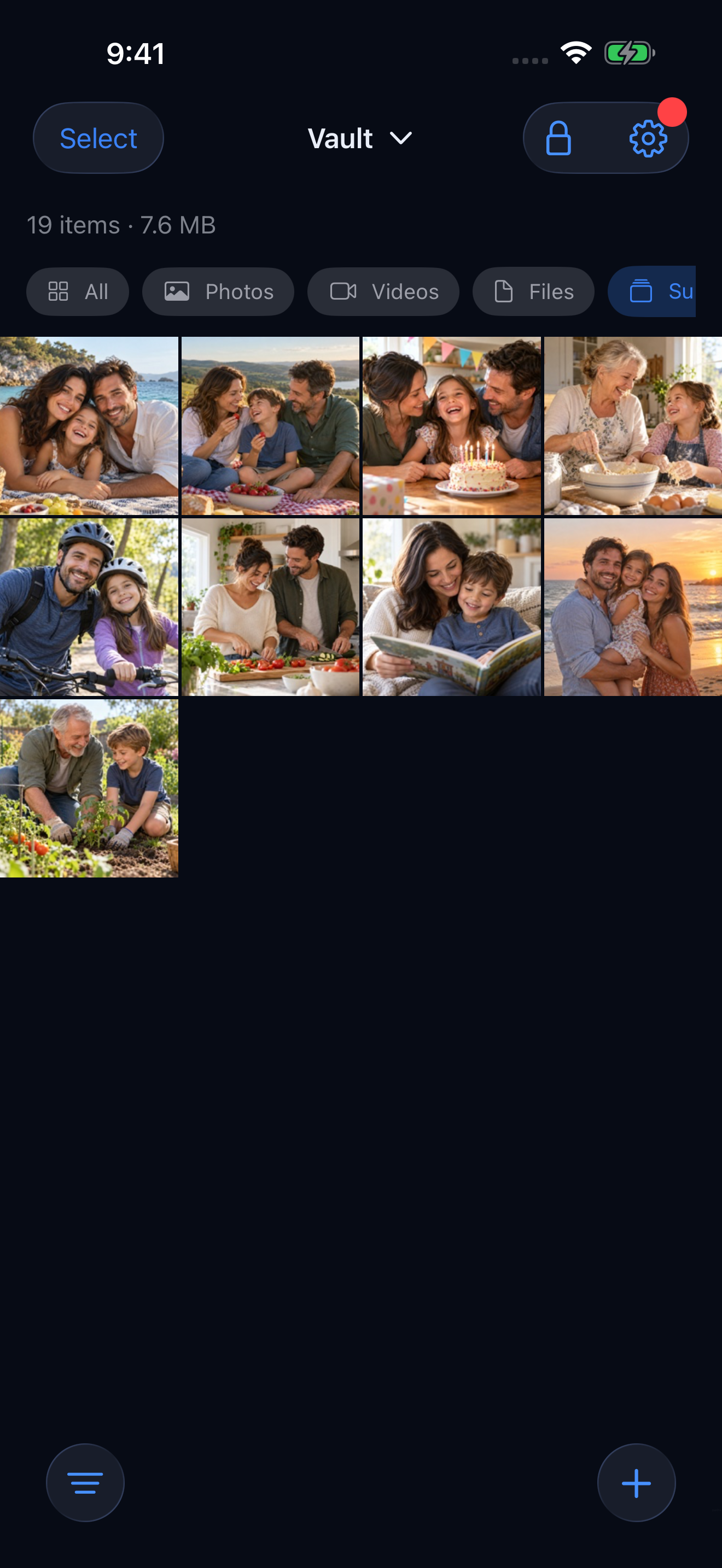
Download Hidewell for iPhone and iPad.
For other apps’ access to your library, see how to stop apps accessing all your photos. Using an Android phone instead? Follow the Telegram Android guide.
Save the quick-reference card
Keep the Telegram categories and Hidewell import steps handy.