Are photo vault apps safe? What to check before adding private photos
Are photo vault apps safe? Check encryption, a separate lock, privacy and backup before choosing a vault for your iPhone or Android photos.
A photo vault app can keep private photos and videos safe when it encrypts the files, protects access with a separate secret, and handles your data clearly. Before choosing one, check those protections and try the everyday workflow with an ordinary photo.
You do not need to understand cryptography to make a useful comparison. Start with these five questions, whether you use an iPhone, iPad or Android phone.
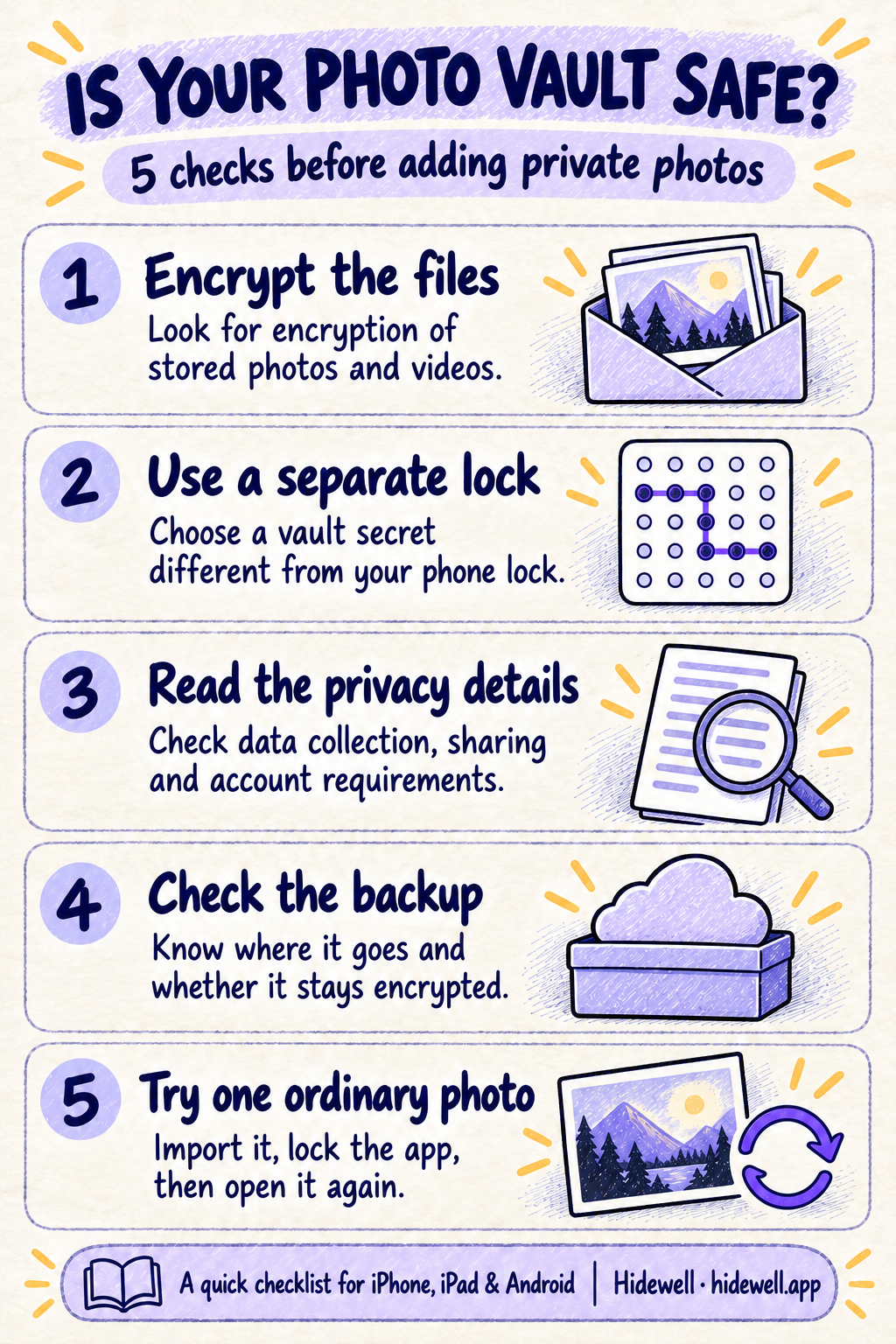
1. Does the vault encrypt your stored photos and videos?
Encryption turns a photo or video into data that needs a key to become readable again. In an encrypted photo vault, that protection applies to the files stored inside it.
Look for a clear explanation of what is encrypted: the full photos and videos, their previews, and the names or albums that describe them. Then check how the app protects the key used to open them. A phrase such as “AES-256 encryption” names an encryption method; it does not answer all of those questions.
A useful app description should let you understand what protects your collection after you lock the vault. If it only describes hiding an icon or removing pictures from a gallery, look for more detail about stored-file encryption before deciding.
2. Can you give the vault its own lock?
A separate vault secret is useful when you sometimes hand someone your unlocked phone or they already know your phone passcode. Choose a vault pattern, password or PIN that is different from the one you use to unlock the device.
Built-in options can also help. Apple’s Hidden album keeps media out of ordinary Photos views and is locked by default. Google Photos Locked Folder uses your device’s screen lock on Android, so someone who knows that lock can open it too. Decide whether that matches how you share your phone.
When trying a separate vault, lock it and reopen it. Check that it asks for the secret you expect before showing your pictures.
3. What does the app collect or share?
On the App Store, read App Privacy. On Google Play, open Data safety. Look at the types of data collected, whether data is shared, and whether it is used for tracking. Also check whether the app requires an account and what that account is used for.
These sections contain information supplied by developers. Apple explains its privacy labels, and Google explains Data safety. Use them alongside the app’s privacy policy to decide whether you are comfortable with its data handling.
Choose an app whose explanation you can follow. You should be able to find out whether your photos stay on your device or are uploaded, and who can access any cloud copy.
4. Is the backup protected too?
If you want to keep the collection when you replace or lose your phone, check the backup before relying on the vault. Find out where the backup goes, whether it stays encrypted, and how you open it on a new device.
For Hidewell, our vault transfer guide covers backup and moving to another phone. Keep that guide handy when you need the steps.
5. Does it work well with your own photos?
Before moving a private collection, try one ordinary photo. Import it, open it, lock the vault, and unlock it again. If you plan to store videos, try a short clip too. Check that you can find your files and view them comfortably.
Also notice what happens to the original. Importing a photo into Hidewell adds an encrypted vault copy; it does not automatically remove the photo from your library. Open the imported copy before deciding to remove its original.
Once the workflow feels familiar, add the rest in manageable batches. For product choices, our best apps to hide photos guide compares options for iPhone and Android.
Try an encrypted photo vault with Hidewell
Hidewell is available for iPhone, iPad and Android. It encrypts your photos and videos and opens the vault with a pattern you choose separately from your phone lock. Its hardware-backed encryption ties the unlock key to your phone’s security hardware.
The encryption core is open source and has been security reviewed by top-tier AI models.
To try the everyday workflow:
- Create your vault. Choose and confirm your pattern, then finish the setup prompts.
- Add an ordinary photo. Tap +, then Photos on iPhone or iPad, or Photos and videos on Android. Follow the first-import prompts and select your photo.
- Open the imported photo. Check that it is the one you expected, then return to the collection.
- Tap the lock icon. Draw your vault pattern to open the collection again.
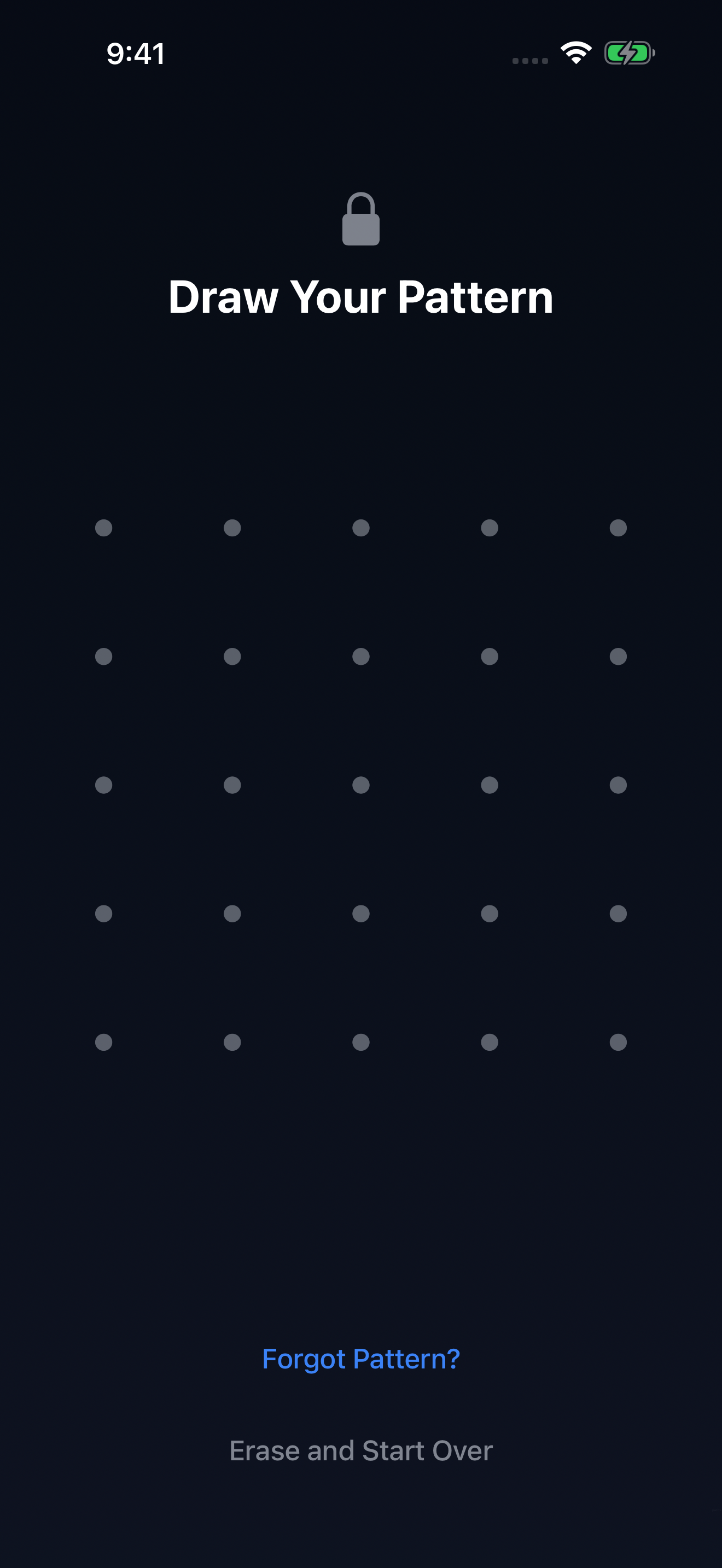
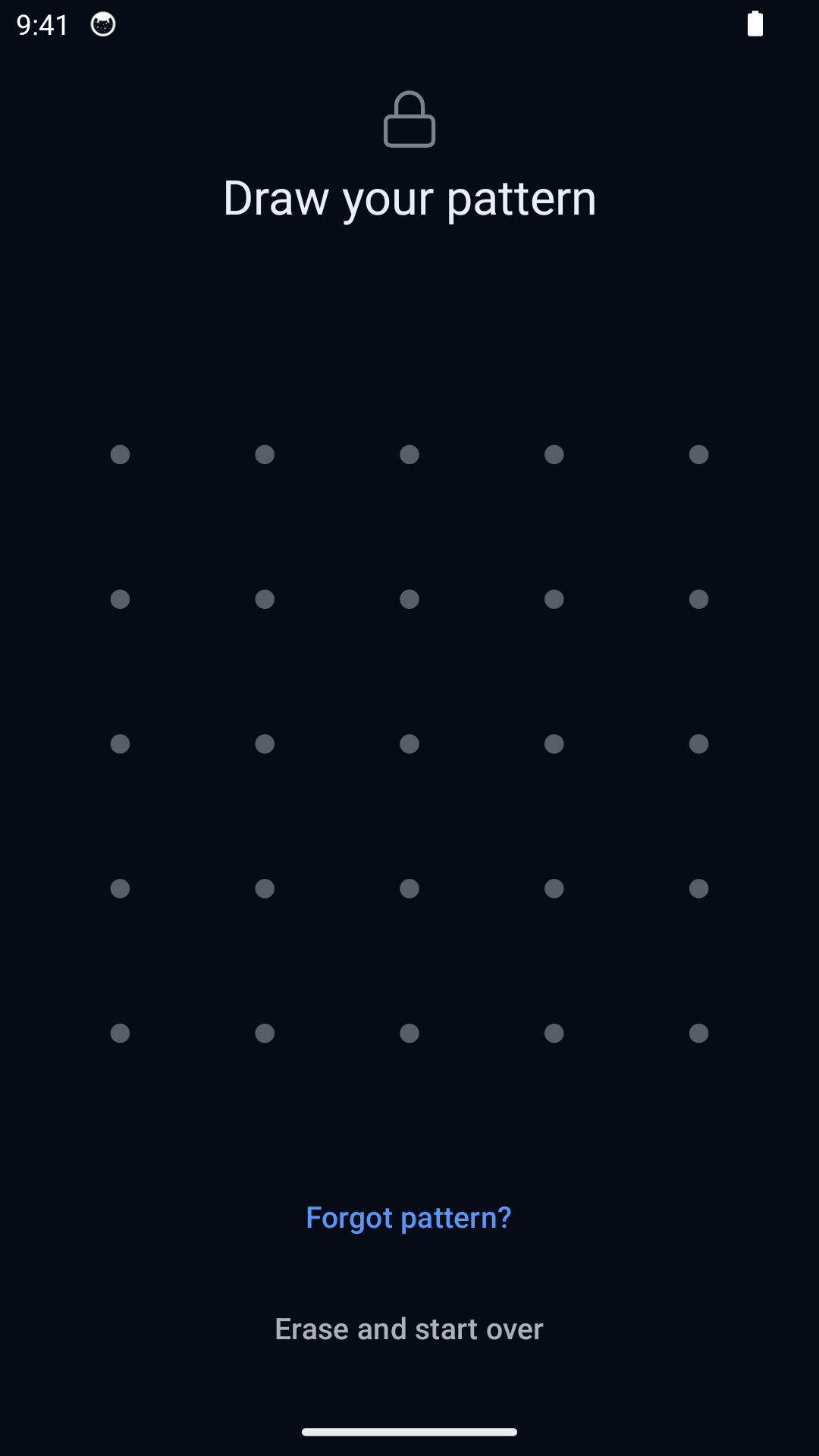
For the full import instructions, see how to hide photos on iPhone or how to hide photos on Android.
Download Hidewell for iPhone and iPad or Android.
Save the quick-reference card
Keep these five checks handy while choosing a photo vault.